In this guide
Why convert images to PDF?
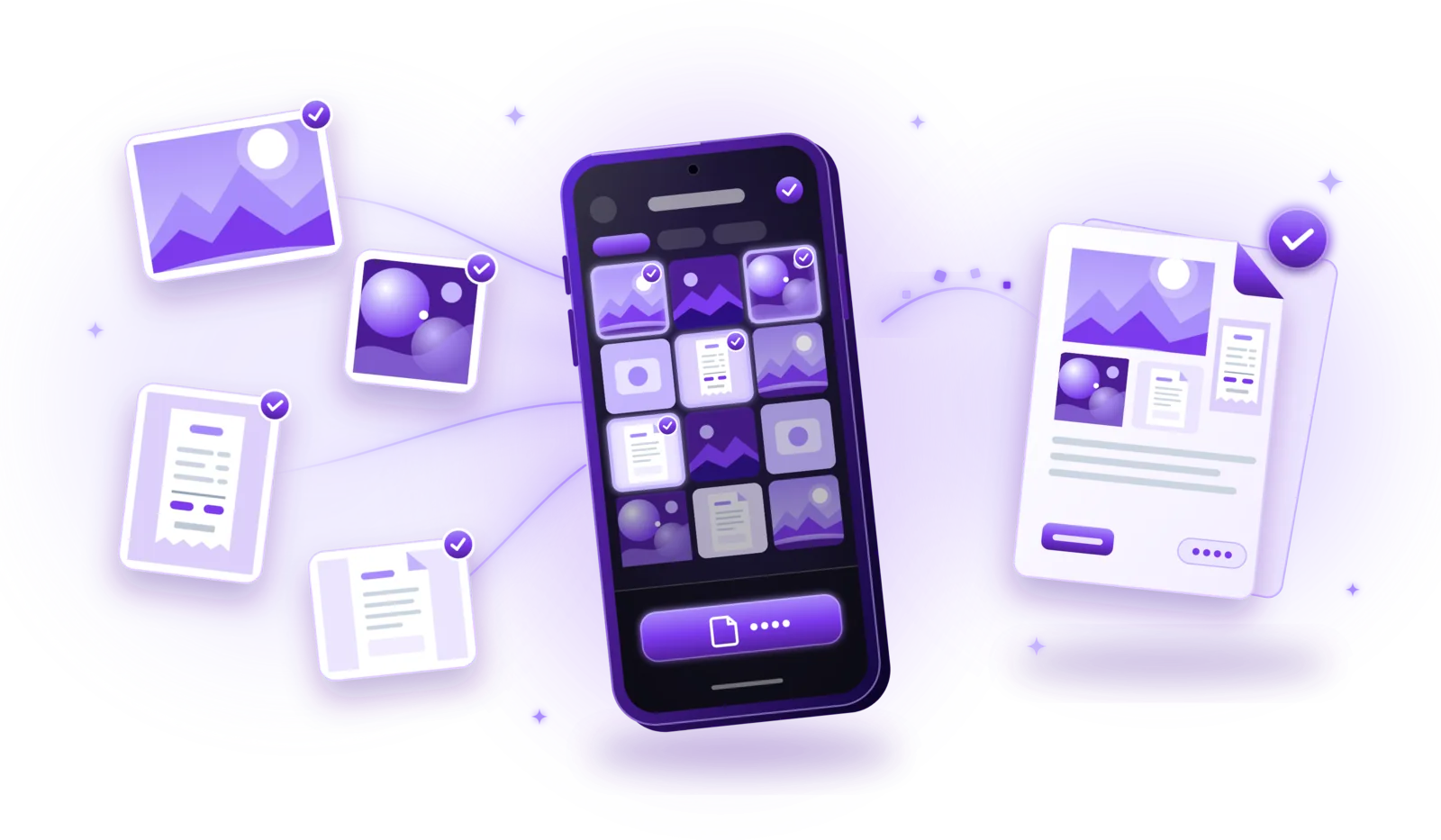
Converting an image to PDF places the picture on a document page, so you get a file that looks the same everywhere, can be printed at a defined page size and can hold several pages. It takes less than a minute with a converter or document app: pick the image, check the orientation and cropping, and save it as a PDF.
Photos are great for memories, but awkward for paperwork. Upload forms often ask for a PDF, printers scale pictures unpredictably, and a dozen photos of a single document quickly get mixed up in your gallery. As a PDF, the same images become a proper document that is easy to share, print and file away.
Receipts
Turn the photo of a receipt into a document for expense reports, warranties or your tax return.
Invoices
Forward an invoice you received as a picture in the format accounting departments expect.
Photographed documents
Letters or contracts you quickly snapped with the camera become a document you can send and print.
Forms
Filled-in and photographed forms, ready for upload portals that only accept PDF files.
Certificates
School, language or training certificates for applications, kept as clean, printable pages.
Notes
Whiteboard photos and handwritten notes, collected into one document you can share after a meeting.
Business paperwork
Delivery notes, signed quotes and photographed receipts, filed as complete documents instead of loose pictures.
How to convert an image to PDF – step by step
The exact steps depend on the application you use, but most image-to-PDF converters and document apps follow the same pattern:
Open an image-to-PDF converter or document app
Use an app that can import images and save PDFs, such as a document scanner or PDF app. Many of them have an import button next to the scan button.
Select an existing image
Choose the picture from your photo gallery or, if the app supports it, from your files. Pick the sharpest version if you took several photos of the same page.
Preview the image
Check the preview before you convert anything: is the whole document visible, is the text readable, and is nothing covered by fingers or reflections?
Adjust orientation and cropping
Rotate the image if it is sideways and crop away the table, background or other objects around the document. Some apps can also straighten a photo taken at an angle.
Choose a page size or layout
If the app offers it, pick a page size such as A4 or Letter for documents you might print, or a layout that fits the page to the image. Not every converter has this option.
Convert the image into a PDF
Start the conversion or tap save. The app places the image on a PDF page, usually in a few seconds.
Save and organize the PDF
Give the file a descriptive name and store it where you will find it again, for example in a folder for invoices or applications.
Is the document still on paper? Then scanning it directly usually gives a cleaner result than photographing it first, because scanner apps detect the page and correct the perspective. Our guide How to scan documents to PDF explains how.
How to convert multiple images into one PDF
Several photos of one document belong in a single file. Most apps that convert images to PDF can combine them:
- Select several images at once in the picker. In many apps, the order in which you select them becomes the page order.
- Arrange the pages in the desired order, usually by dragging the thumbnails.
- Rotate sideways images and crop each one so only the document is visible.
- Combine everything into a single PDF.
- Save the document under a descriptive name.
Some converters create one PDF per image instead. That is useful if the pictures are unrelated, for example five receipts for five different purposes. For a single document with several pages, one combined PDF is easier to send and keeps the pages in order. If your pages are still on paper, you can also scan multiple pages into one PDF directly. Already have several separate PDFs? A merge tool combines them into one document.
JPG vs. PNG vs. PDF – what’s the difference?
JPG and PNG are image formats, PDF is a document format. A PDF can contain JPG or PNG images, but it doesn’t change what is in them: converting an image to PDF doesn’t make it sharper or more detailed. To turn the words in a picture into real text, you need OCR.
| Format | JPG / JPEG | PNG | |
|---|---|---|---|
| Type | Image | Image | Document |
| Compression | Lossy, small files | Lossless, larger files | Depends on the content |
| Transparency | No | Yes | Possible |
| Pages per file | One | One | One or many |
| Typical use | Photos and scans | Screenshots, graphics, logos | Sharing, printing and archiving documents |
- JPG / JPEG – the standard for photographs. It saves space by discarding fine details you rarely notice, and it loses a little more quality each time it is saved again.
- PNG – keeps every pixel exactly (lossless) and supports transparency, which makes it ideal for screenshots and graphics, at the price of larger files.
- PDF – a document that can hold one or many pages with images and text, prints at a defined page size and looks the same on every device.
How to convert images to PDF without losing quality
A PDF can only be as good as the image inside it. Converting an image to PDF cannot restore details that are missing from the original, so the quality is decided before you convert. These tips help you keep what is there:
Start with high-resolution images
Use the original photo, not a thumbnail or a picture that was shrunk when it was sent through a messenger.
Avoid unnecessary recompression
Every time a JPG is edited and saved again, it loses a little detail. Convert the original file rather than a copy that has been saved several times.
Crop unwanted backgrounds
Remove the table and everything around the document, so the page area is used for the content and the text appears larger.
Choose suitable page dimensions
A4 or Letter suits documents you may print; fitting the page to the image avoids white borders for photos and screenshots.
Check readability before exporting
Zoom into the smallest print in the preview. If you can’t read it there, it won’t be readable in the PDF either.
Don’t enlarge small images too much
Stretching a low-resolution picture to fill a full page makes it blurry and pixelated. Take a new, sharper photo instead.
Many apps also offer a quality or file size setting. Choose higher quality for documents you plan to print and a smaller size for documents you send by email; for text-only documents, a black and white filter keeps files small and readable.
How to convert images to PDF privately
The images people convert are often sensitive: invoices with bank details, IDs and certificates, medical letters, signed contracts. So it matters where the conversion happens.
| Aspect | Online converter | Local app |
|---|---|---|
| Where images are processed | On the provider’s server | On your device |
| Upload required | Yes | No |
| Who has a copy | You and the provider, at least temporarily | Only you, until you share the file |
| Internet connection | Required | Not needed for converting |
Online image-to-PDF converters
Websites that convert images to PDF are quick to use, but you have to upload your pictures first. How long they are stored, who can access them and where the servers are located depends entirely on the provider. Read their privacy policy before you upload invoices, IDs or medical documents, and avoid such services for very sensitive files.
Apps that convert on your device
Local apps convert images on your phone or computer, so the pictures don’t have to leave your device. That reduces the number of copies and works without an internet connection. Security still differs from app to app: check whether an app syncs files to a cloud, whether it needs an account and what its privacy policy says.
Coming soon
Convert images to PDF with PDFDocify
PDFDocify, the offline-first document scanner from SlickLab that is currently getting ready for launch, can import photos from your gallery as well as scan paper. Select one or several images, and the order in which you select them becomes the page order. You can then crop, straighten, rotate and filter them like scanned pages and save everything as one PDF, with the page size (A4, US Letter or fitted to the image) and PDF quality set in the app’s settings. The import is part of the free version, and the finished PDFs stay on your device, organized in folders.
Included for free
- Unlimited scanning
- Automatic edge detection and perspective correction
- Filters: Auto, Black & White, Grayscale, Color, Original
- Multi-page PDFs: reorder, rotate and delete pages
- Import photos from your gallery
- Document library with folders, search and sorting
- Share and export PDFs to any app
PDFDocify Premium
- Offline OCR: copy and search text
- Searchable PDFs
- Merge PDFs
- Compress PDFs
- Handwritten signatures
- Password protection
- Batch processing
Importing, editing and saving happen on your device, without uploads. An internet connection is only needed for in-app purchases.
Frequently asked questions
How do I convert a JPG image to PDF?
Open the JPG in an image-to-PDF converter or a document app, rotate and crop it if necessary, choose a page size if the app offers one, and save it as a PDF. Many document scanner apps have an import function for exactly this.
Can I convert multiple images into one PDF?
Yes, most converters let you select several images at once and combine them into a single PDF. Check the page order before saving. Some tools create one PDF per image instead, so look for an option such as “combine” or “one file”.
Does converting an image to PDF reduce its quality?
It can. A PDF can contain an image unchanged, but many converters compress images again to keep the file small, which removes some detail. Converting never adds detail that the original image doesn’t have. For the best result, start with a sharp, high-resolution image and choose a high quality setting. In PDFDocify, imported photos are kept at up to 4,000 pixels on the longer side and compressed according to the PDF quality you choose.
Can I convert PNG images to PDF?
Yes. PNG files can be converted to PDF just like JPGs. Keep in mind that some apps convert PNGs to JPG pages along the way, so transparent areas become a solid background. That rarely matters for documents, but it can for logos or graphics.
Can I convert photos to PDF without uploading them?
Yes, with an app that processes images on your device instead of an online converter. Your photos then never leave your phone or computer. PDFDocify works this way: importing photos, editing them and saving the PDF all happen offline.
Is converting an image to PDF the same as scanning a document?
Not quite. Converting places an existing image on a PDF page more or less as it is. Scanning is made for paper: a scanner app detects the page, corrects the perspective and improves contrast while you capture it. For paper documents, scanning usually gives cleaner results; see our guide How to scan documents to PDF.
Conclusion
Converting images to PDF is quick: pick the image, adjust orientation and cropping, choose a page size and save it as a PDF, or combine several pictures into one document. Start with sharp originals, because a PDF can’t add missing detail, and use an app that works on your device for anything personal. If you want one that does this offline together with scanning, take a look at PDFDocify and join the waitlist for its launch.
Related guides
How to Scan Documents to PDF
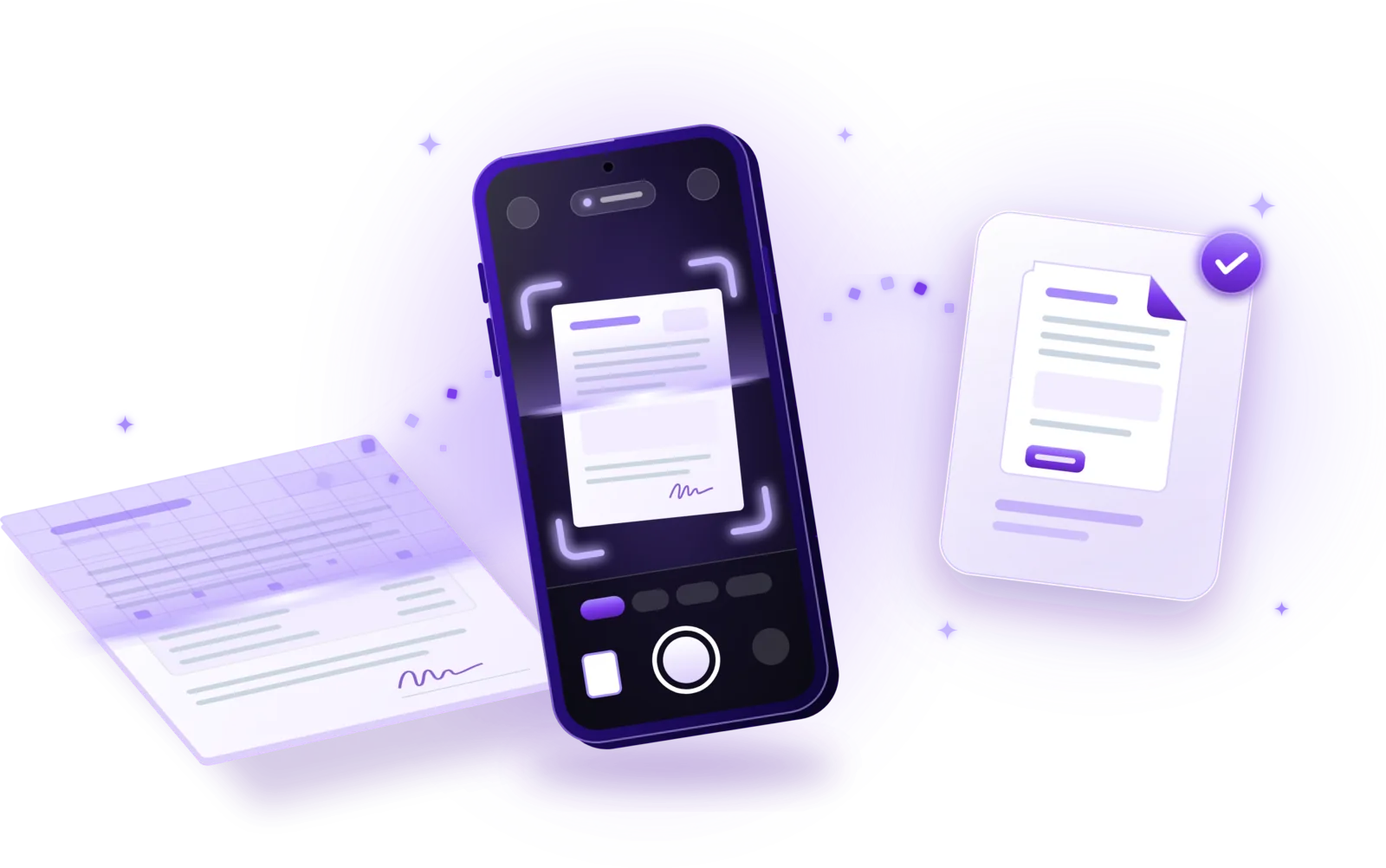
Turn paper into clean PDFs with your phone: seven steps from preparing the page to saving the file, plus tips for sharp, private scans.
Read the guide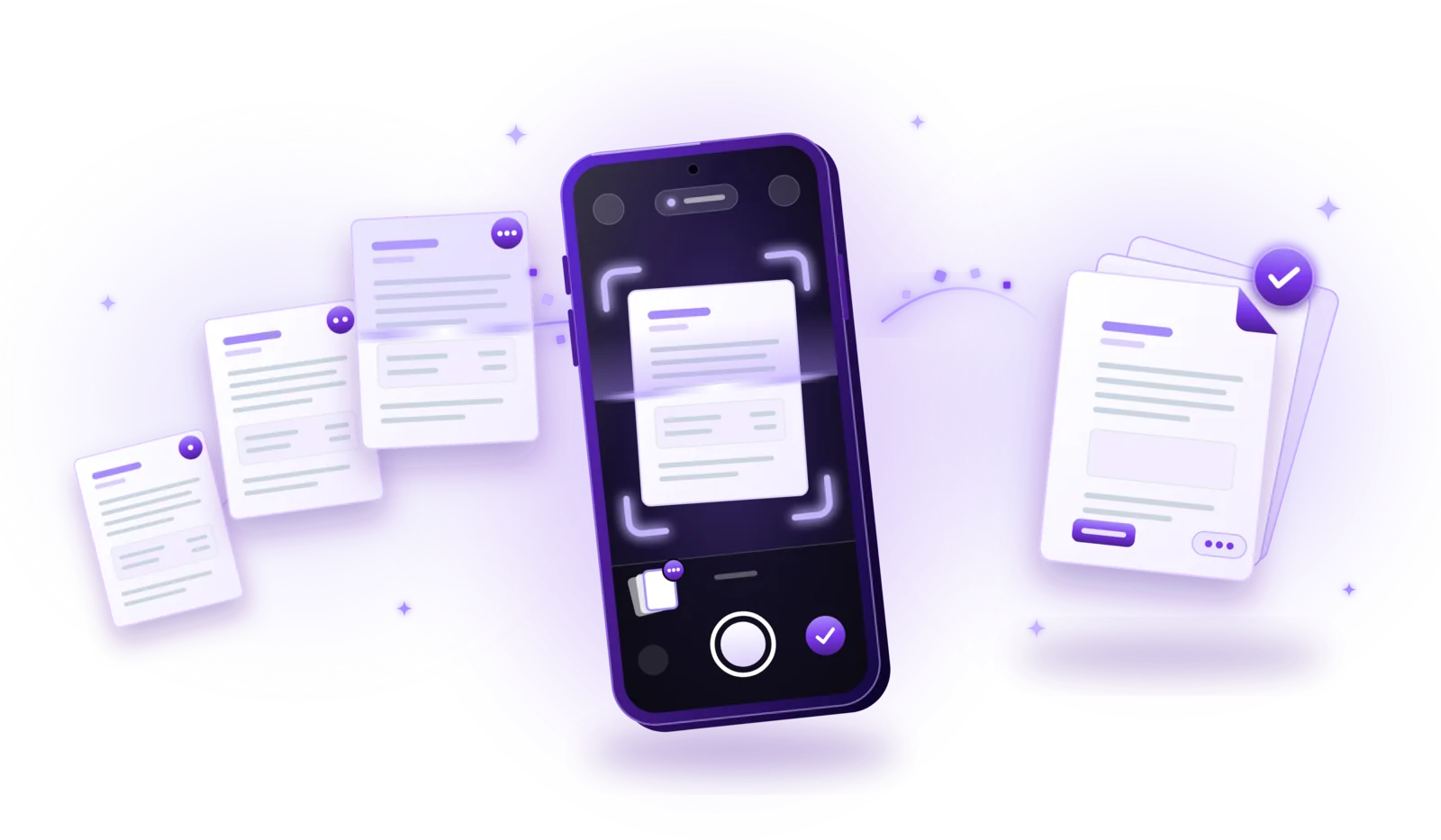
How to Scan Multiple Pages into One PDF
Combine contracts, applications and statements into a single PDF: capture every page, put them in order and save one file.
Read the guide
How to Merge PDF Files into One Document
Combine several PDFs into one document: select the files, put them in order and save a single PDF, without losing quality or privacy.
Read the guide
How to Extract Text from Scanned Documents Using OCR
Turn scans, photos and image PDFs into text you can copy and search: how OCR works, how to use it and how to get accurate results.
Read the guide