In this guide
What is OCR and why is it useful?
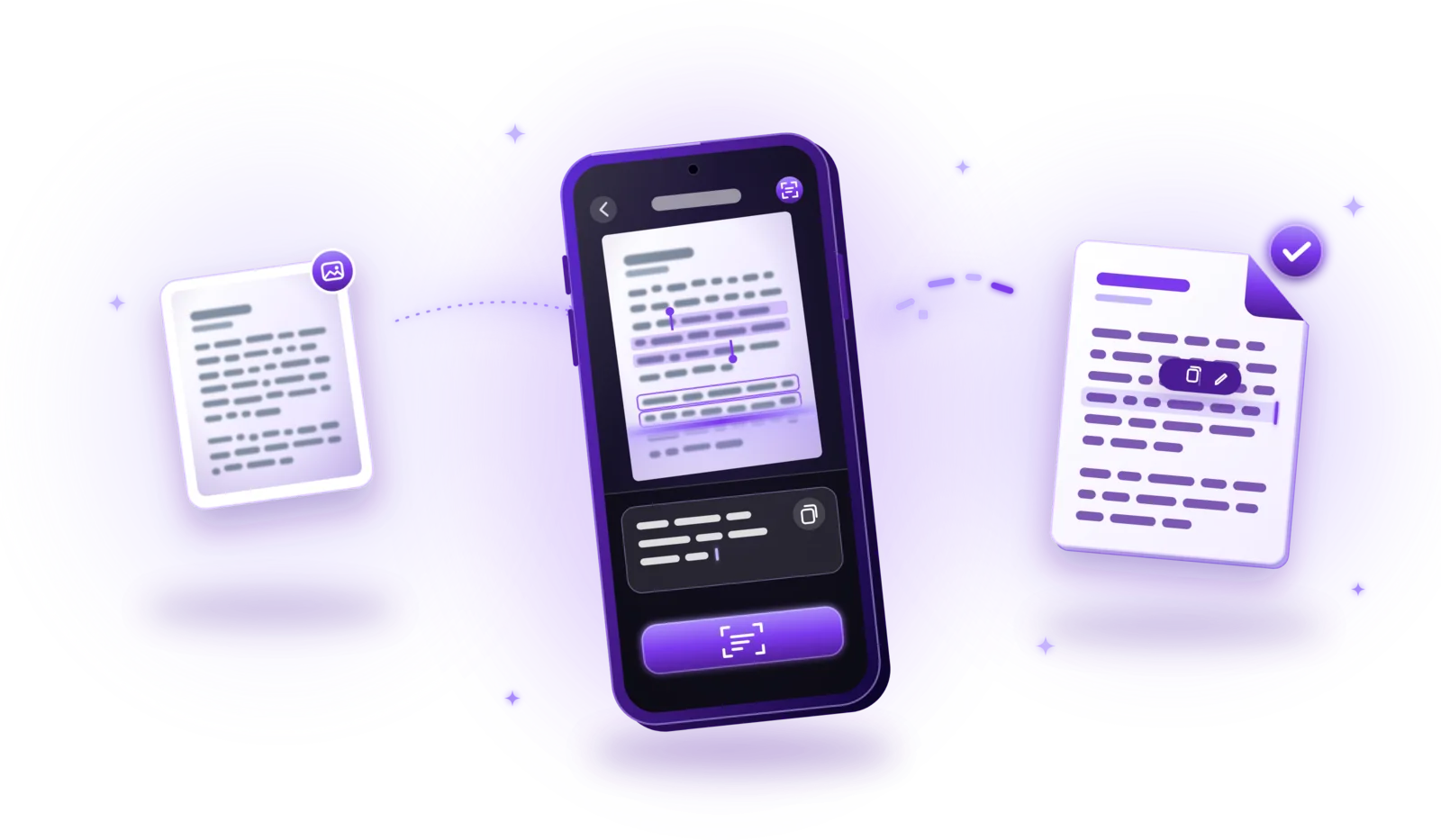
OCR, short for optical character recognition, turns pictures of text into real, machine-readable text. A scan or photo of a page is just an image: you can look at it, but not search, copy or edit the words. OCR analyzes the image, recognizes the printed (and sometimes handwritten) characters and outputs them as text. To extract text from a scanned document, you open it in an app with OCR, start the recognition and copy or save the result.
Scanned contracts
Copy a clause into an email or find a specific term in a long agreement without reading every page.
Invoices and receipts
Pick out amounts, dates and invoice numbers for bookkeeping instead of typing them off the paper.
Text from photos
Grab the text from a photographed sign, whiteboard or printed handout.
Searchable archives
Find old documents by a word they contain, not just by their file name.
Letters and notes
Digitize correspondence and typed notes so they can be searched and quoted later.
Reusing printed text
Bring text from a printed page into a document or form without retyping it.
How to extract text from a scanned PDF – step by step
Available options vary between applications, but the OCR workflow usually looks like this:
Open an app with OCR
Use a document scanner, PDF app or OCR tool with a text recognition function.
Import a scanned PDF or capture a new document
Open an existing scan or image, or scan the document directly. Photos you already have can also be converted to PDF first.
Select the text recognition feature
Look for options such as “OCR”, “Recognize text” or “Extract text”.
Choose the document language, if required
Some tools ask for the language so they can use the right alphabet and dictionary; others detect it automatically.
Start the recognition
The app analyzes every page. Depending on the number of pages and the device, this takes a few seconds to a few minutes.
Review the recognized text
Compare the result with the original, especially names, numbers, amounts and dates.
Correct recognition errors
Fix misread characters, such as 0 and O or 1 and l, before you rely on the text.
Copy, export or save the text
Copy it to the clipboard, export it as a text file or save it in the PDF as a searchable text layer, depending on what the app supports.
How does optical character recognition work?
OCR software analyzes visual patterns, much like you recognize letters when you read. Simplified, it works in five stages:
- Image capture: a scan or photo provides the picture of the page.
- Preprocessing: the software straightens the page, increases contrast, removes noise and separates text from the background.
- Character and word recognition: it finds lines, words and characters and compares their shapes with patterns it has learned; modern engines use machine learning and look at whole words in context.
- Text extraction: the recognized characters are put together into words, lines and paragraphs in reading order.
- Output: the result is shown as plain text, saved as a file or written back into the PDF as an invisible text layer.
Because OCR works from what it can see, it can’t read what isn’t clearly visible: blurry, faint or distorted characters are where most errors come from.
Scanned PDF vs. searchable PDF – what’s the difference?
Not every PDF that shows text actually contains text. There are three kinds:
| Aspect | Image-only PDF | Searchable PDF | Digitally created PDF |
|---|---|---|---|
| How it is made | Scanned or photographed | Scanned, then OCR adds a text layer | Exported from a word processor or other program |
| Text can be selected and searched | No | Yes | Yes |
| What you see | An image of the page | The same image of the page | Text rendered from fonts |
| Accuracy of the text | No text | As good as the OCR | Exact |
Extracting text doesn’t automatically make a PDF searchable. Many apps show the recognized text separately or let you copy it, while the PDF itself stays image-only. A searchable PDF requires the app to write the recognized words into the document as an invisible layer, positioned over the matching words in the image.
Keep that layer in mind when you later compress the PDF: tools that redraw pages as images remove it again.
How to improve OCR accuracy
Good OCR starts with a good image. These tips make the biggest difference:
Clear, high-resolution scans
Small print needs enough pixels. A sharp scan at normal document quality is better than a large but blurry photo.
Consistent lighting
Even light across the page helps the software separate text from paper.
No shadows or reflections
Shadows and glare hide parts of characters. Avoid the flash on glossy paper.
Flat pages
Curved lines near a book’s spine or on folded paper are harder to recognize. Flatten pages before scanning.
Corrected perspective
Straight, rectangular pages with level lines of text give much better results than tilted photos.
The right recognition language
If the tool lets you choose, select the document’s language so accents and special characters are recognized.
No excessive compression
Heavily compressed images blur the edges of letters. Run OCR before compressing, not after.
Review the output
Even good OCR makes mistakes. Check numbers, names and amounts before you use the text.
Accuracy depends on the quality of the document, the language, the fonts, whether the text is handwritten and the OCR engine itself. Clean printed text usually works very well; unusual fonts, tables and poor scans produce more errors.
Can OCR recognize handwritten text?
Some OCR systems can recognize handwriting, often called handwritten text recognition, but results vary considerably, and not every OCR application supports it. Neat block letters work far better than everyday handwriting. Typical challenges are:
- Cursive handwriting: connected letters are hard to separate into individual characters.
- Unclear characters: a hastily written a, o and u or 1 and 7 can look almost identical.
- Mixed languages: switching languages within a text confuses the dictionary the engine relies on.
- Unusual layouts: notes in margins, arrows and text at angles don’t follow normal reading order.
- Poor image quality: faint pencil, thin lines and low contrast make handwriting even harder to read.
For handwritten documents, treat OCR results as a draft and check them carefully against the original.
Offline OCR vs. online OCR
OCR can run on a remote server or directly on your device. For contracts, financial records and personal documents, that difference matters.
| Aspect | Online OCR service | Offline OCR app |
|---|---|---|
| Where recognition happens | On remote servers | On your device |
| Upload required | Usually yes | No |
| Internet connection | Required | Not needed |
| Capabilities | Can offer advanced recognition, e.g. for complex layouts | Depends on the app and device |
| Privacy | Depends on the service’s privacy and retention practices | Document contents aren’t uploaded for recognition |
Online OCR services
Online services can be powerful, but your document is uploaded and processed on someone else’s servers. How long it is kept and who can access it depends on the provider’s privacy and retention practices, so check them before uploading sensitive documents.
Offline OCR apps
Offline apps recognize text locally and work without an internet connection, so document contents don’t have to leave your device for recognition. That makes them a good choice for contracts, financial records and personal information. Offline processing doesn’t guarantee complete security on its own, though: protect your device with a screen lock and check whether the app syncs files to a cloud. See also how to scan documents offline.
Coming soon
Extract text with PDFDocify
PDFDocify, the offline-first document scanner and PDF app from SlickLab that is currently getting ready for launch, includes text recognition for printed text. After you scan a document or import a PDF, “Recognize text” reads all pages on your device. You can then copy the text, export it as a text file or find words in it, and the recognized content also makes your documents searchable in the app’s library. If you want, PDFDocify adds the text to the PDF as an invisible layer, saved as a copy or replacing the original, so the PDF becomes searchable in other apps too. Text recognition is part of PDFDocify Premium; scanning and organizing documents are free.
Included for free
- Unlimited scanning
- Automatic edge detection and perspective correction
- Filters: Auto, Black & White, Grayscale, Color, Original
- Multi-page PDFs: reorder, rotate and delete pages
- Import photos from your gallery
- Document library with folders, search and sorting
- Share and export PDFs to any app
PDFDocify Premium
- Offline OCR: copy and search text
- Searchable PDFs
- Merge PDFs
- Compress PDFs
- Handwritten signatures
- Password protection
- Batch processing
Recognition runs completely on your device, without uploads. Password-protected PDFs need their password removed first. An internet connection is only needed for in-app purchases.
Frequently asked questions
How can I extract text from a scanned PDF?
Open the scanned PDF in an app with OCR, start the text recognition and review the result. You can then copy the text, export it or save it as a searchable text layer in the PDF, depending on the app.
What is OCR?
OCR stands for optical character recognition. It is software that recognizes letters, numbers and words in an image, such as a scan or photo, and turns them into machine-readable text.
Can OCR convert an image into editable text?
Yes. OCR extracts the text from an image so you can copy it into a word processor or email and edit it there. Layout, fonts and tables are usually not reproduced exactly, so some reformatting may be needed.
Can I make a scanned PDF searchable?
Yes, if your app can save the recognized text in the PDF as an invisible text layer. The page then looks the same, but you can select and search the text in any PDF viewer. Extracting text alone doesn’t change the PDF.
Does OCR work with handwritten documents?
Sometimes. Some OCR systems recognize handwriting, but results vary a lot and many tools only support printed text. Neat block letters work best; cursive and unclear writing often produce errors.
Can OCR work without an internet connection?
Yes, offline OCR apps recognize text directly on your device. Online services need a connection and upload your document. PDFDocify recognizes text offline.
Is OCR always accurate?
No. Clean printed text is usually recognized very well, but poor scans, unusual fonts, complex layouts and handwriting lead to mistakes. Always check important details such as names, numbers and amounts.
Conclusion
OCR turns scanned documents and photos from pictures into text you can copy, search and reuse. Good results start with sharp, flat, evenly lit scans, and a quick review catches the errors that remain. For sensitive documents, offline OCR keeps the contents on your device. If you want an app that scans, recognizes text and makes your PDFs searchable offline, take a look at PDFDocify and join the waitlist for its launch.
Related guides
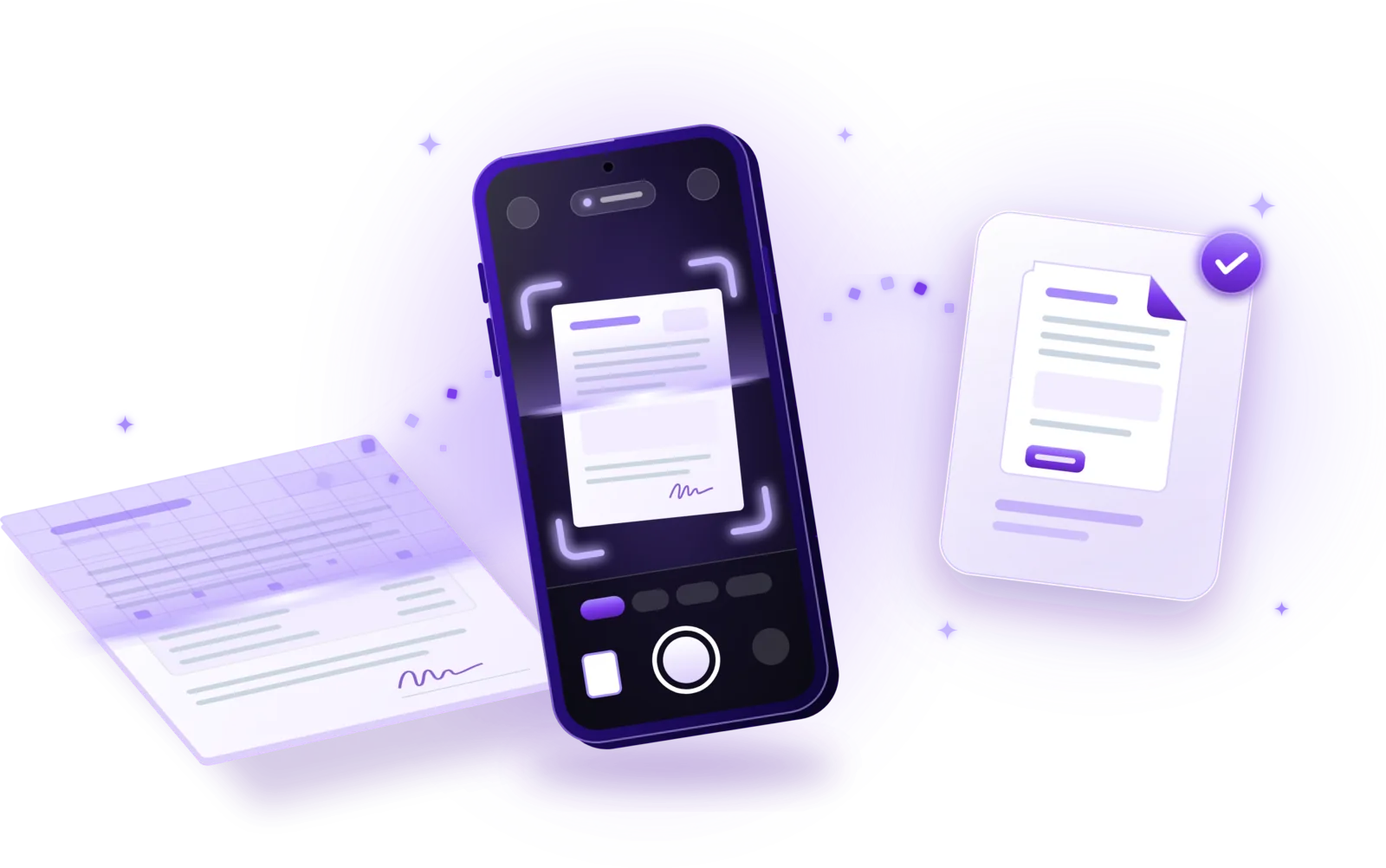
How to Scan Documents to PDF
Turn paper into clean PDFs with your phone: seven steps from preparing the page to saving the file, plus tips for sharp, private scans.
Read the guide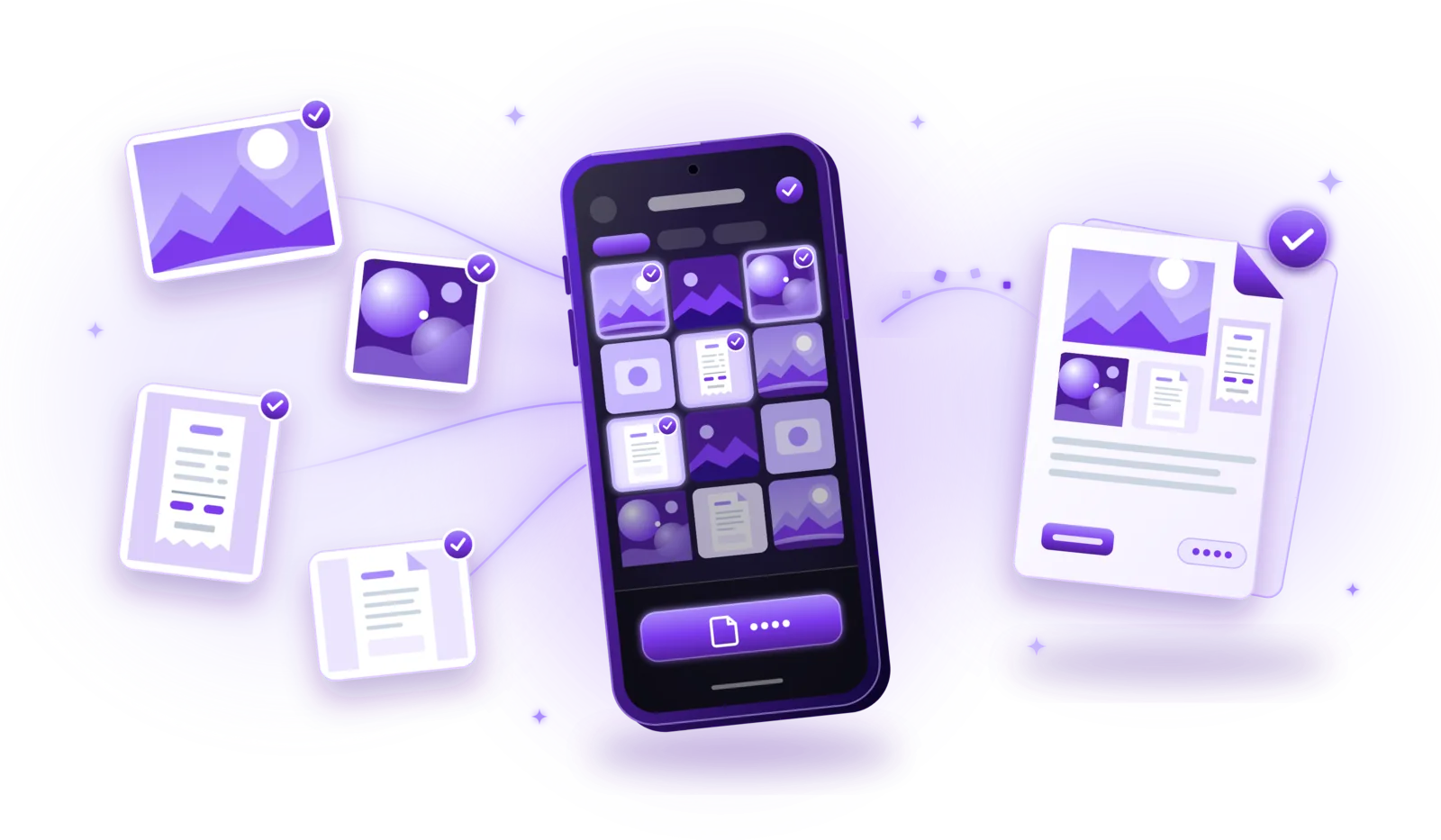
How to Convert Images to PDF
Turn photos, JPGs and PNGs into PDFs: convert single images or combine several into one document, without losing quality or privacy.
Read the guide
How to Compress PDF Files Without Losing Quality
Make PDFs smaller for email and uploads: choose the right compression level, keep text readable and compress without uploading your files.
Read the guide
How to Scan Documents Offline and Privately
Scan without an internet connection and keep sensitive documents on your device: how offline scanning works and how to protect your scans.
Read the guide