In this guide
Why merge PDF files?
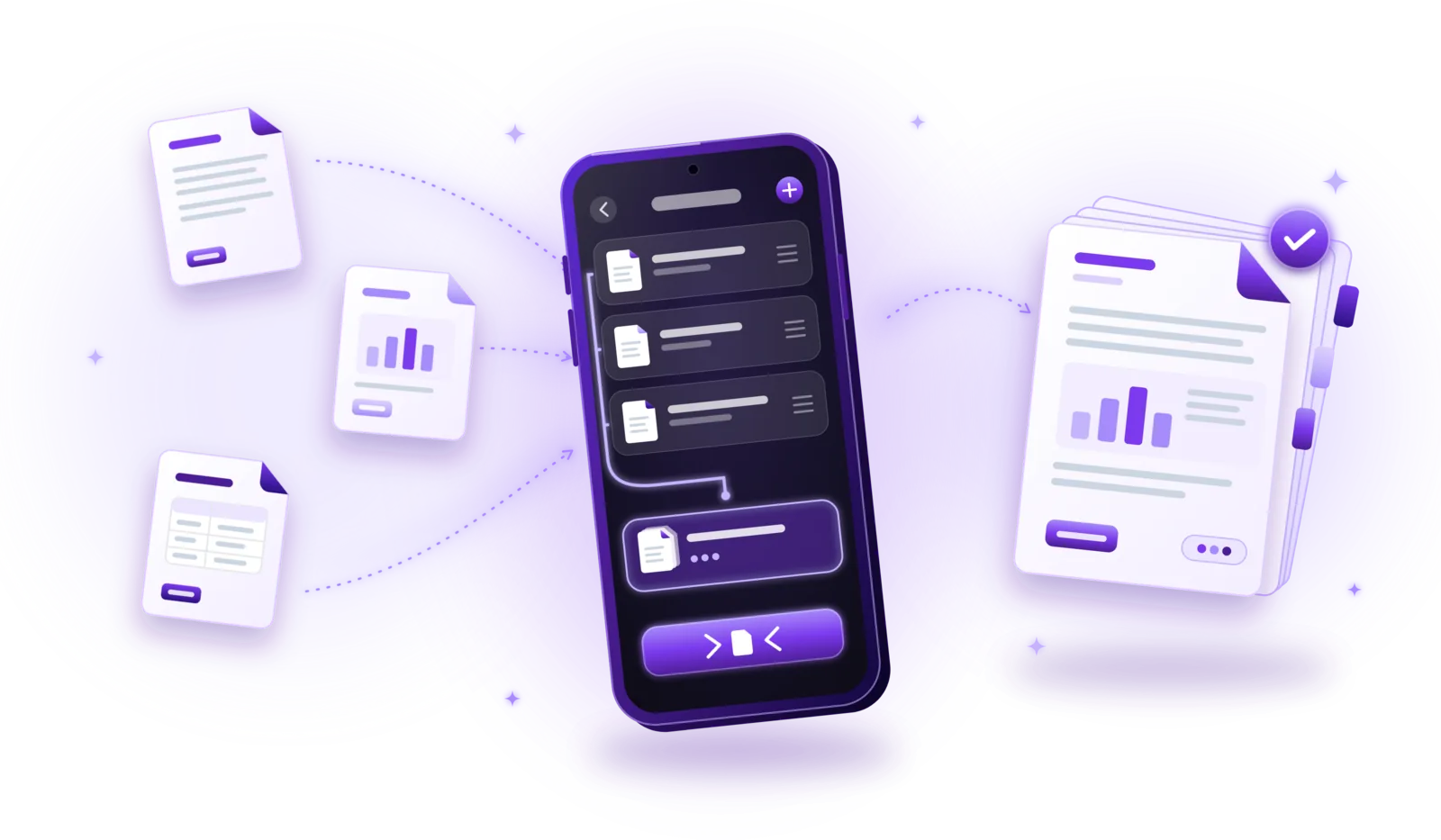
Merging PDF files means combining several separate PDFs into one document, with all their pages in the order you choose. You do it with a PDF merger or a PDF app: select the files, arrange them and save the result as a new PDF. The original files usually stay unchanged.
One document is easier to handle than a handful of attachments. Upload portals often accept only a single file, recipients don’t have to guess which file comes first, and you keep everything that belongs together in one place.
Job applications
Cover letter, CV and certificates as one PDF, so the recruiter opens a complete application.
Contracts with attachments
The contract, its annexes and the signed page combined into one document that can’t be separated by accident.
Multiple invoices
All invoices for a month, a trip or a project in one file for accounting or your tax return.
School and university documents
Transcripts, enrolment certificates and assignments submitted as a single upload.
Insurance documents
Claim form, photos and receipts combined into the one file the insurer asks for.
Business reports
Chapters, appendices and figures from different sources assembled into one report.
How to merge PDF files – step by step
Buttons and menus differ between applications, but merging PDFs almost always follows these steps:
Open a PDF merger or PDF management app
Use a tool with a merge or combine function. Many PDF apps and document scanners include one, often under a menu such as “Tools”.
Select the PDF files you want to combine
Pick at least two files. Most tools let you select several at once and add more later.
Arrange the documents in the correct order
Drag the files into the order in which they should appear, for example cover letter first, then CV, then certificates.
Preview the resulting document
If the tool offers a preview, check that the sequence makes sense before you merge, especially for long documents.
Merge the selected files
Start the merge. The tool copies the pages of all selected PDFs into one new document, usually in a few seconds.
Save the combined PDF
Give the new file a descriptive name, such as “Application_Jane_Doe_2026.pdf”, and save it where you will find it again.
Check that all pages are present and readable
Scroll through the result once: are all pages there, in the right order and readable? Compare the page count with the source files if in doubt. If the document needs a signature, sign it after merging, so the signature covers the final version.
Some of your documents are still on paper or only exist as photos? Turn them into PDFs first: scan multiple pages into one PDF or convert images to PDF, then merge everything.
How to arrange PDF pages before merging
Getting the order right before you merge saves you from editing the finished document afterwards. Depending on the tool, you can:
- Change the order of the selected files: drag whole documents up or down in the list.
- Review the page sequence: check how the pages of all files will follow each other, if the tool shows page thumbnails.
- Remove unnecessary pages: leave out blank pages, cover sheets or duplicates, where the tool supports page selection.
- Rotate pages: turn sideways pages upright, where page rotation is supported.
- Verify the final structure: make sure the document starts with the right file and nothing is missing at the end.
Keep in mind that there are two different things here. Changing the order of whole PDF files is part of every merge tool. Editing individual pages, such as deleting or rotating one page, is a separate feature that not every merger has. If yours doesn’t, fix those pages in the source documents before merging.
Does merging PDF files reduce their quality?
Not by itself. Merging only has to copy the existing pages into a new file; text stays text and images keep their resolution. A well-made merge tool produces a document that looks exactly like the source files.
Quality can suffer when a tool does more than merge: if it recompresses images to make the file smaller, rasterizes pages (turns them into pictures, so text is no longer selectable or searchable), or converts the files along the way. These tips help you keep the original quality:
- Use a real merge function – not “print to PDF” or screenshot workarounds, which turn pages into images.
- Skip compression options – unless you need a smaller file; compress afterwards as a separate step if necessary.
- Check text in the result – if you can still select or search text that was searchable before, the pages were copied unchanged.
- Merge the originals – not copies that were already compressed or converted several times.
How to merge PDF files without uploading them
The documents people merge are often confidential: contracts, bank statements, payslips, medical reports, applications with personal data. So it is worth knowing where the merging happens.
| Aspect | Online PDF merger | Local app |
|---|---|---|
| Where files are processed | On the provider’s server | On your device |
| Upload required | Yes, every file | No |
| Who has a copy | You and the provider, at least temporarily | Only you, until you share the result |
| Internet connection | Required | Not needed for merging |
Online PDF merging services
Websites that merge PDFs are convenient, but each file has to be uploaded first. How long the provider keeps it, who can access it and where the servers are located is up to the provider. Read the privacy policy before uploading contracts or financial records, and avoid such services for highly sensitive documents.
Local PDF merging apps
Apps that merge on your phone or computer don’t send the contents of your documents to a remote service. That removes one important risk, but it doesn’t make a device secure by itself: use a screen lock, check whether the app syncs files to a cloud, and keep sensitive PDFs protected with a password when you share them.
Common problems when combining PDFs
Most merges work on the first try. When they don’t, it is usually one of these issues:
Incorrect page order
The files were merged in the order they were selected or sorted by name. Rearrange the list before merging, or merge again in the correct order.
Large file sizes
A merged PDF is roughly as large as all source files together. If it is too big for email or an upload form, compress the result or the largest source files.
Password-protected source documents
Encrypted PDFs can’t be merged without the password. Open them with the password, remove the protection if allowed, then merge and protect the result again if needed.
Damaged or unsupported files
If a file won’t merge, check that it opens in a PDF viewer. Re-download it, or export it as a new PDF from the program that created it.
Mixed page sizes and orientations
Combining A4, Letter and landscape pages is allowed, but can look uneven. Rotate sideways pages and, where possible, create source files in the same page size.

Coming soon
Merge PDF files with PDFDocify
PDFDocify, the offline-first document scanner and PDF app from SlickLab that is currently getting ready for launch, has merging built into its document library. Under Tools you open “Merge PDFs”, select at least two documents (scans made with the app or PDFs imported from your files), drag them into the right order and name the result. The merged PDF is saved as a new document; the originals stay unchanged, and their pages are copied as they are, without recompression. Merging is part of PDFDocify Premium, while scanning, importing PDFs and organizing them in folders are free.
Included for free
- Unlimited scanning
- Automatic edge detection and perspective correction
- Filters: Auto, Black & White, Grayscale, Color, Original
- Multi-page PDFs: reorder, rotate and delete pages
- Import photos from your gallery
- Document library with folders, search and sorting
- Share and export PDFs to any app
PDFDocify Premium
- Offline OCR: copy and search text
- Searchable PDFs
- Merge PDFs
- Compress PDFs
- Handwritten signatures
- Password protection
- Batch processing
Merging happens on your device, without uploads. Password-protected PDFs need their password removed first. An internet connection is only needed for in-app purchases.
Frequently asked questions
How can I merge multiple PDF files into one?
Open a PDF merger or a PDF app with a merge function, select the files, drag them into the right order and merge them. The tool saves a new PDF that contains all pages; check it once before you send it.
Can I merge PDF files for free?
Yes, many tools offer free merging, sometimes with limits on the number or size of files, or with uploads to a server. Desktop operating systems and some PDF viewers also include basic merging. In PDFDocify, merging is a Premium feature; scanning and importing PDFs are free.
Can I combine PDFs without uploading them?
Yes, with an app that merges on your device instead of an online service. Your documents then never leave your phone or computer. PDFDocify merges PDFs completely offline.
Does merging PDFs reduce document quality?
Not if the tool only copies the pages, which is all merging requires. Quality only suffers if a tool also compresses images or turns pages into pictures. To be sure, check that text in the merged PDF can still be selected or searched.
Can I merge password-protected PDFs?
Usually only after unlocking them. Most tools need the password to read the pages and some refuse protected files entirely. Remove the protection first (you need the password for that), merge, and then protect the result again if necessary. In PDFDocify you remove the password from a document first and can protect the merged PDF again afterwards.
Can I change the order of pages before merging?
You can always change the order of whole files. Reordering, removing or rotating individual pages depends on the tool; some show page thumbnails, others only the file list. In PDFDocify you arrange whole documents when merging; the pages of a scan can be reordered while you scan multiple pages into one PDF.
Conclusion
Merging PDF files is straightforward: select the files, arrange them in the right order, merge them and check the result. A good merge tool copies pages without touching their quality, and merging on your own device keeps confidential documents away from upload services. If you want an app that scans, organizes and merges PDFs offline, take a look at PDFDocify and join the waitlist for its launch.
Related guides
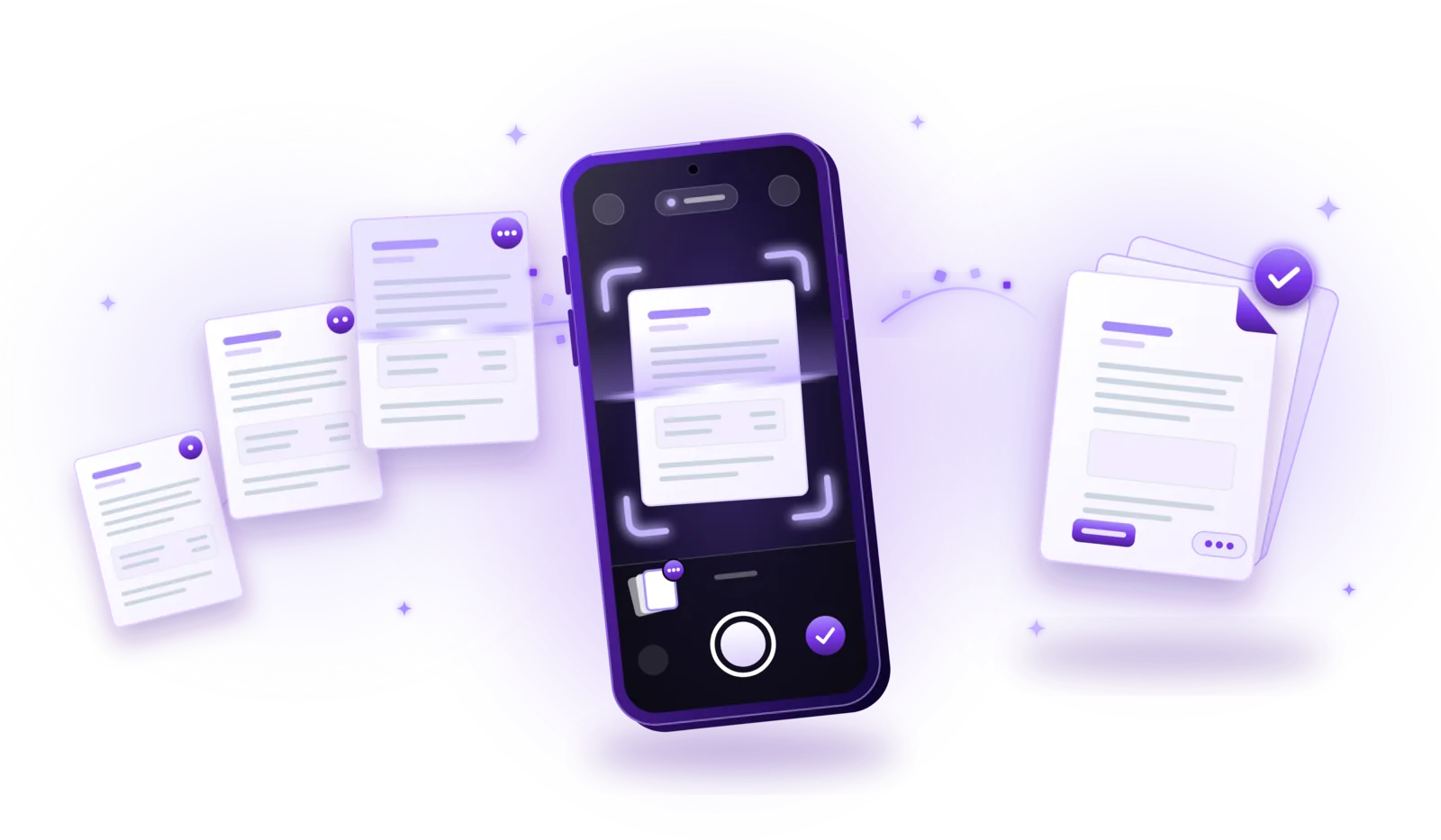
How to Scan Multiple Pages into One PDF
Combine contracts, applications and statements into a single PDF: capture every page, put them in order and save one file.
Read the guide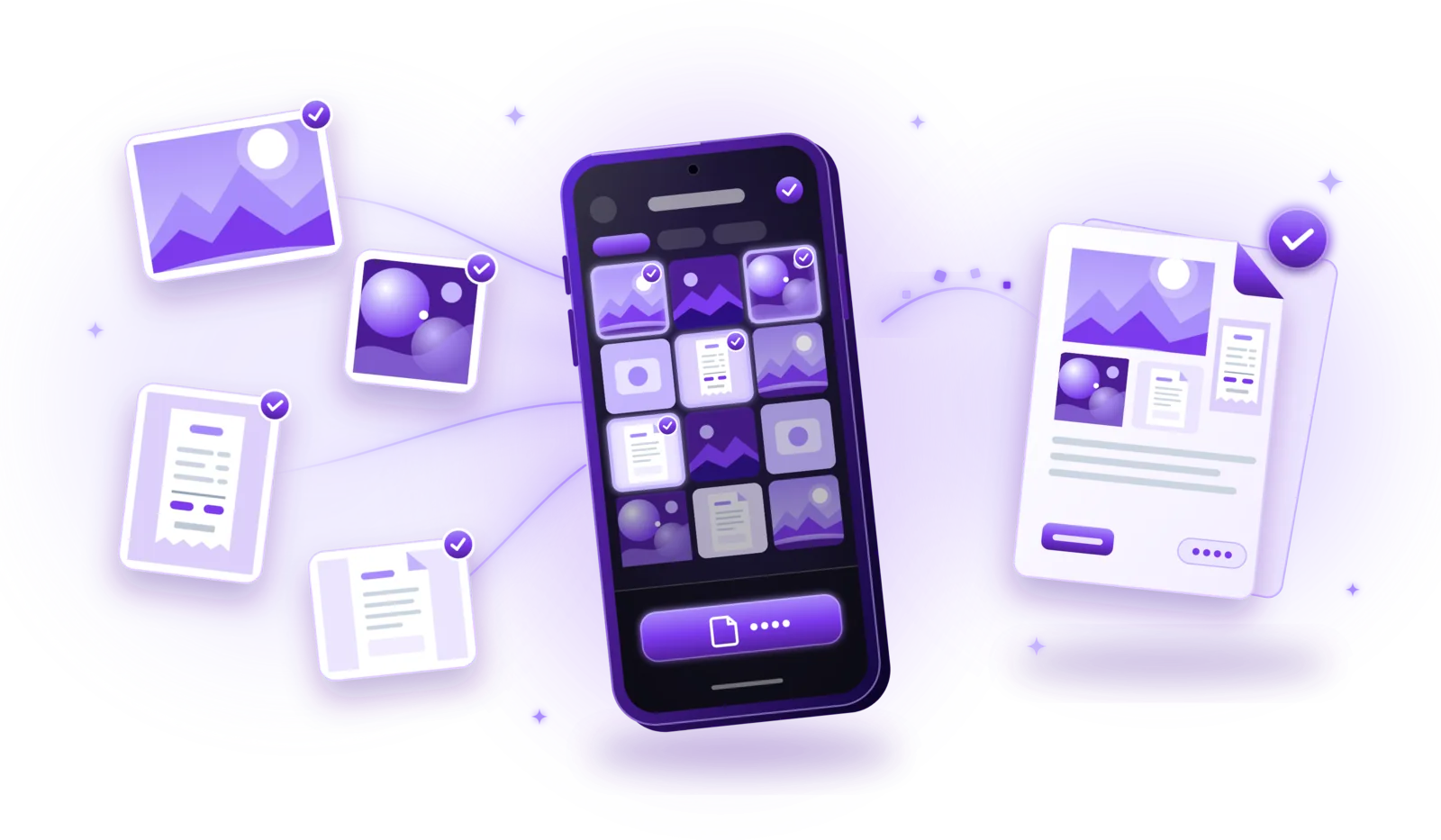
How to Convert Images to PDF
Turn photos, JPGs and PNGs into PDFs: convert single images or combine several into one document, without losing quality or privacy.
Read the guide
How to Compress PDF Files Without Losing Quality
Make PDFs smaller for email and uploads: choose the right compression level, keep text readable and compress without uploading your files.
Read the guide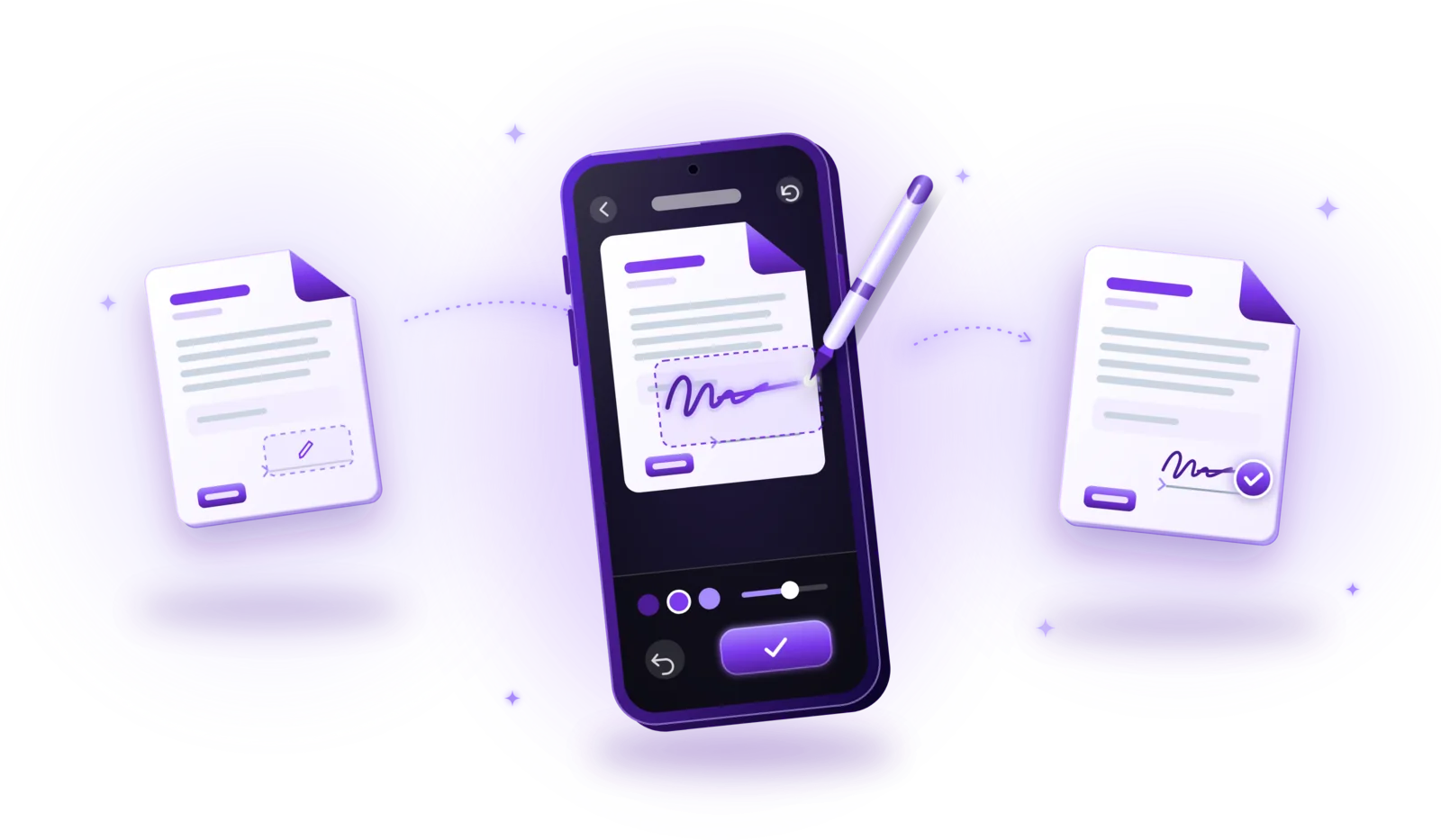
How to Sign PDF Documents Electronically
Sign PDFs without printing: add your signature in a few steps, understand electronic vs. digital signatures and know when a simple signature isn’t enough.
Read the guide
How to Password-Protect PDF Documents
Lock sensitive PDFs with a password: encrypt them step by step, choose a strong password and share protected files safely.
Read the guide