In this guide
Why scan multiple pages into one PDF?
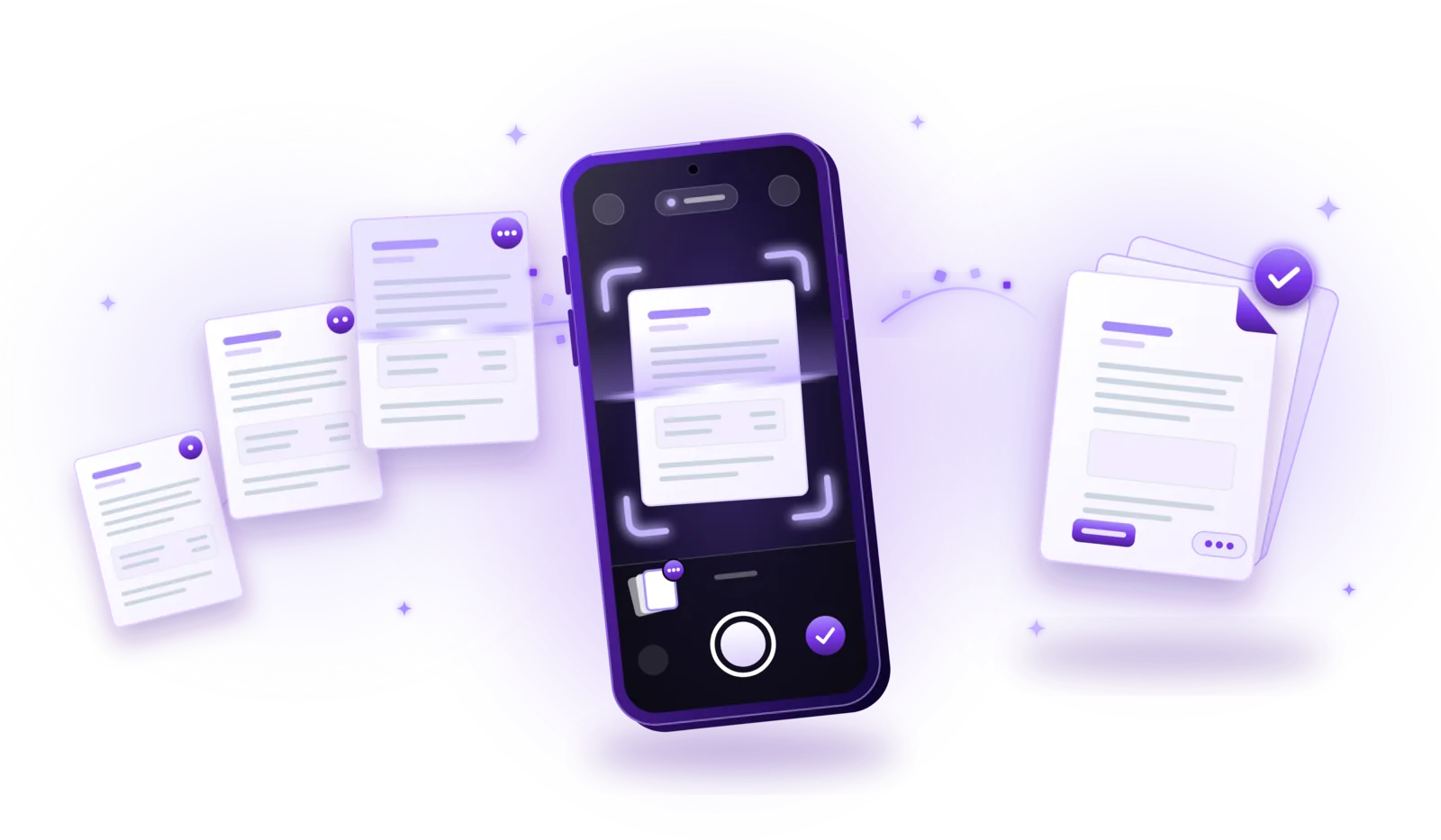
Scanning multiple pages into one PDF means capturing every page of a document in a single scanning session and saving them together as one file, instead of ending up with a separate image or PDF for each page. Most document scanner apps support this: you keep adding pages until the document is complete, then save once.
One file makes life easier for everyone. The recipient opens a single attachment instead of five, the pages stay in the right order and nothing gets lost along the way. Online forms and upload portals often accept only one file per document, and a complete PDF is much easier to find and archive later.
Multipage contracts
Rental, employment or purchase agreements belong together, including the signature page at the end.
Job applications
Cover letter, CV and certificates in one tidy PDF that a recruiter can open with one click.
Invoices
Keep a multi-page bill, or all invoices for one project, in a single document for your records.
School assignments
Handwritten homework or worksheets, submitted as one file in the right order.
Insurance documents
Policies, claim forms and supporting evidence that an insurer wants to receive together.
Business paperwork
Delivery notes, signed offers or meeting notes, filed as complete documents instead of loose pages.
How to scan multiple pages into one PDF – step by step
Buttons and their names differ from one scanning app to the next, but the workflow is almost always the same. If you are new to scanning with your phone, our guide How to scan documents to PDF explains the basics of capturing a single page first.
Open a document scanner app
Start a new scan in your document scanning app. A scanner app is better suited than the regular camera, because it detects the page, crops away the background and collects all pages in one document.
Place the first page on a flat surface
Lay the page on a table that contrasts with the paper, in good, even light. Sort the stack beforehand and keep it within reach, so you can work through it page by page.
Scan the first page
Hold the phone parallel to the page so the whole sheet is visible on the screen. Many apps detect the edges and take the picture automatically as soon as the image is steady; otherwise tap the shutter button.
Select the option to add another page
Instead of finishing the scan, continue with the next page. Depending on the app, the camera simply stays open, or you tap a button such as “Add page” or “+”. Some apps also let you add pages from your photo gallery; our guide on converting images to PDF explains that route.
Continue until all pages are captured
Turn to the next sheet and repeat until the whole document is scanned. If the app shows a page counter, keep an eye on it, so you notice a skipped page right away.
Review the scanned pages
When you are done, open the overview with all thumbnails. Check that every page is there, readable and complete, with no fingers or table edges in the picture.
Adjust cropping, perspective and image quality
Fix pages where the edge detection missed a corner, straighten tilted pages and choose a filter. In many apps the filter can be set per page, so a photo can stay in color while text pages become black and white.
Arrange the pages in the correct order
Drag pages into the right position, rotate pages that came out sideways and remove duplicates. The next section explains these edits in detail.
Save or export everything as one PDF
Give the document a descriptive name and save it. All pages end up in a single PDF, in the order shown, ready to share, upload or archive.
How to arrange and reorder scanned pages
Before you save, most scanning apps show all pages as thumbnails. This is where a pile of photos becomes a clean document:
- Change the order: press and hold a page, then drag it to its new position. Useful when you picked up the stack in the wrong order.
- Remove unwanted pages: delete accidental shots, blank backs of single-sided sheets and pages you scanned twice.
- Rescan blurry pages: replace a single page with a new scan instead of starting the whole document again.
- Rotate pages: turn pages that were scanned sideways or upside down, such as a landscape table in a portrait document.
- Check the document before saving: flip through every page once more: page numbers in sequence, nothing cut off, all signatures and stamps readable.
Whether you can still change the order after saving depends on the app. Some apps let you reopen a saved document; in others the PDF is final, and you need a separate PDF tool. So take a moment for this check before you save.
Tips for scanning multipage documents
Long documents magnify small mistakes: one dark page or one missing sheet spoils the whole PDF. These habits keep every page consistent.
Use consistent lighting
Scan all pages in the same place and under the same light. Pages scanned partly by the window and partly under a lamp look different in the finished PDF.
Keep the camera steady
Rest your elbows on the table or hold the phone with both hands. With many pages it is tempting to hurry, but a second of patience per page saves you from rescans.
Avoid shadows
Make sure your hand and your phone don’t cast a shadow on the page. Light from the side or from in front of you works better than light from behind.
Keep the orientation consistent
Place every sheet the same way up. If a single page is in landscape format, rotate it in the overview before saving.
Check that no pages are missing
Compare the number of scanned pages with the paper stack, and check the page numbers if the document has them.
Choose the right image quality
Higher quality pays off for documents you may need to print; for documents you send by email, a lower setting keeps the file small. Black & White gives the smallest files for text.
How to keep multipage PDFs organized
A complete PDF is only useful if you can find it again. A few simple rules keep your scans in order (a complete system is described in how to organize digital documents):
- Descriptive filenames: name the file after what it is and when it is from, not after the scan time the app suggests.
- Folders: group documents by topic, such as Insurance, Taxes 2026 or Car, so related files are in one place.
- Related pages together: keep a contract and its annexes in one PDF instead of several loose files.
- No duplicates: when you rescan a document, replace or delete the old version, so you never wonder which one is current.
Filename example
Scan_2026-10-12_0931.pdfhard to find laterInsurance_Contract_2026.pdfclear and searchable

Coming soon
Scan multiple pages with PDFDocify
PDFDocify, the offline-first document scanner from SlickLab that is currently getting ready for launch, treats every scan as a multi-page document from the start. You capture as many pages as you need, add more from the camera or your photo gallery in the review screen and drag pages into the right order. Edge detection and perspective correction straighten each page automatically, and filters such as Auto or Black & White make text easy to read. When you save, all pages become one PDF that stays on your device, organized in folders.
Included for free
- Unlimited scanning
- Automatic edge detection and perspective correction
- Filters: Auto, Black & White, Grayscale, Color, Original
- Multi-page PDFs: reorder, rotate and delete pages
- Import photos from your gallery
- Document library with folders, search and sorting
- Share and export PDFs to any app
PDFDocify Premium
- Offline OCR: copy and search text
- Searchable PDFs
- Merge PDFs
- Compress PDFs
- Handwritten signatures
- Password protection
- Batch processing
Scanning, editing and saving work without an internet connection. An internet connection is only needed for in-app purchases.
Frequently asked questions
Can I scan multiple pages into one PDF?
Yes. Almost every document scanner app can combine several pages into one PDF. Scan all pages in the same session, check their order and save once; the app creates a single file that contains every page.
How many pages can I include in one PDF?
There is usually no strict limit on pages per PDF. Some apps cap how many pages you can capture in one go, but let you continue with another round afterwards. In practice, file size matters more: very long documents in high quality can get too large for email attachments or upload forms. In PDFDocify you can keep adding pages to a scan until you save it.
Can I change the order of scanned pages?
In most apps, yes, as long as the scan isn’t saved yet: drag the page thumbnails into the right order in the overview. Whether you can reorder pages after saving depends on the app; some need a separate PDF editor for that.
Can I add another page to an existing PDF?
That depends on what “existing” means. While a scan is still open, you can usually add pages at any time. Adding pages to a PDF you have already saved is a different task, and not every scanner app supports it. A way that works almost everywhere: scan the missing pages as a new PDF, then combine both files with a merge tool. In PDFDocify you add pages to a scan in the review screen before saving; to extend a saved PDF, you scan the new pages and combine both with the merge tool, which is part of Premium.
Can I scan multiple pages without an internet connection?
Yes, if the app processes the pages on your device. Cloud-based scanners need a connection to upload and process your pages. PDFDocify scans, edits and saves multi-page PDFs completely offline. More in how to scan documents offline.
How can I reduce the file size of a multipage PDF?
Use Black & White or Grayscale for text documents, crop away empty margins, leave out blank pages and pick a lower image quality before saving. If the PDF is still too large, a compression tool can shrink it further, usually at the cost of some image sharpness. In PDFDocify, the PDF quality setting is free, and compression is a Premium tool.
Conclusion
Scanning multiple pages into one PDF takes only a few minutes: capture the pages one after another, check them in the overview, fix order and orientation, and save everything as one well-named file. If you want an app that does all of this offline, without uploads or an account, take a look at PDFDocify and join the waitlist to hear about its launch.
Related guides
How to Scan Documents to PDF
Turn paper into clean PDFs with your phone: seven steps from preparing the page to saving the file, plus tips for sharp, private scans.
Read the guide
How to Convert Images to PDF
Turn photos, JPGs and PNGs into PDFs: convert single images or combine several into one document, without losing quality or privacy.
Read the guide
How to Merge PDF Files into One Document
Combine several PDFs into one document: select the files, put them in order and save a single PDF, without losing quality or privacy.
Read the guide
How to Organize Digital Documents Efficiently
A simple system for scans and PDFs: clear folders, consistent file names, quick searching and a routine that keeps your archive tidy.
Read the guide