In this guide
Why scan documents to PDF?
Paper piles up quickly: a rental contract, a stack of receipts for your tax return, an invoice you need to forward, a school form waiting for a signature. As long as these documents exist only on paper, they are easy to lose and awkward to share.
A PDF solves most of that. It looks the same on every device, keeps several pages together in one file, and is the format almost every email program, online form and office expects. Once a document is a PDF, you can send it in seconds, keep a backup and find it again without searching through drawers.
You no longer need a flatbed scanner for this. A smartphone camera and a good scanning app produce results that are clear enough for contracts, applications and official letters, as long as you know a few basics.
Contracts
Keep a signed copy you can send back, file away or find again years later.
Receipts
Collect them for expenses, warranties and taxes before the thermal print fades.
Invoices and letters
Forward a bill to your accountant or archive your mail by month.
Personal documents
Certificates, insurance papers and medical records, ready when a form asks for them.
How to scan documents to PDF – step by step
The exact buttons differ from app to app, but the process is the same everywhere. These seven steps take you from a sheet of paper to a finished PDF.
Prepare the paper document
Lay the page on a flat surface that contrasts with the paper; a dark table works well for white sheets. Remove staples and paper clips, smooth out folds and wipe the camera lens. A fingerprint on the lens is one of the most common causes of blurry scans.
Open a document scanning app
Use a document scanner rather than the regular camera. A scanning app recognizes the page, removes the background and saves the result as a PDF, while a normal photo keeps the table, the shadows and the tilted angle. Some phones include a basic scanning function; dedicated apps add folders, filters, text recognition and more control over the result.
Capture the document with the camera
Hold the phone directly above the page and parallel to it, so the whole sheet fits on the screen with a little margin around it. Most scanning apps detect the page and take the picture automatically as soon as the image is steady; otherwise tap the shutter button. Hold still for a moment, because movement blurs small print.
Adjust the document edges
After the capture, the app shows the outline it detected. Check that the four corners sit exactly on the corners of the paper. If part of the table is included or a margin is cut off, drag the corner points into place. Don’t crop too tightly, or you might lose a page number or a signature line at the edge.
Correct the perspective
Unless the phone was perfectly level, the page looks slightly trapezoidal in the photo, wider at the bottom than at the top. Perspective correction stretches it back into a proper rectangle, so lines of text run straight and the page looks as if it came from a flatbed scanner. Good scanning apps do this automatically, based on the four corners from the previous step.
Improve readability with filters
Filters decide how the finished page looks. The usual choices are:
- Auto – brightens the paper, evens out the lighting and sharpens the text. The right choice for most documents.
- Black & White – maximum contrast and small files, ideal for printed text and forms.
- Grayscale – keeps pencil notes and faint stamps visible without color.
- Color – for documents where color matters, such as charts, photos or colored stamps.
- Original – the unprocessed photo, without any adjustments.
If you are unsure, compare two filters on the same page: the text should be crisp and the background close to white.
Save the document as a PDF
Give the file a clear name and save it as a PDF. A descriptive name such as “2026-10 Electricity bill” pays off later, because you can find the document by searching for it. More on naming and filing in how to organize digital documents. Many apps also let you choose the page size (A4 or Letter) and the image quality: higher quality for contracts you may need to print, smaller files for documents you want to send by email.
Already photographed a document with the regular camera? You don’t have to start over: our guide How to convert images to PDF shows how to turn existing photos into a PDF.
Scanning documents with several pages
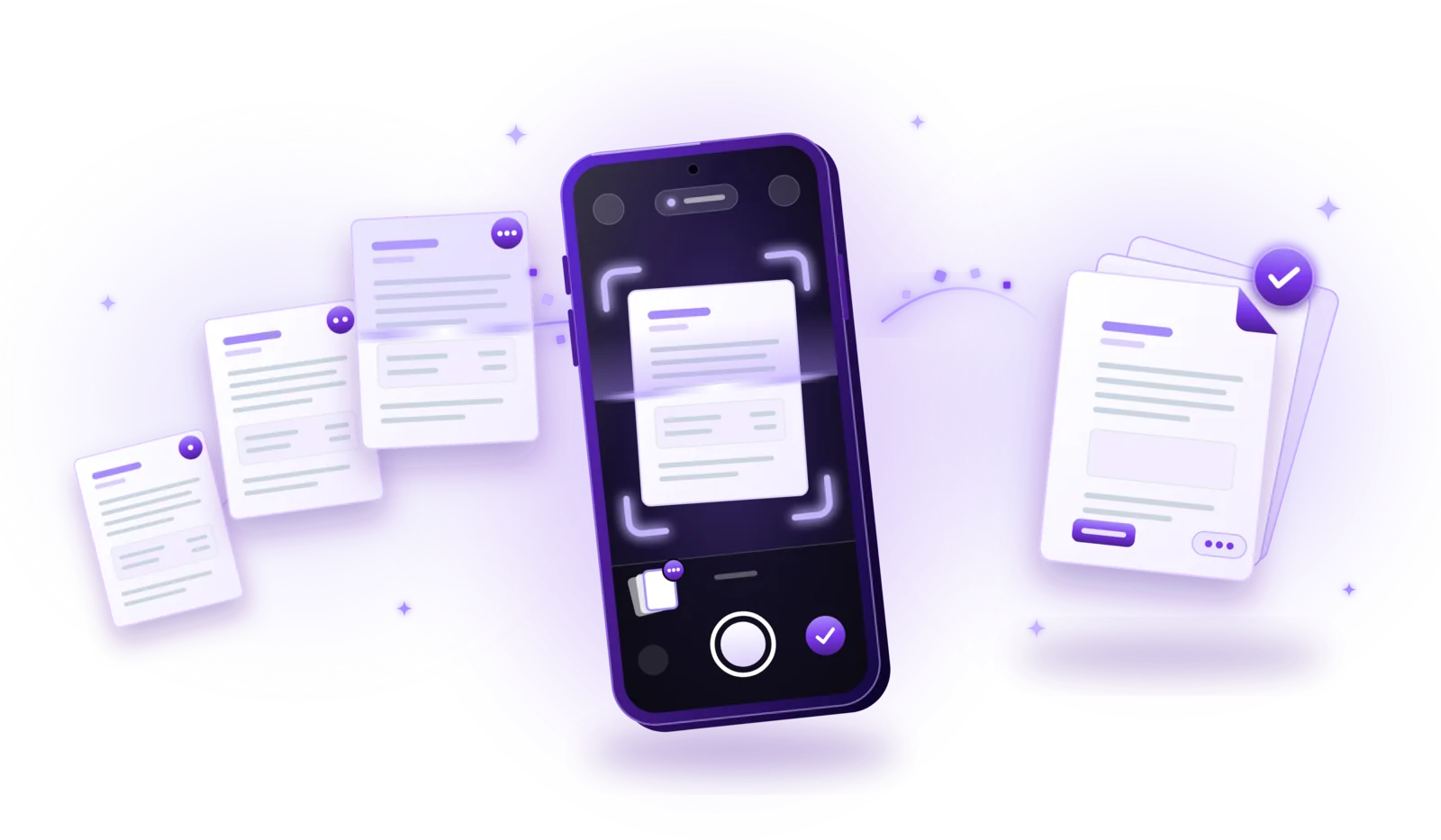
Contracts, bank statements and manuals rarely fit on a single sheet, and you don’t need one PDF per page. In most scanning apps you keep capturing page after page, check the order in the overview and save everything once, as a single PDF.
Our guide How to scan multiple pages into one PDF covers this in detail: reordering, rotating and rescanning pages, keeping long documents organized, and adding pages to a PDF you have already saved.
Tips for high-quality document scanning
Most unreadable scans have one of a handful of causes. Get these right and almost any phone produces sharp, clean PDFs.
Lighting
Daylight from a window or a bright ceiling lamp gives the most natural result. Avoid mixing warm and cold light, which tints the page, and use the flash only as a last resort: on glossy paper it leaves a bright spot.
Shadows
Your phone and your hand can cast a shadow across the page. Let the light come from the side or from in front of you, not from behind. Filters soften gentle shadows, but they can’t bring back text lost in a dark one.
Document position
Place the page on a plain, contrasting background and keep all four corners in view. Hold curled pages flat at the edges, outside the frame; for a bound book, press the spine down gently.
Image sharpness
Let the camera focus before you shoot, and keep the phone steady. Move closer instead of zooming in. Before you save, check the smallest print: if you can’t read it on the screen, scan the page again.
Automatic edge detection
Modern scanners find the outline of the page by themselves and often take the shot once the image is steady. Detection works best with good contrast between page and background; when it misses, adjust the corners by hand.
How to scan documents privately
The documents worth scanning often hold your most personal information: account numbers, health details, signatures, your address. Before you choose an app, it is worth knowing where your scans actually go.
Cloud-based scanning
Many scanning apps upload your pages to a server, to process them, to recognize the text or to sync them to an online account. That is convenient if you work on several devices, but your documents are then stored by a third party, under its security measures, retention rules and terms of service. Often you also have to create an account first.
Offline scanning
Other apps do everything on the phone itself: edge detection, filters, text recognition and PDF creation. Nothing leaves the device unless you decide to share a file. Our guide to scanning documents offline covers this in detail.
| Aspect | Cloud-based | Offline |
|---|---|---|
| Where pages are processed | On the provider’s servers | On your phone |
| Where files are stored | In an online account | On your device, until you share them |
| Account required | Usually | No |
| Internet connection | Needed to scan and sync | Not needed |
| Main advantage | Access from several devices | Your documents stay with you |
Why local storage is worth it
- Fewer copies: the document exists only where you put it.
- No account: no login that could leak and no profile linked to your documents.
- Works anywhere: in a basement archive, on a train or abroad without mobile data.
- You decide what to share: send a single PDF when you need to, instead of syncing everything.
A phone can get lost, too. Use a screen lock, and protect especially sensitive PDFs with a password before you share them.

Coming soon
Scan documents with PDFDocify
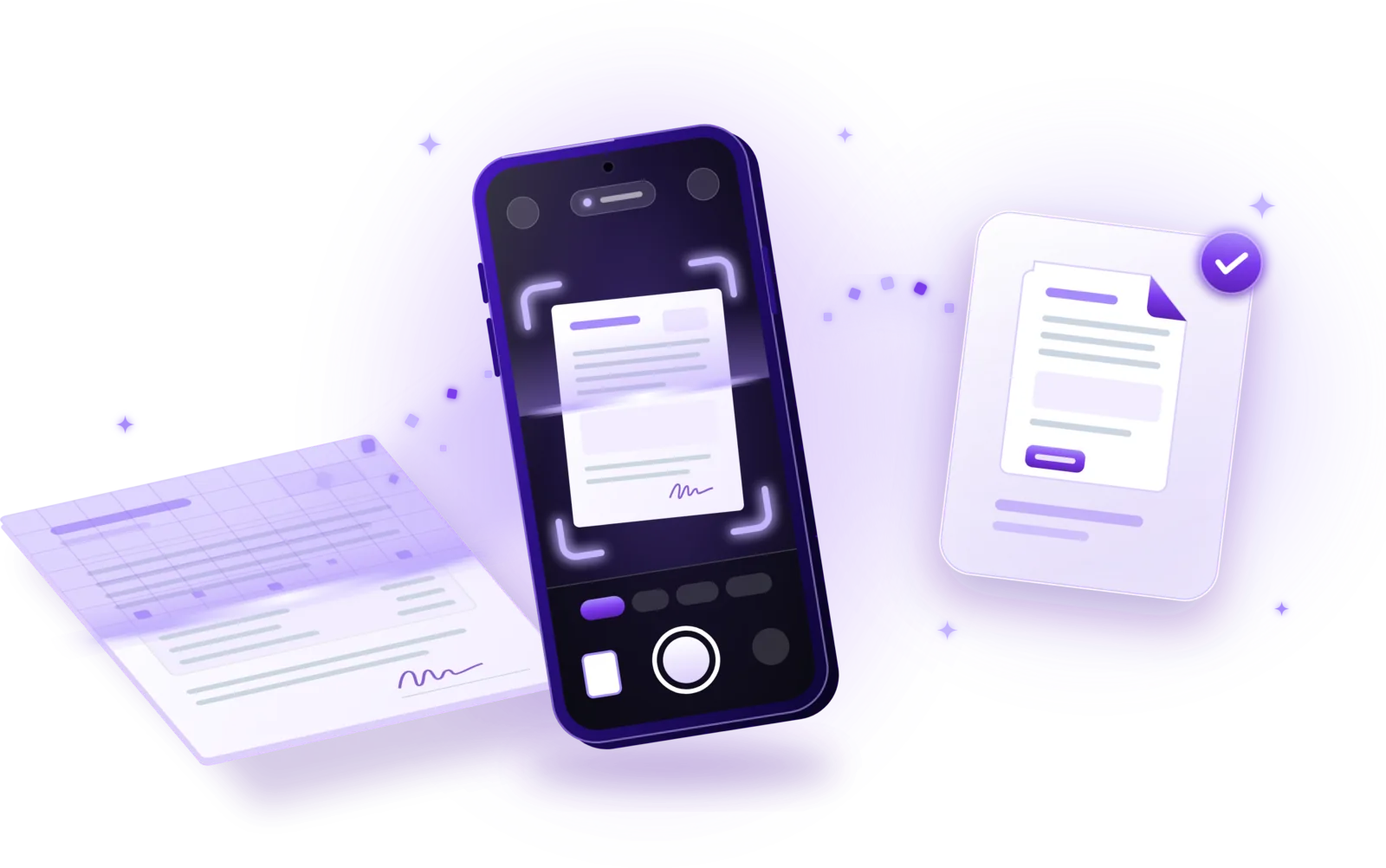
PDFDocify is an offline-first document scanner from SlickLab, currently getting ready for launch. It is built around the steps in this guide: point the camera at a page, let the app find the edges and straighten the perspective, choose a filter and save a clean PDF. Everything happens on your phone, without uploads and without creating an account.
Included for free
- Unlimited scanning
- Automatic edge detection and perspective correction
- Filters: Auto, Black & White, Grayscale, Color, Original
- Multi-page PDFs: reorder, rotate and delete pages
- Import photos from your gallery
- Document library with folders, search and sorting
- Share and export PDFs to any app
PDFDocify Premium
- Offline OCR: copy and search text
- Searchable PDFs
- Merge PDFs
- Compress PDFs
- Handwritten signatures
- Password protection
- Batch processing
Scanning, text recognition and every PDF tool run on your device. An internet connection is only needed for in-app purchases.
Frequently asked questions
Can I scan documents into PDFs for free?
Yes. Some phones come with a basic scanning function, and many scanning apps create PDFs at no cost. Check the limits, though: some free apps add a watermark, cap the number of scans or ask you to create an account. In PDFDocify, scanning, editing and saving multi-page PDFs will be part of the free version, with no scan limit; advanced tools such as text recognition, merging and signatures are part of Premium.
Can I scan multiple pages into one PDF?
Yes. Scan all pages in one session and the app combines them into a single PDF. Before you save, you can usually reorder, rotate or delete individual pages. PDFs you have already saved can be combined afterwards with a merge tool.
Do I need an internet connection to scan documents?
That depends on the app. Apps that process documents on the device work completely offline, while cloud-based apps have to upload your pages first. If you scan confidential documents or often work without a reliable connection, choose an app that works offline.
How can I improve the quality of a scanned PDF?
Scan in bright, even light, hold the phone parallel to the page and make sure the image is sharp before you save. Pick a filter that suits the document (Auto or Black & White for text, Color for colored content) and a higher image quality if you plan to print the PDF. If a page comes out blurry, scanning it again is usually quicker than trying to fix it.
Is scanning documents with a smartphone secure?
It can be. The safest setup is an app that processes and stores your documents on the phone without uploading them, combined with a screen lock on the device. Read the app’s privacy policy to see whether pages are sent to a server, and protect particularly sensitive PDFs with a password before you share them.
Related guides
How to Scan Multiple Pages into One PDF
Combine contracts, applications and statements into a single PDF: capture every page, put them in order and save one file.
Read the guide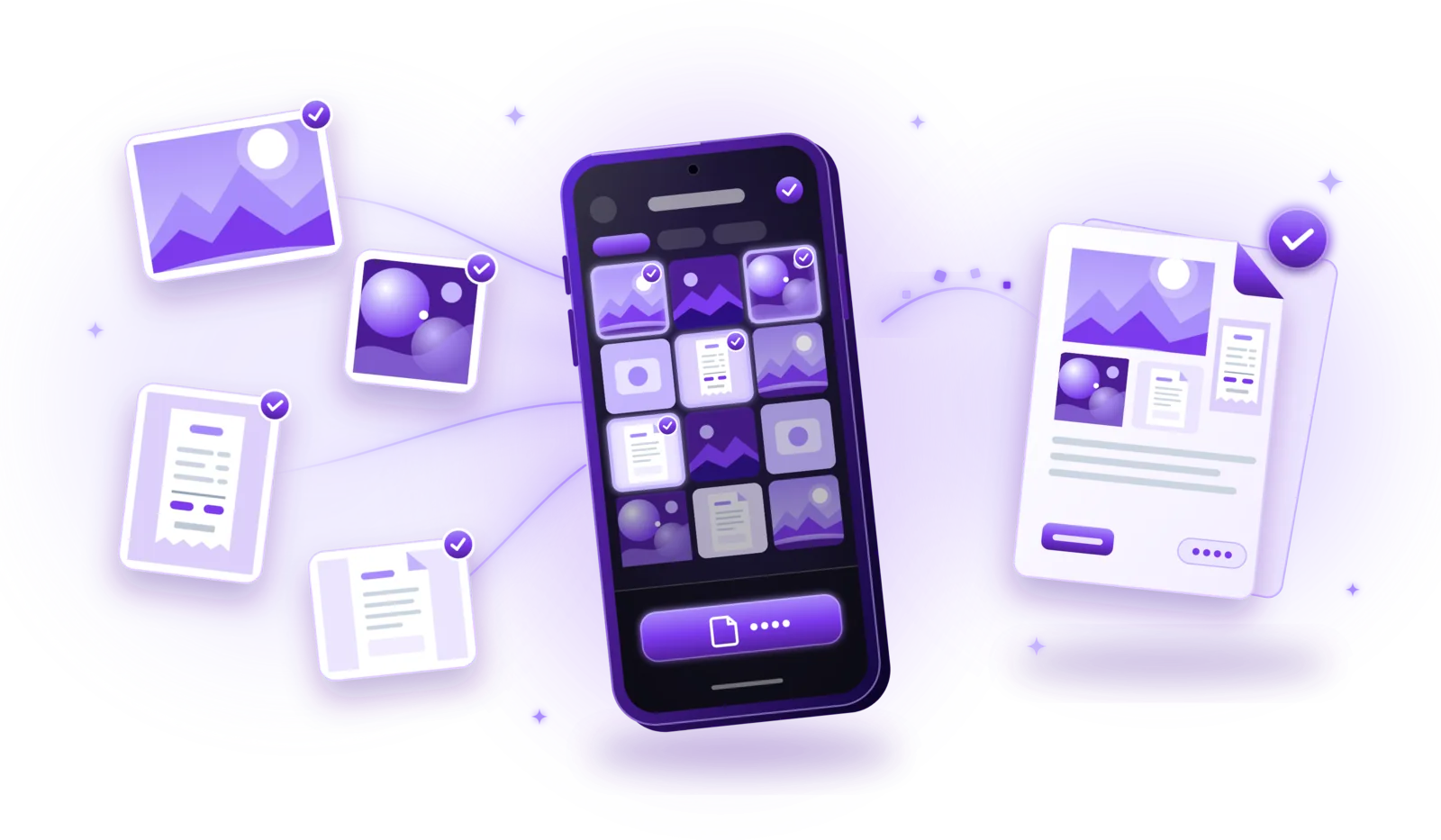
How to Convert Images to PDF
Turn photos, JPGs and PNGs into PDFs: convert single images or combine several into one document, without losing quality or privacy.
Read the guide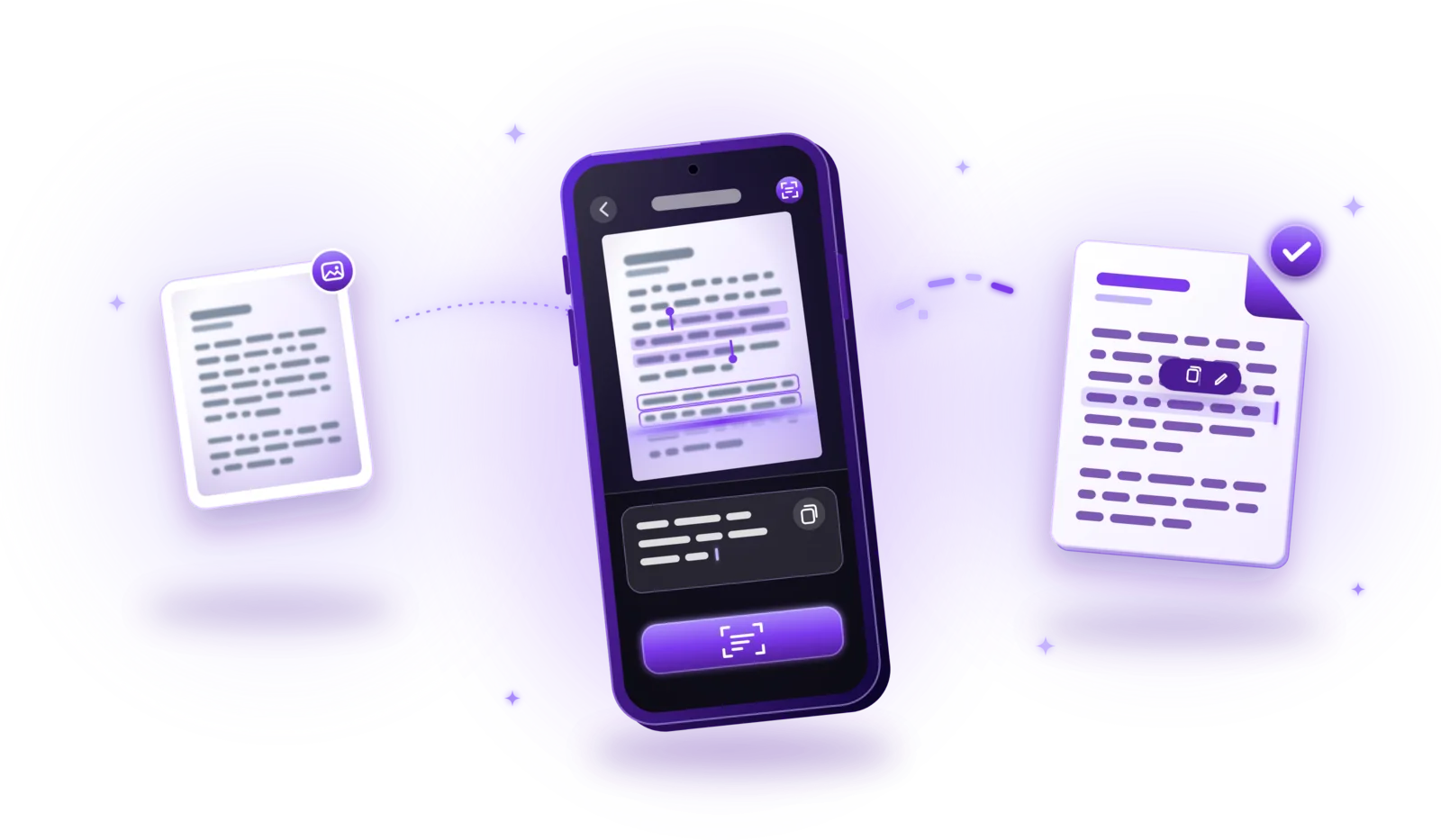
How to Extract Text from Scanned Documents Using OCR
Turn scans, photos and image PDFs into text you can copy and search: how OCR works, how to use it and how to get accurate results.
Read the guide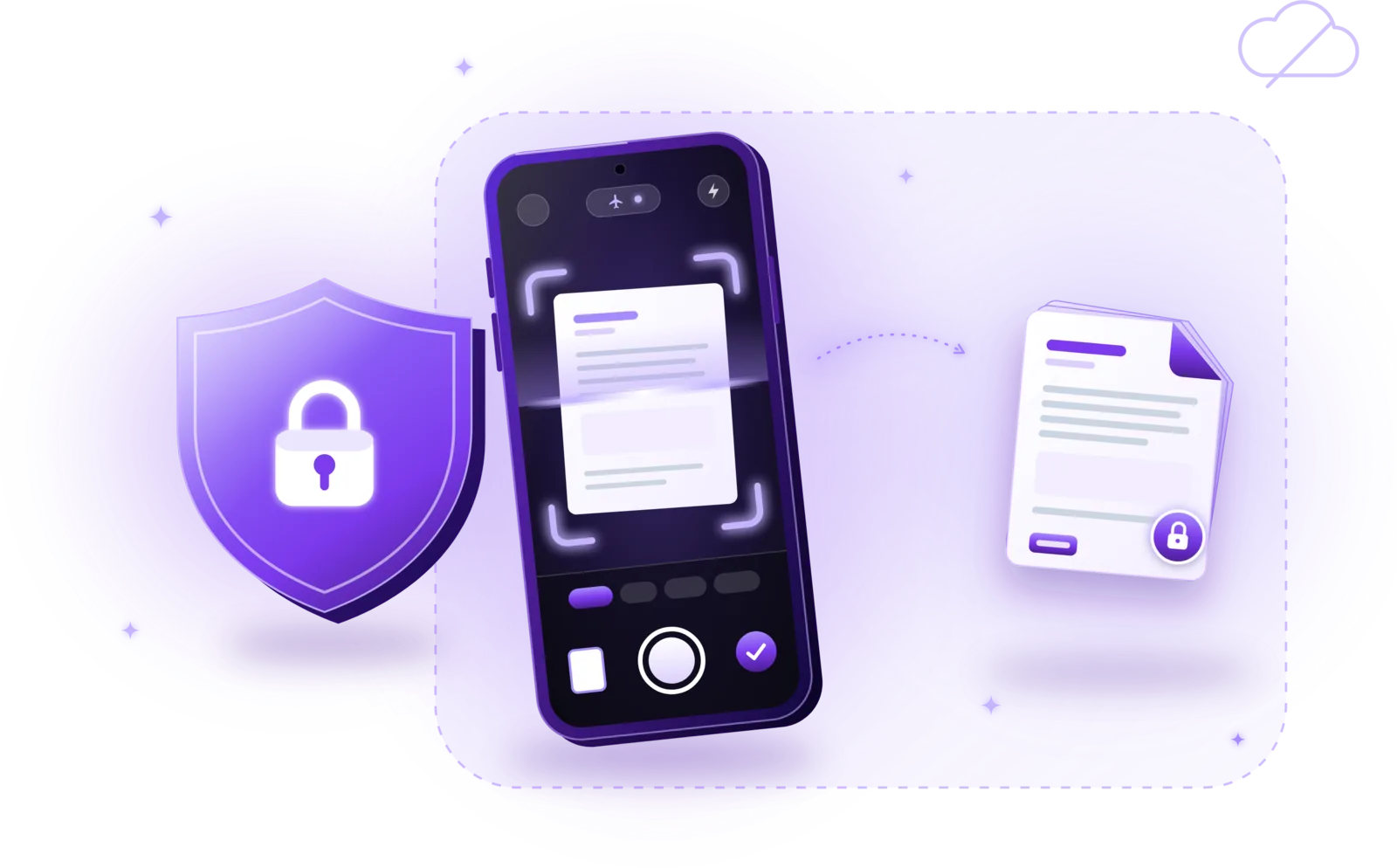
How to Scan Documents Offline and Privately
Scan without an internet connection and keep sensitive documents on your device: how offline scanning works and how to protect your scans.
Read the guide