In this guide
Why sign PDF documents electronically?
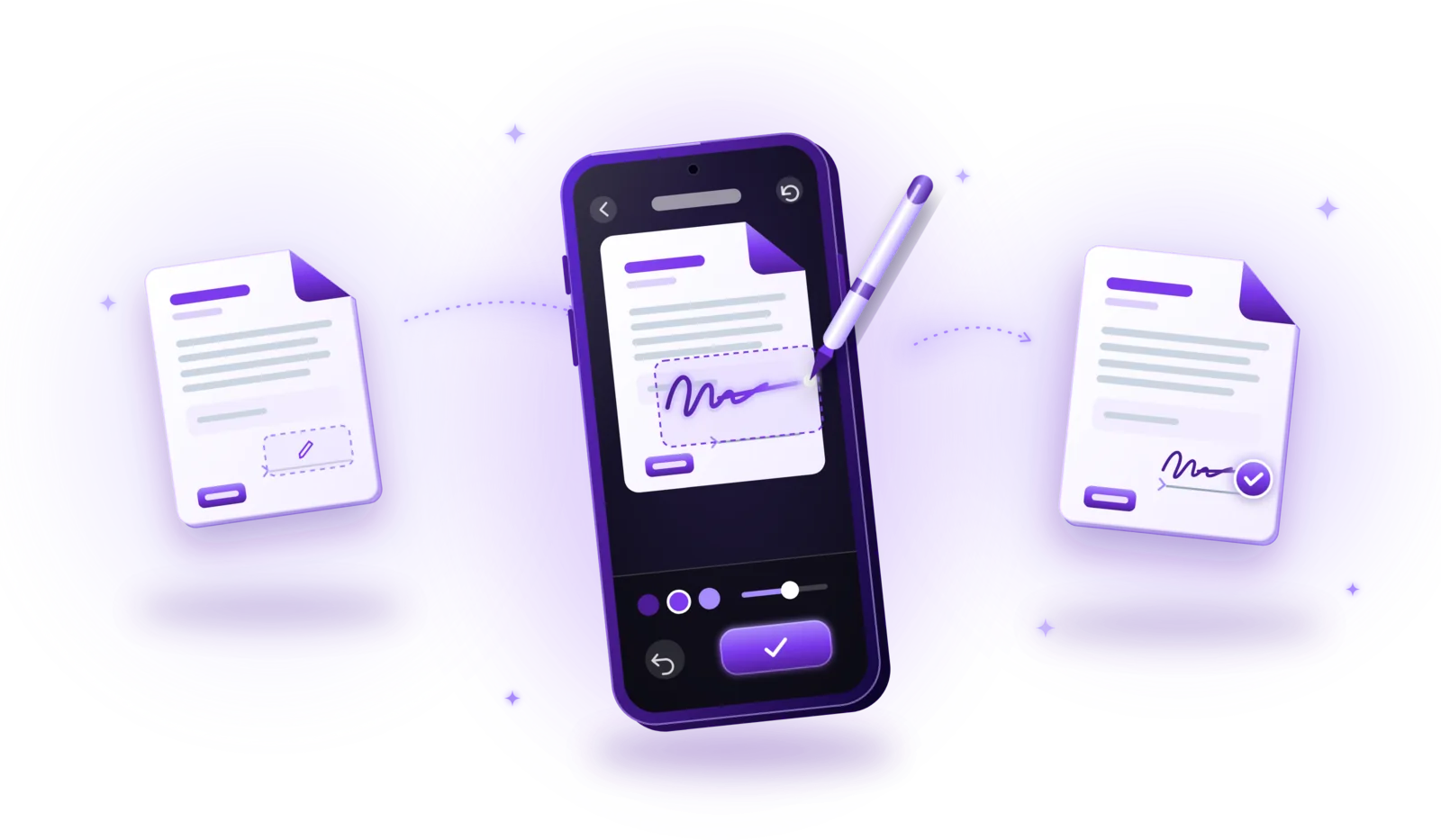
Signing a PDF electronically means adding your signature directly to the digital document instead of printing, signing with a pen and scanning it again. Most PDF editors and many document apps can do this: you draw or type your signature, place it on the page and save the file.
It is common for rental and service agreements, employment contracts, job and membership applications, consent forms, quotes and everyday business forms. Many of these accept a simple electronic signature; some legally require more, as explained below.
No printing required
No printer, no ink, no trip to a scanner: the document stays digital from start to finish.
Faster workflows
A contract can be signed and sent back within minutes instead of days by post.
Convenient sharing
The signed PDF goes out by email or upload portal straight away, in a format everyone can open.
Less paper
Fewer printouts and envelopes, especially for documents that only need a signature on one page.
Easier organization
Signed documents end up in your digital filing system right away, searchable and backed up.
How to sign a PDF – step by step
The exact steps depend on the application, but most signing tools work like this:
Open the PDF in a PDF editor or signing app
Use an application that can add signatures to PDFs. Many PDF viewers, editors and document scanners include this function.
Locate the signature feature
Look for a menu item such as “Sign”, “Fill & Sign” or a pen icon. In some apps it is listed under “Tools”.
Create your signature
Depending on the tool, you draw it with your finger or a stylus, type your name, or import a picture of your signature. Many apps save it for next time.
Position the signature
Drag the signature onto the signature line or the field where it belongs. Zoom in to place it precisely.
Adjust its size
Resize it so it fits the line and looks natural next to the printed text, neither tiny nor covering other content.
Save the signed PDF
Save the result, ideally as a copy, so you still have the unsigned original if you need to correct something.
Review the saved document
Open the saved file once more and check that the signature appears in the right place on the right page.
For paper documents, the usual order is: scan the document to PDF, merge related files such as a contract and its annexes, and sign last. Signing at the end makes sure the signature covers the final document and that no pages are added afterwards.
Different ways to add a signature to a PDF
Signing tools offer different methods. They look similar on the page, but they are not the same:
Drawing a handwritten-style signature
You draw your signature on the screen. It looks familiar and personal, but technically it is an image placed on the page.
Typing your name
The tool turns your typed name into a signature, often in a handwriting-style font. Quick, but even less individual than a drawn signature.
Importing a signature image
You photograph or scan your paper signature and insert the picture. Keep that file safe: anyone who has it can paste it into documents.
Certificate-based digital signature
The PDF is signed cryptographically with a personal certificate. It proves who signed and shows whether the document was changed afterwards.
These methods don’t provide the same security or legal assurances. The first three are visual signatures: they show that someone added a signature, but not reliably who it was or whether the document changed later. Only certificate-based signatures add that technical proof.
Electronic signatures vs. digital signatures
An electronic signature is any signature in electronic form that a person uses to sign: a drawn signature, a typed name, a scanned image or a checkbox with “I agree”. It shows intent to sign, but on its own it says little about who signed.
A digital signature in the technical sense is a certificate-based, cryptographic signature. The signing software calculates a fingerprint of the document and encrypts it with the signer’s private key. The matching certificate, issued by a trust service provider after checking the signer’s identity, lets anyone verify the signature. If even one character of the document is changed afterwards, the verification fails.
| Aspect | Electronic signature (drawn, typed, image) | Certificate-based digital signature |
|---|---|---|
| What it is | A visible mark on the page | Cryptographic data embedded in the PDF, often with a visible stamp |
| Proves the signer’s identity | No, not by itself | Yes, through the certificate |
| Shows later changes to the document | No | Yes |
| What you need | A PDF app | A certificate or signing service from a trust service provider |
| Typical use | Everyday agreements and forms | Contracts and documents with higher legal requirements |
That is why placing a signature image in a PDF doesn’t automatically provide cryptographic verification: the image can be copied, and the document can be edited afterwards without any visible trace.
Are electronically signed PDFs legally valid?
In many countries, electronic signatures are legally recognized, and a simple electronic signature can be sufficient for many everyday contracts. Whether it is enough in a specific case depends on the jurisdiction, the type of document and what the other party accepts.
Electronic signatures under eIDAS
In the European Union, the eIDAS Regulation (EU) No 910/2014 distinguishes three levels:
- Simple electronic signature: any data in electronic form used to sign, such as a drawn or typed signature. It may not be denied legal effect just because it is electronic, but its evidential value can be low.
- Advanced electronic signature: uniquely linked to and capable of identifying the signer, created with means under the signer’s sole control and linked to the document so that later changes are detectable.
- Qualified electronic signature: an advanced signature based on a qualified certificate and created with a qualified signature creation device. Across the EU it has the same legal effect as a handwritten signature.
Some documents require a specific form: depending on the country, certain contracts or declarations must be signed by hand on paper, or with a qualified electronic signature, or need a notary. A drawn signature in a PDF is therefore not universally equivalent to a handwritten signature on paper.
This guide provides general information, not legal advice. If you are unsure, ask the recipient which form of signature they accept, or seek professional legal advice.
How to sign PDFs without uploading sensitive documents
The documents people sign are often among the most sensitive they have: employment agreements, loan and bank documents, tenancy agreements, medical consent and other personal forms. Where the signing happens matters.
| Aspect | Online signing service | Local signing app |
|---|---|---|
| Where the document is processed | On the provider’s servers | On your device |
| Upload required | Yes | No |
| Identity verification and audit trail | Often available | Usually not |
| Internet connection | Required | Not needed for signing |
Online PDF signing services
Signing platforms upload your document to their servers and send it to all parties. In return, many offer identity checks, audit trails or advanced and qualified signatures, which can be exactly what a contract requires. The document is then stored by the provider, so check where and for how long.
Local PDF signing apps
Apps that sign on your device keep the document there; nothing is uploaded for signing. That protects the content, but local processing doesn’t verify who signed and doesn’t make a signature legally compliant on its own. It is a good fit for everyday documents that accept a simple signature.
Common problems when signing PDFs
Most signing problems are quick to fix:
Signature in the wrong location
Zoom in before placing it and check the page number. Many apps let you drag the signature again until you save.
Signature too large or too small
Use the resize handle to match the height of the signature line. Draw your signature large; it is easier to shrink than to enlarge.
PDF is password-protected
Protected PDFs often can’t be edited. Open the file with the password and remove the protection if you are allowed to, then sign.
Signed document can’t be edited
That is often intentional: certificate signatures lock the content, and visual signatures may be merged into the page. Make changes before signing, or edit a copy of the unsigned original.
Signature disappears after saving
Some tools add the signature as an annotation that other viewers hide or that is lost when the file is saved elsewhere. Save the signature into the document (sometimes called “flatten”) and reopen the file to check.
Recipient requires a qualified signature
A drawn signature can’t be upgraded. Use a qualified trust service provider or the recipient’s signing platform for that document.

Coming soon
Sign PDF documents with PDFDocify
PDFDocify, the offline-first document scanner and PDF app from SlickLab that is currently getting ready for launch, includes a tool for handwritten signatures. You draw your signature once with your finger, in black or blue, and the app saves it on your device for next time. You then place it on any page of a scanned or imported PDF, drag it into position, resize it and save the result as a copy or replace the original; either way, the signature becomes a fixed part of the page. It is a visual, handwritten signature: PDFDocify doesn’t create certificate-based digital signatures and doesn’t verify identities, so for documents that require an advanced or qualified signature, use a certified signing service. Signing is part of PDFDocify Premium.
Included for free
- Unlimited scanning
- Automatic edge detection and perspective correction
- Filters: Auto, Black & White, Grayscale, Color, Original
- Multi-page PDFs: reorder, rotate and delete pages
- Import photos from your gallery
- Document library with folders, search and sorting
- Share and export PDFs to any app
PDFDocify Premium
- Offline OCR: copy and search text
- Searchable PDFs
- Merge PDFs
- Compress PDFs
- Handwritten signatures
- Password protection
- Batch processing
Your signatures and documents stay on your device; nothing is uploaded. Password-protected PDFs need their password removed first. An internet connection is only needed for in-app purchases.
Frequently asked questions
How can I sign a PDF without printing it?
Open the PDF in an app with a signing function, draw or type your signature, drag it onto the signature line, adjust its size and save the file. The signed PDF can then be sent straight back by email or upload.
Can I draw my signature on a PDF?
Yes. Many PDF apps let you draw your signature with a finger, stylus or mouse and place it in the document. Legally, this counts as a simple electronic signature, which is fine for many documents but not for all.
Is an electronic signature legally binding?
Often, yes, but it depends on the jurisdiction and the document. In the EU, a simple electronic signature can’t be rejected just because it is electronic, while only a qualified electronic signature has the same legal effect as a handwritten one. Some documents require a specific form. When in doubt, ask the recipient or seek legal advice.
What is the difference between an electronic signature and a digital signature?
“Electronic signature” is the broad term for any signature in electronic form, including a drawn or typed one. A digital signature is a certificate-based, cryptographic signature that can verify who signed and whether the document was changed afterwards.
Can I sign a PDF without an internet connection?
Yes, with an app that signs on your device. Drawn or typed signatures don’t need a connection. Certificate-based and qualified signatures usually do, because they involve a trust service provider. PDFDocify adds handwritten signatures offline.
Can I edit a PDF after signing it?
Technically sometimes, but you shouldn’t: changes after signing make it unclear what was signed, and they invalidate certificate-based signatures. Make all changes first and sign last. If something must change, edit the unsigned original and sign again.
Conclusion
Signing a PDF electronically takes only a few steps: open the document, create your signature, place and size it, save and check the result. Choose the method that fits the document: a drawn signature works for many everyday agreements, while contracts with stricter requirements may need an advanced or qualified signature. If you want an app that scans, organizes and signs your documents by hand, offline and without uploads, take a look at PDFDocify and join the waitlist for its launch.
Related guides
How to Scan Documents to PDF
Turn paper into clean PDFs with your phone: seven steps from preparing the page to saving the file, plus tips for sharp, private scans.
Read the guide
How to Merge PDF Files into One Document
Combine several PDFs into one document: select the files, put them in order and save a single PDF, without losing quality or privacy.
Read the guide