In this guide
Why organize digital documents?
Organizing digital documents means giving every file a predictable place and a recognizable name, so you can find it in seconds instead of minutes. Going paperless only pays off if the digital archive is easier to use than the folder in the cupboard. Without a system, the same problems simply move from paper to the screen:
Important documents are hard to find
The rental contract is needed today, but nobody remembers whether it is in the downloads, the email or the phone.
Duplicate PDFs
The same invoice exists three times: as an attachment, as a scan and as a renamed copy, and nobody knows which one is final.
Unclear file names
Names like scan001.pdf say nothing about the content, so every file has to be opened to find the right one.
Scattered folders
Documents are spread across downloads, desktop, apps and cloud folders, with no single place to look.
Lost invoices and contracts
Warranty receipts or signed contracts disappear exactly when you need them for a claim or a cancellation.
Wasted storage
Duplicates, outdated versions and huge scans take up space on devices and in backups.
A simple, consistent system fixes most of this. It doesn’t have to be perfect: a few clear categories and a naming rule you actually follow are worth more than an elaborate structure you abandon after a month.
How to organize digital documents – step by step
Setting up the system takes an afternoon; keeping it up takes a few minutes per week.
Gather your existing digital documents
Collect PDFs and scans from downloads, email attachments, messengers and old folders in one place. Don’t sort yet, just gather.
Remove unnecessary duplicates
Keep the best or final version of each document and delete the rest. When in doubt, compare the content, not just the file name.
Create a logical folder structure
Set up a handful of main categories that match your life, such as Personal, Finance, Insurance, Home and Work.
Use consistent file names
Rename files according to one pattern, for example date, category and description. Apply it to every new file from now on.
Group documents by category
Move each document into the folder where you would look for it first. If a document fits two places, pick one and stick with it.
Add dates where appropriate
Use the document’s own date, such as the invoice date or contract start, not the day you scanned it.
Establish a routine for new documents
File new documents right away or collect them in an inbox folder that you empty once a week.
Review the archive periodically
Once or twice a year, check for duplicates, misfiled documents and files you no longer need.
Create a simple folder structure
Most households and freelancers get by with five to eight main categories and, where useful, one level of subfolders. A structure like this covers the typical documents:
Documents/
├── Personal/
│   ├── Identification/
│   └── Certificates/
├── Finance/
│   ├── Banking/
│   └── Taxes/
├── Insurance/
│   ├── Contracts/
│   └── Claims/
├── Home/
│   ├── Utilities/
│   └── Invoices/
└── Work/
    ├── Contracts/
    └── Applications/
The best structure depends on your needs: a freelancer might add a folder per client, a family one per person. Whatever you choose, avoid unnecessarily deep hierarchies. Every extra level is one more decision when filing and one more place to look when searching. A folder called “Misc” or “Other” is usually a sign that a category is missing.
How to name PDF files consistently
A descriptive file name tells you what a document is without opening it, and makes it findable by search. A proven pattern is YYYY-MM-DD_Category_Description.pdf:
File name examples
2026-10-12_Insurance_Contract.pdfdated, categorized, clear2026-09-15_Electricity_Invoice.pdfdated, categorized, clear2026-08-01_Employment_Agreement.pdfdated, categorized, clearscan001.pdfsays nothing about the contentdocument-final.pdfwhich version, which document?newfile.pdfimpossible to find later
Dates in ISO format (year, month, day) have a big advantage: sorted alphabetically, the files are automatically in chronological order, on every device and in every file manager. Formats like 12.10.2026 or 10/12/2026 sort incorrectly and are ambiguous across countries.
- Use the document’s date: the date on the invoice or contract, not the scan date.
- Keep names short: three to five words are enough; details belong in the document.
- Avoid special characters: use underscores or hyphens instead of slashes, colons or emojis, which some systems don’t accept.
- Don’t use “final”: if you need versions, add v1, v2 or a date instead.
How to organize scanned documents
Scans are where most archives get messy, because they arrive with automatic names like “Scan 2026-10-12”. A short routine for every new scan prevents that:
- Scan the document clearly, so it is readable and, later, searchable.
- Combine related pages into one PDF instead of saving one file per page.
- Review the document before saving: all pages there, in the right order, nothing cut off.
- Replace the automatic name with a descriptive file name right away.
- Store the file in the appropriate category folder.
- Delete unnecessary duplicate scans, such as a first blurry attempt.
Doing this immediately takes less than a minute. Doing it later for a pile of fifty scans takes an afternoon, which is why it often never happens.
How to find documents quickly
A well-organized archive gives you several ways to find a document:
- Descriptive file names: a search for “Insurance” or “2026-09” finds the right files straight away.
- Logical categories: you know which folder to open, even if you don’t remember the exact name.
- Date-based sorting: the newest or oldest documents of a category are always at the top.
- Tags, where supported: some apps let you add keywords that cut across folders, such as “tax 2026”.
- Searchable text, where supported: with OCR, you can find a document by a word inside it, such as a contract number or a company name.
Scans are images, so normally only their file name is searchable. OCR (optical character recognition) recognizes the text in the scan, and many apps then let you search the content of your documents; see how to extract text from scanned documents. Whether that text is searchable only inside the app or also in the PDF itself depends on the application.
Local storage vs. cloud document organization
Where your archive lives affects access, privacy and safety. Both approaches have strengths:
| Aspect | Local storage | Cloud storage |
|---|---|---|
| Offline access | Always available on the device | Only files that were synced or downloaded |
| Privacy | Documents stay on your device | Stored by a provider, under its security and terms |
| Synchronization | None, unless you set it up | Automatic across devices |
| Device storage | Uses space on the device | Can free up space on the device |
| Backups | Your responsibility | Often included, but not a replacement for your own backup |
| Data availability | Lost if the device fails and there is no backup | Depends on the provider and your account |
Local storage reduces unnecessary cloud exposure, but it doesn’t protect against device loss, theft or hardware failure on its own. If you keep important documents locally, make regular backups, for example an encrypted copy on an external drive or a backup option you trust. More on keeping scans private in how to scan documents offline and privately.
How to keep your digital archive organized
An archive stays useful through small, regular habits, not big clean-ups:
File new documents immediately
Name and file each document when it arrives, or empty an inbox folder once a week.
Review periodically
Set a reminder once or twice a year to check categories and remove what is no longer needed.
Remove duplicates
Delete extra copies as soon as you notice them, keeping only the final version.
Stick to your naming convention
Consistency matters more than the perfect pattern. Rename stragglers when you come across them.
Back up important files
Keep at least one backup of documents you can’t replace, stored separately from the original device.
Check retention requirements
Before deleting old records, check how long they must be kept for taxes, warranties or contracts.
Retention periods differ by country and document type, so there is no universal rule for how long to keep records. If in doubt, check the requirements of your tax authority or ask an advisor before deleting tax, business or legal documents.
Coming soon
Organize your documents with PDFDocify
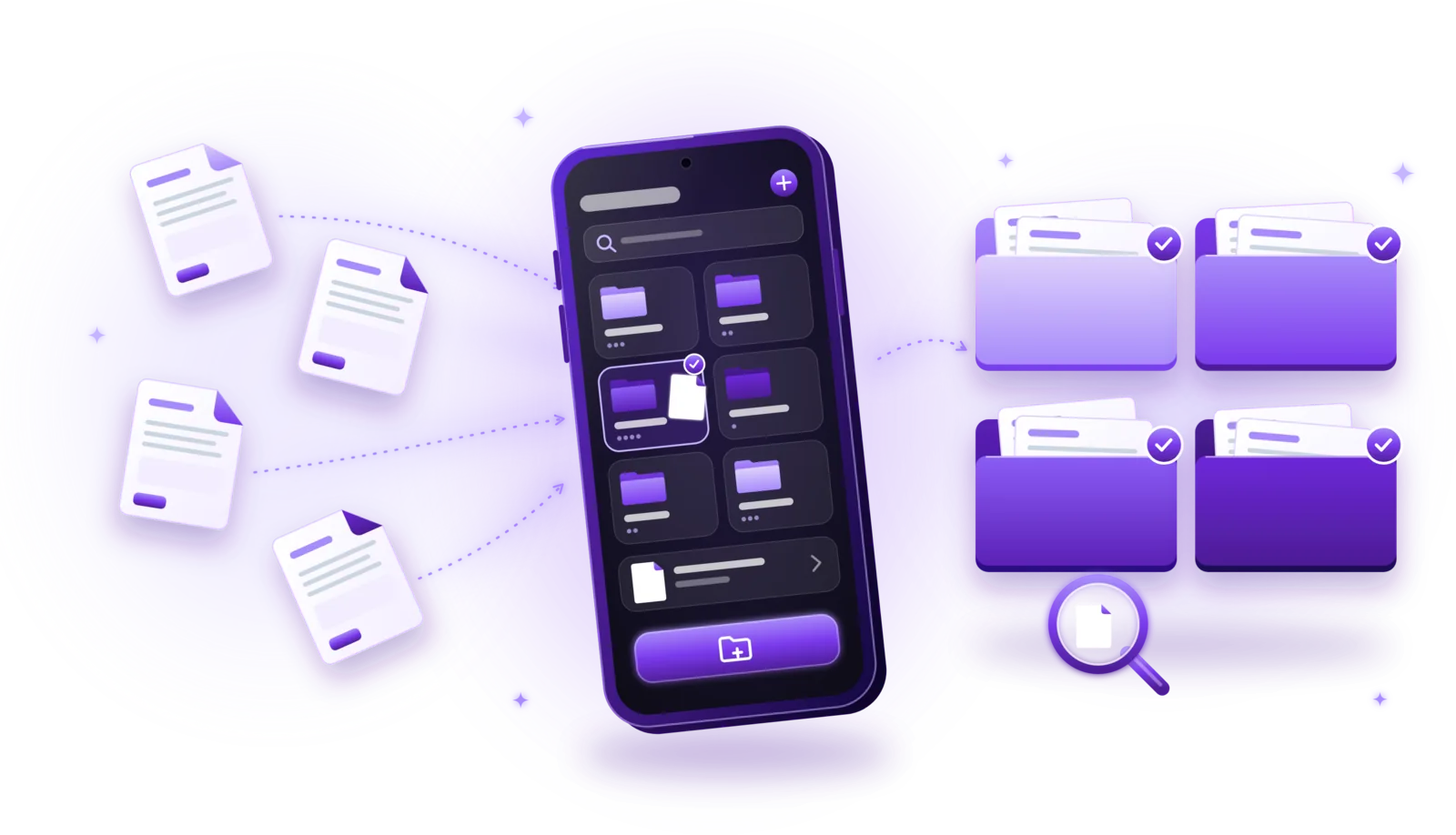
PDFDocify, the offline-first document scanner and PDF app from SlickLab that is currently getting ready for launch, keeps every scan and imported PDF in a document library on your device. You can sort documents into folders (one level, no subfolders), rename, duplicate and move them, and sort the list by date, name or size. Search finds documents by name and, once text recognition has run, by the words they contain. New scans get a date-based name automatically, in a format you choose in the settings; after saving, the document opens straight away, so you can give it a descriptive name right then. Scanning, multi-page PDFs, folders and search by name are free; text recognition and selecting several documents at once to move, share or delete are part of Premium.
Included for free
- Unlimited scanning
- Automatic edge detection and perspective correction
- Filters: Auto, Black & White, Grayscale, Color, Original
- Multi-page PDFs: reorder, rotate and delete pages
- Import photos from your gallery
- Document library with folders, search and sorting
- Share and export PDFs to any app
PDFDocify Premium
- Offline OCR: copy and search text
- Searchable PDFs
- Merge PDFs
- Compress PDFs
- Handwritten signatures
- Password protection
- Batch processing
Your library stays on your device; PDFDocify has no cloud sync of its own, so keep a backup of important documents. An internet connection is only needed for in-app purchases.
Frequently asked questions
What is the best way to organize digital documents?
A few clear categories, one consistent naming convention and a routine for filing new documents. Collect everything in one place, remove duplicates, then sort into five to eight main folders. Simple systems that you actually use beat elaborate ones.
How should I name PDF files?
Use a pattern such as YYYY-MM-DD_Category_Description.pdf, for example 2026-09-15_Electricity_Invoice.pdf. The ISO date makes files sort chronologically, and the category and description make them easy to recognize and search.
Should I organize documents by date or category?
Usually both: folders by category, and dates at the start of file names. You look for documents by topic (“my insurance papers”) and then by time (“the latest one”), and this combination supports both.
How can I organize scanned documents?
Scan clearly, combine related pages into one PDF, replace the automatic name with a descriptive one, file it in the right folder and delete failed or duplicate scans, ideally right after scanning.
Can OCR help me find documents?
Yes. OCR recognizes the text in scans, so you can search for words inside a document, such as a customer number, a name or an amount, instead of relying on the file name alone. How searching works depends on the app.
Is it better to store documents locally or in the cloud?
It depends on your priorities. Local storage keeps documents private and available offline but needs your own backups. Cloud storage syncs across devices but means a provider stores your files. Many people keep sensitive documents locally and back them up regularly.
How often should I review my digital archive?
File new documents as they arrive and do a short review once or twice a year: remove duplicates, fix misfiled documents and delete what you no longer need, after checking any retention requirements.
Conclusion
Organizing digital documents doesn’t require a complicated system: a few clear categories, file names that start with an ISO date, a short routine for new scans and an occasional review keep almost any archive under control. A simple system you stick to is more effective than a perfect one you don’t. If you want an app that scans, names and organizes your documents on your device, take a look at PDFDocify and join the waitlist for its launch.
Related guides
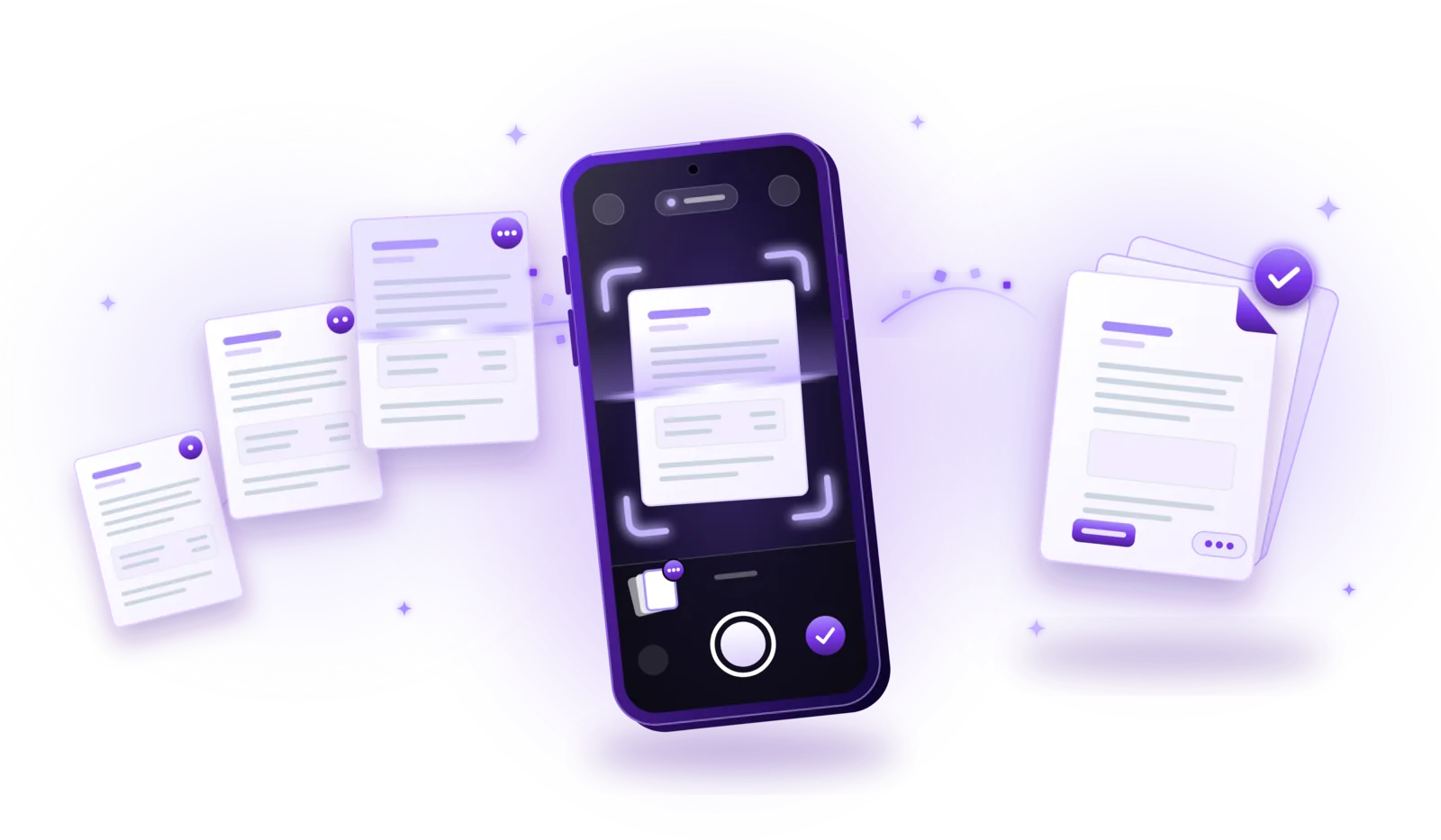
How to Scan Multiple Pages into One PDF
Combine contracts, applications and statements into a single PDF: capture every page, put them in order and save one file.
Read the guide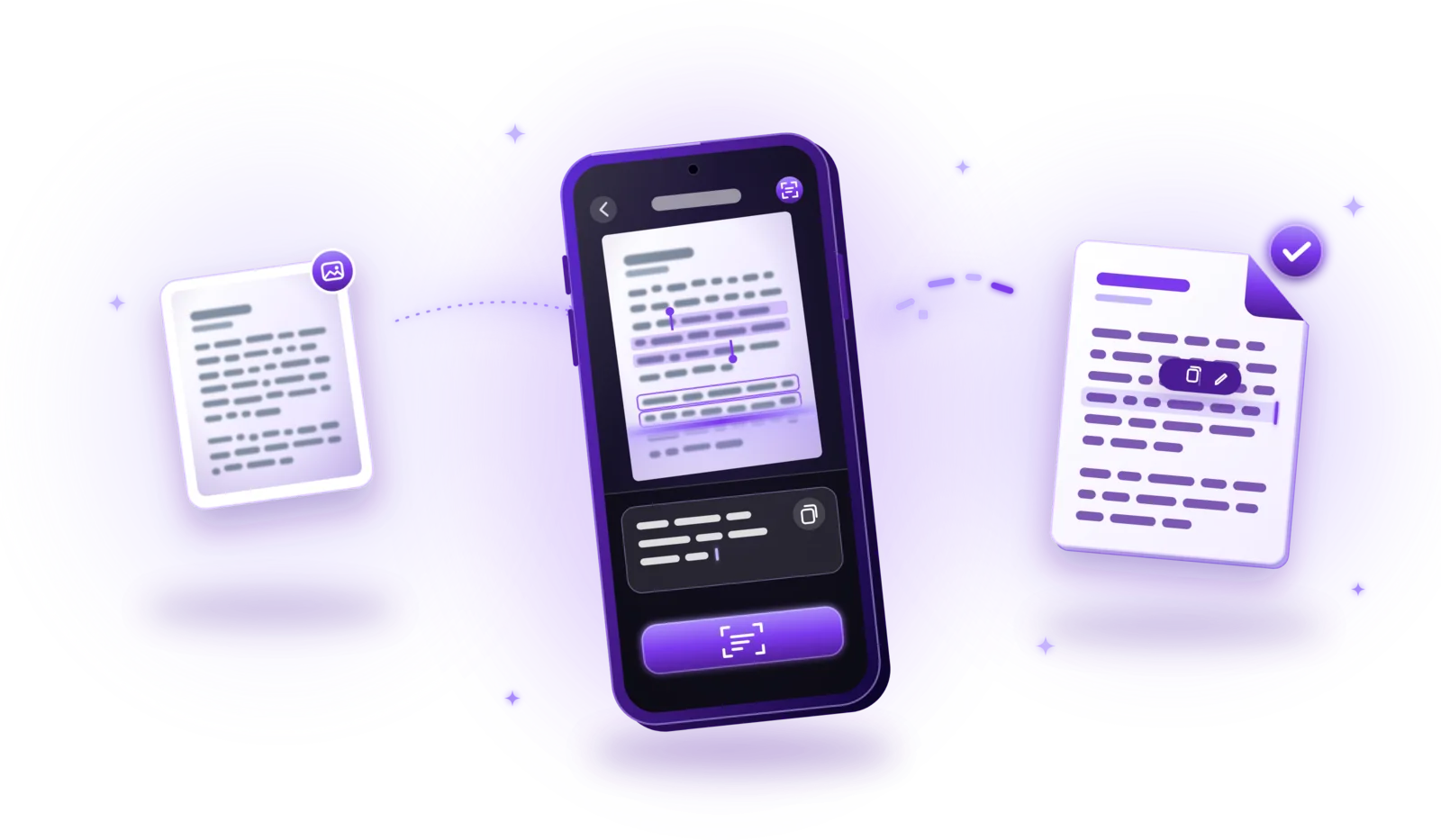
How to Extract Text from Scanned Documents Using OCR
Turn scans, photos and image PDFs into text you can copy and search: how OCR works, how to use it and how to get accurate results.
Read the guide
How to Scan Documents Offline and Privately
Scan without an internet connection and keep sensitive documents on your device: how offline scanning works and how to protect your scans.
Read the guide