In this guide
Why scan documents offline?
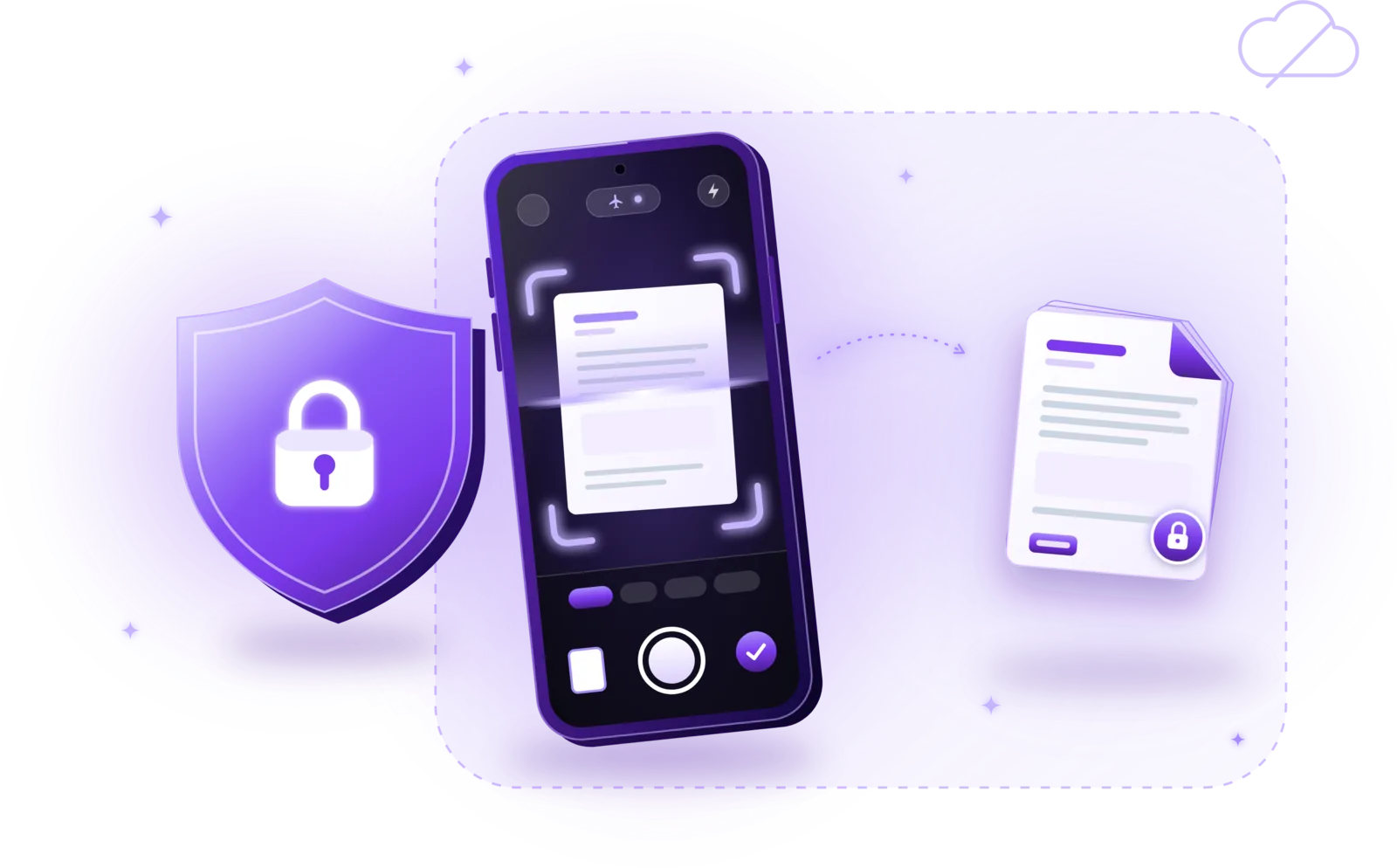
Scanning documents offline means that your phone captures the page, processes the image and creates the PDF itself, without sending anything to a server. You only need a scanner app that supports local processing; an internet connection isn’t required. That reduces your reliance on cloud services and keeps the document on your device unless you decide to share it.
This matters most for the documents people scan anyway, because they contain personal details:
Identity documents
ID cards, passports and residence permits contain everything needed to impersonate someone.
Insurance contracts
Policies and claims reveal your address, health, property and policy numbers.
Financial records
Bank statements, tax returns and payslips show income, account numbers and spending.
Medical paperwork
Diagnoses, prescriptions and doctors’ letters are among the most sensitive personal data.
Employment agreements
Contracts and references include salary details, personal data and signatures.
Personal correspondence
Letters from authorities, lawyers or family are nobody else’s business.
How to scan documents without an internet connection
Scanning offline works like regular scanning, with a few checks to make sure nothing depends on a connection:
Choose a scanner that supports offline processing
Look for a document scanner that states clearly that scanning and PDF creation happen on the device. Its privacy policy should say the same.
Confirm the features work without internet
Switch on airplane mode and try a test scan. Some apps only work offline for basic capture, while filters, text recognition or saving need a connection.
Open the scanning app
Start a new scan. If the app asks you to sign in or create an account first, that is a sign it relies on online services.
Position the document on a flat surface
Place the page on a contrasting, even background in good light.
Capture the document
Hold the phone parallel to the page and let the app take the picture, or tap the shutter button.
Adjust the edges and perspective
Check the detected corners and correct them if necessary, so the page is straight and fully visible.
Apply enhancement filters if needed
Choose a filter such as black and white or color to make the text clearly readable.
Save the document as a PDF locally
Save the scan on your device. Make sure you aren’t automatically saving into a synced cloud folder if you want the file to stay local.
Verify where the document is stored
Check where the PDF ended up: in the app, in your device’s files or in a folder that syncs to a cloud service.
Some applications need a one-time download or setup before their offline features work, for example a scanning component or a language model for text recognition. Open the scanner once while you are online, then test it in airplane mode. The basics of a good scan are covered in How to scan documents to PDF.
Offline document scanning vs. cloud-based scanning
With offline scanning, the document is processed on your device, the core functions work without a connection, and no upload is needed for scanning. With cloud-based scanning, some of the processing may happen on remote servers, internet access may be needed, and documents may be uploaded for processing, synchronization or storage.
| Aspect | Offline scanning | Cloud-based scanning |
|---|---|---|
| Internet connection | Not needed for scanning | Often needed |
| Where processing happens | On your device | Partly or fully on remote servers |
| Where files are stored | On your device, unless you move them | Often in an online account, sometimes in addition to the device |
| Privacy considerations | Fewer copies; protection depends on your device | Depends on the provider’s security, retention and access rules |
| Typical advantage | Works anywhere, documents stay with you | Access from several devices, automatic sync |
Many apps use a hybrid approach: they scan on the device but offer cloud sync, online text recognition or sharing links. That isn’t wrong, but you should know which parts happen where and be able to switch off what you don’t want.
What happens to your documents when you scan them?
Where a scan goes after you capture it depends entirely on the application. These are the places to look at:
- Local device storage: the PDF is saved in the app or in your device’s files and stays there until you move, share or delete it.
- Cloud synchronization: some apps copy every scan to an online account automatically, which is convenient but creates a copy outside your device.
- Temporary server processing: features such as online text recognition can upload a page briefly, even if the result is stored locally.
- Automatic backups: your device’s system backup may include app data and documents, depending on your backup settings.
- Third-party integrations: sending a scan to a storage service, email or messenger passes it on to that service.
- Application permissions: access to the camera, photos, files or contacts determines what an app can reach on your device.
Read an app’s privacy policy and check its settings to see where documents are processed and stored. A trustworthy app explains this in plain language and lets you turn off sync and other online features.
How to protect sensitive scanned documents
Offline scanning is one part of keeping documents safe. These habits cover the rest:
Use a device lock
A PIN, password or biometric lock is the first barrier if your phone is lost or stolen.
Keep apps updated
Updates for the operating system and apps close security gaps.
Review app permissions
Give scanner apps only the access they need, typically the camera and, if you import images, selected photos.
Avoid unnecessary sharing
Every copy you send is a copy you no longer control. Share only what the recipient really needs.
Understand cloud backup settings
Check whether your device or apps back up documents to a cloud, and decide whether that is what you want.
Use password protection
Encrypt particularly sensitive PDFs with a password before you share them, where available and appropriate. See how to password-protect a PDF.
Delete unnecessary copies
Remove old scans, duplicates and shared copies you no longer need, using the app’s delete function where supported.
Verify recipients
Double-check email addresses and chat contacts before sending sensitive documents.
Offline scanning is one component of document security, not a complete security solution: a document on an unlocked, outdated device or in an email to the wrong person isn’t safe, no matter how it was scanned.
Can you scan documents offline with OCR?
Yes, if the app recognizes text on the device. Some OCR engines run locally and read the text directly on your phone; others send the image to a server and return the recognized text.
- Local OCR: works without a connection and keeps the document on your device; its capabilities depend on the app and the recognition models installed.
- Server-based OCR: can offer advanced features, but needs a connection and an upload of your page.
Offline OCR availability depends on the application, any language models that need to be installed, and the features it supports. Our guide How to extract text from scanned documents explains OCR in detail.
Put together, a privacy-conscious workflow can stay on your device from start to finish: scan the document offline, recognize its text locally, add your signature on the device and protect the PDF with a password before you share it.

Coming soon
Offline document scanning with PDFDocify
PDFDocify, the document scanner from SlickLab that is currently getting ready for launch, is built offline-first. Scanning, edge detection and perspective correction, filters, PDF creation and the document library with folders and search run on your device and work without an internet connection, and there is no account to create. Once unlocked, the Premium tools (text recognition, merging, compression, handwritten signatures and password protection) also run offline. Your documents are stored in the app on your device; PDFDocify has no cloud sync of its own, and files only leave the device when you share or export them.
Included for free
- Unlimited scanning
- Automatic edge detection and perspective correction
- Filters: Auto, Black & White, Grayscale, Color, Original
- Multi-page PDFs: reorder, rotate and delete pages
- Import photos from your gallery
- Document library with folders, search and sorting
- Share and export PDFs to any app
PDFDocify Premium
- Offline OCR: copy and search text
- Searchable PDFs
- Merge PDFs
- Compress PDFs
- Handwritten signatures
- Password protection
- Batch processing
PDFDocify does go online in a few cases: for in-app purchases and checking your Premium status (with an anonymous ID), when you choose to send feedback, and on some devices once to download the system’s scanning component before the first scan. Depending on your settings, your device’s system backup may include app data.
Frequently asked questions
Can I scan documents without an internet connection?
Yes, with a scanner app that processes pages on your device. Test it in airplane mode: capturing, cropping, filtering and saving the PDF should all work. Some apps need a one-time download before their offline features are available.
Are offline document scanners more private?
Usually, yes, because your documents don’t have to be uploaded to be scanned, which means fewer copies outside your device. How private an app really is still depends on what else it does, such as cloud sync or data collection, so check its privacy policy.
Do document scanner apps upload my files?
Some do and some don’t. Apps with cloud sync, online text recognition or online accounts may upload your scans; offline-first apps process them on the device. The app’s privacy policy and settings tell you which applies. PDFDocify doesn’t upload your documents.
Can I save scanned PDFs directly on my device?
Yes. Most scanner apps save PDFs in the app or in your device’s files. Check that the target folder isn’t synced to a cloud automatically if you want the file to stay on the device only.
Does OCR work offline?
It depends on the app. Some recognize text directly on the device, others need a server. PDFDocify recognizes printed text offline. Read more in our OCR guide.
Can I scan multiple pages without internet access?
Yes, with an offline scanner you can capture several pages, reorder them and save them as one PDF without a connection. See how to scan multiple pages into one PDF.
Is offline scanning completely secure?
No. Offline scanning avoids uploading documents for processing, but security also depends on your device lock, updates, backups and who you share files with. It is an important part of protecting documents, not the whole solution.
Conclusion
Offline scanning lets you digitize sensitive documents without uploading them: the page is captured, processed and saved as a PDF on your own device. Whatever app you use, take a moment to understand where your documents are processed and stored, and combine offline scanning with a device lock, careful sharing and password protection. If you want a scanner that is built offline-first, take a look at PDFDocify and join the waitlist for its launch.
Related guides
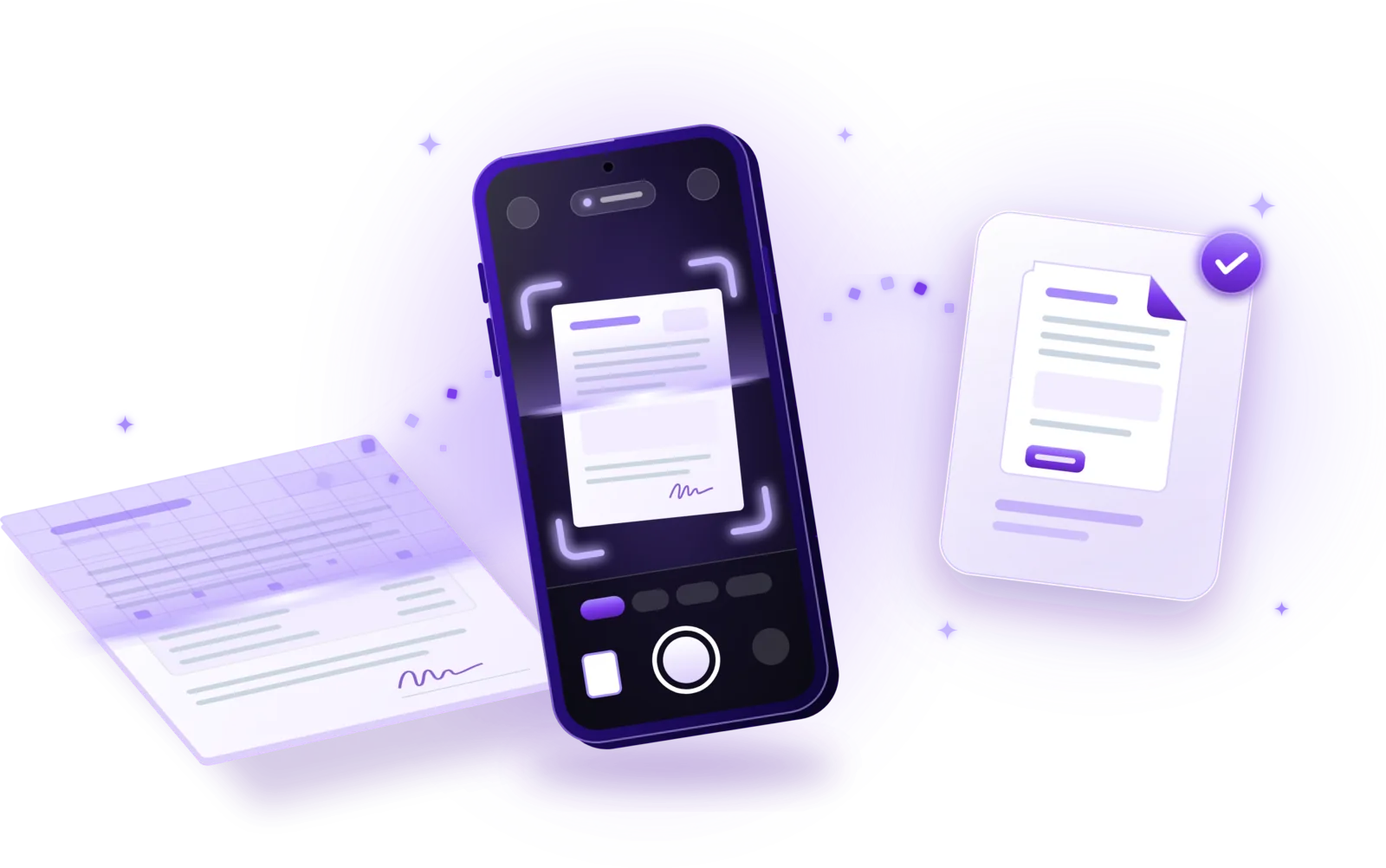
How to Scan Documents to PDF
Turn paper into clean PDFs with your phone: seven steps from preparing the page to saving the file, plus tips for sharp, private scans.
Read the guide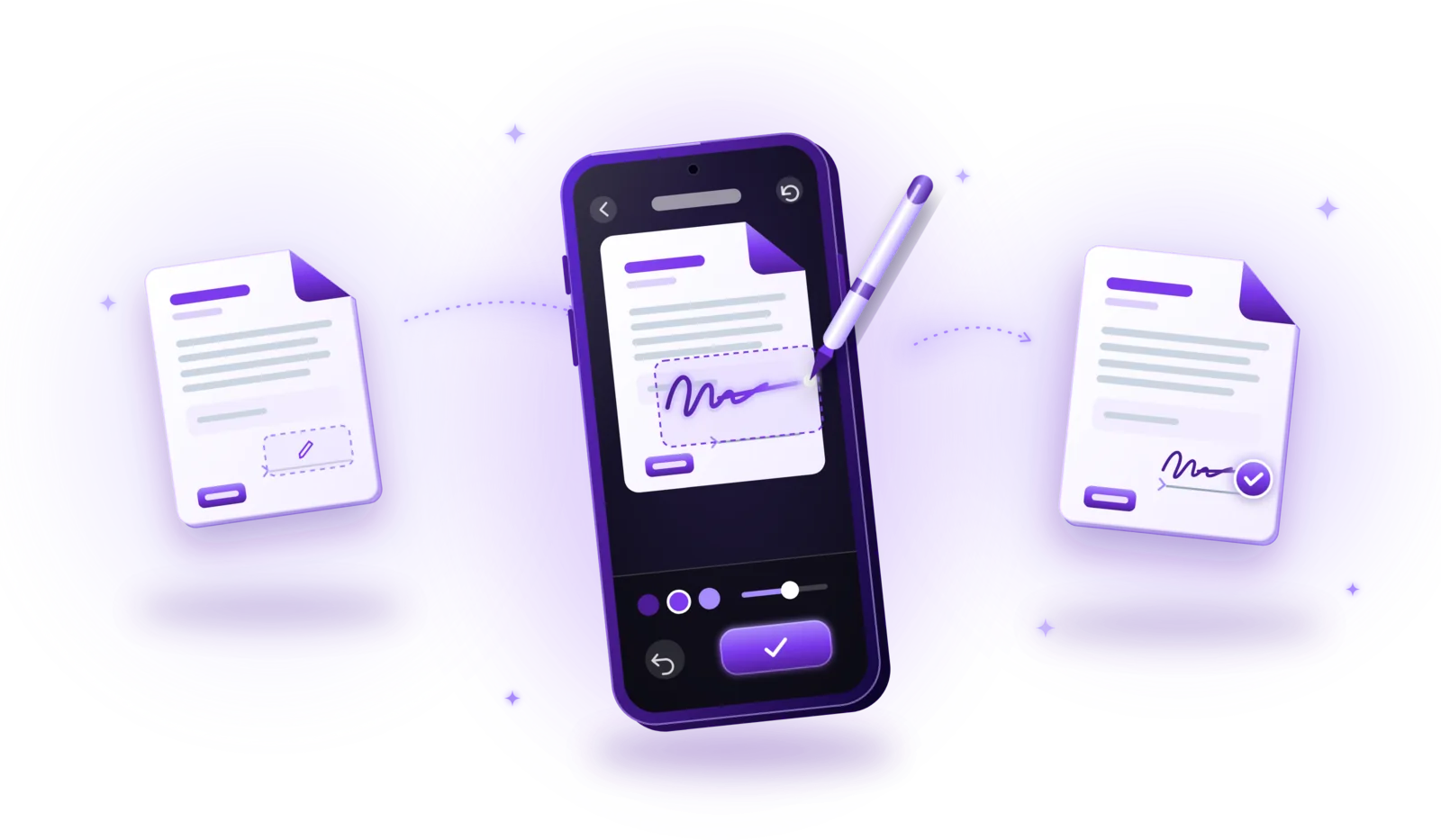
How to Sign PDF Documents Electronically
Sign PDFs without printing: add your signature in a few steps, understand electronic vs. digital signatures and know when a simple signature isn’t enough.
Read the guide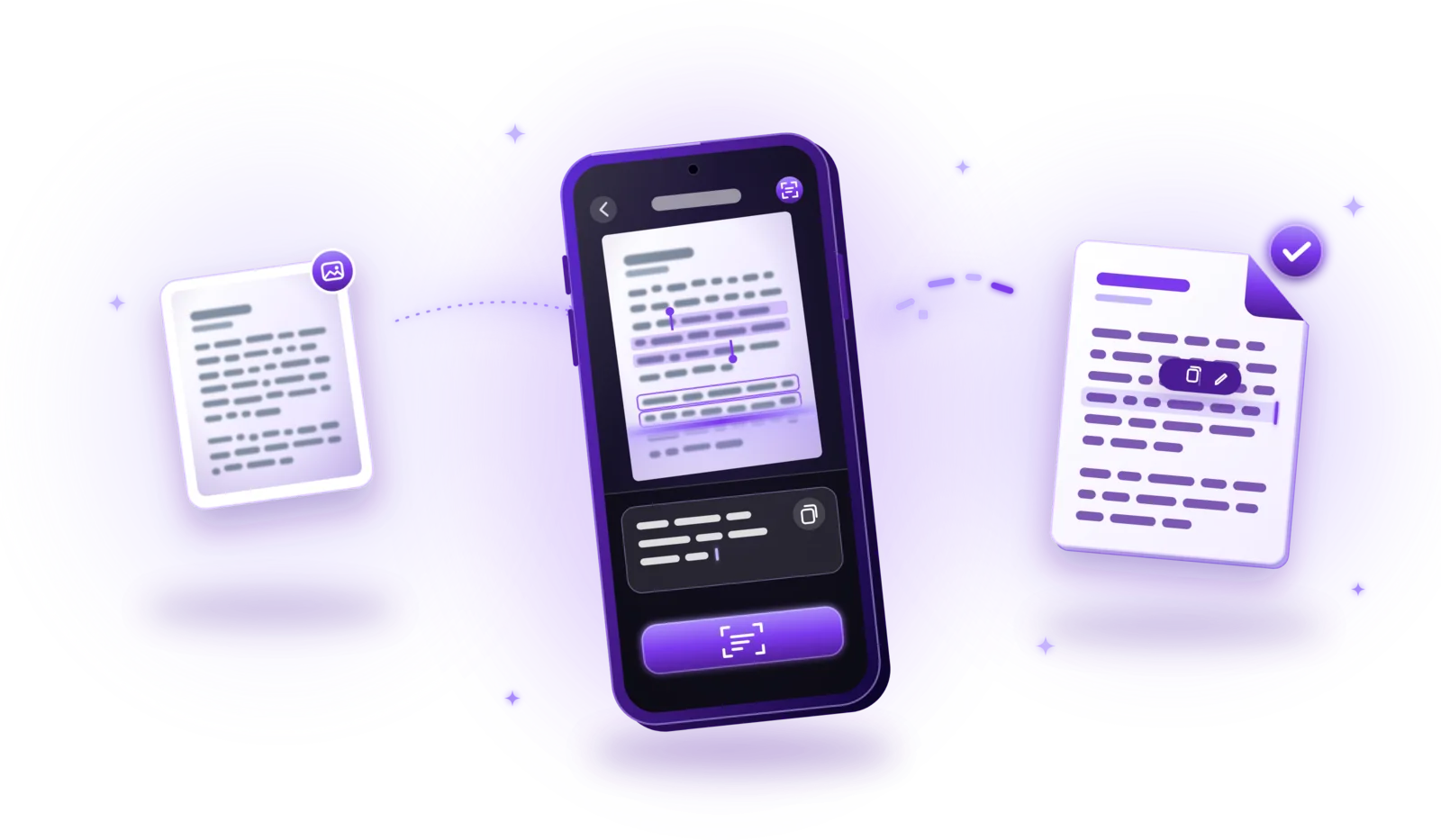
How to Extract Text from Scanned Documents Using OCR
Turn scans, photos and image PDFs into text you can copy and search: how OCR works, how to use it and how to get accurate results.
Read the guide
How to Password-Protect PDF Documents
Lock sensitive PDFs with a password: encrypt them step by step, choose a strong password and share protected files safely.
Read the guide