In this guide
Why compress PDF files?
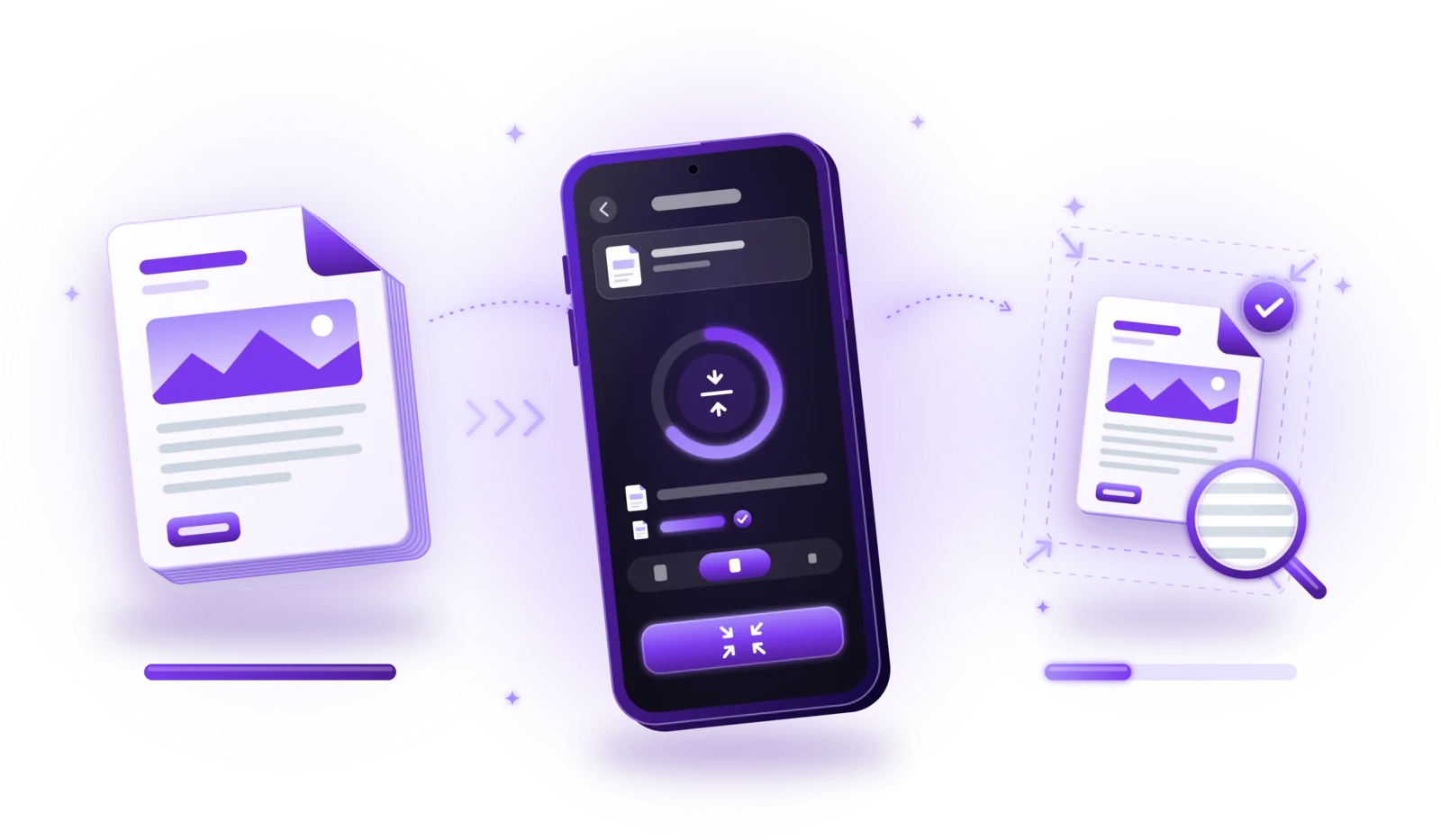
Compressing a PDF reduces its file size so it is easier to send, upload and store. You do it with a PDF compression tool: select the file, choose a compression level, check the result and save it. With moderate settings, most documents stay just as readable; how much space you save depends entirely on the content of the original PDF.
Email attachment limits
Many email providers reject attachments above a certain size, and large files fill up the recipient’s inbox.
Upload restrictions
Application portals, authorities and insurers often accept only a few megabytes per file.
Sharing documents
Smaller PDFs send faster over messengers and mobile data and open quicker on the other side.
Saving storage space
An archive of hundreds of scanned documents takes noticeably less space on your phone or in backups.
Large scanned documents
Multi-page scans in color are often the biggest PDFs you have, and the ones that benefit most from compression.
How to compress a PDF – step by step
The available settings vary from application to application: some offer a single “compress” button, others several levels or detailed options. The basic process is the same:
Open a PDF compression or PDF management app
Use a tool with a compress or “reduce file size” function. Many PDF apps and document scanners include one.
Select the PDF document
Choose the file you want to make smaller. Note its current size, so you can compare later.
Choose an appropriate compression level
If the tool offers levels, start with a medium setting. Use the strongest level only when a strict size limit forces you to.
Preview the result
Look at the compressed version before saving, if the tool shows a preview or the expected file size.
Check that text and images remain readable
Zoom into the smallest print, stamps, signatures and photos. If anything looks blurry or blocky, choose a lighter level.
Save the compressed PDF
Save it as a copy rather than overwriting the original, at least until you are sure the result is good enough.
Compare the file sizes
Check how much smaller the new file is. If the saving is tiny, the PDF was probably already compact, and stronger compression would only cost quality.
Large PDFs often come from scanning or merging: a scan of many pages or several files merged into one document quickly adds up. Compressing is a sensible last step before you send such a document.
How does PDF compression work?
There are two basic kinds of compression, and most PDF tools combine them:
| Aspect | Lossless | Lossy |
|---|---|---|
| What happens | Data is stored more efficiently | Detail that is hard to see is removed |
| Quality | Unchanged | Slightly to clearly reduced, depending on the level |
| Size reduction | Usually small | Often large, especially for images |
| Can be undone | Yes, nothing is lost | No, removed detail is gone |
To make a PDF smaller, a compression tool can:
- Compress embedded images: store photos and scanned pages with stronger image compression, which is usually the biggest saving.
- Reduce image resolution: scale down images that have more pixels than needed for screen viewing or printing.
- Optimize the internal structure: rewrite the PDF more compactly, without changing what you see.
- Remove unnecessary metadata: drop editing information, thumbnails or other data that isn’t needed to display the document, where that is appropriate.
- Eliminate redundant resources: keep only one copy of fonts or images that are embedded several times.
Not every compression tool supports all of these techniques. Some simply redraw every page as an image at a lower quality, which works for scans but turns the text of digital documents into pictures. The same happens to the text layer of a scan you made searchable with OCR.
How to reduce PDF size without losing readability
Reducing file size without any quality loss is not always possible: the big savings come from lossy image compression. The goal is to lose only what nobody will notice. These habits help:
Use moderate settings
A medium compression level usually saves most of the space while text and images still look the same at normal zoom.
Avoid unnecessarily high scanning resolutions
Scanning documents at photo-like resolution produces huge files without making text more readable.
Keep enough resolution for small text
Footnotes, small print and fine tables need more pixels than headlines. Check them first after compressing.
Check photos, diagrams and signatures
Fine lines, stamps and handwritten signatures show compression artifacts earlier than plain text.
Don’t recompress the same file repeatedly
Each round of lossy compression removes more detail. Compress once, from the best version you have.
Keep the original as a backup
Save the compressed version as a copy. If you need better quality later, you can start again from the original.
Why are some PDF files so large?
File size is mostly about images. The usual causes are:
- High-resolution scans: every scanned page is a photo; the more pixels, the bigger the file.
- Color scans: color images take far more space than grayscale or black and white, even when the paper is just white with black text.
- Embedded photographs: brochures, reports and catalogs with many photos are large by nature.
- Many pages: a 40-page scan is roughly 40 times the size of a single page.
- Unoptimized images: pictures inserted at full camera resolution, even if they are shown small on the page.
- Embedded fonts and other resources: complete font files, attachments or layers can add to the size of digitally created PDFs.
A text-based PDF, such as a letter exported from a word processor, is usually already small, often just a few hundred kilobytes, because text is stored as characters rather than pictures. There is little left to compress, and tools that turn such pages into images can even make the file larger and the text unsearchable.
How to compress PDF files privately
The PDFs that need compressing are often exactly the sensitive ones: signed contracts, invoices, bank and tax documents, medical and personal records for an upload portal. Where the compression happens is worth a thought.
| Aspect | Online service | Offline app |
|---|---|---|
| Where the file is processed | On the provider’s server | On your device |
| Upload required | Yes | No |
| Who has a copy | You and the provider, at least temporarily | Only you, until you share it |
| Internet connection | Required | Not needed for compressing |
Online PDF compression services
Compression websites are quick and need no installation, but your document is uploaded to and processed on someone else’s server. Retention periods, access and server locations depend on the provider. Check the privacy policy before uploading contracts, financial documents or personal records.
Offline PDF compression apps
Offline apps compress the file on your phone or computer, so the contents never leave your device for this step. That is a good reason to prefer them for sensitive documents. It doesn’t guarantee security on its own, though: your device still needs a screen lock, and you should check whether an app syncs files to a cloud.

Coming soon
Compress PDFs with PDFDocify
PDFDocify, the offline-first document scanner and PDF app from SlickLab that is currently getting ready for launch, includes a compression tool in its document library. You pick a document and the app calculates three levels (High quality, Balanced and Small file) and shows the actual resulting size of each before you decide. You then save a smaller copy or replace the original. Scans are rebuilt from their original page images, so quality loss doesn’t add up, and replacing a scan keeps its pages. Imported PDFs are redrawn as images during compression, so their text can no longer be selected afterwards; the app tells you before you save. Compression is part of PDFDocify Premium; choosing the PDF quality for new scans is free.
Included for free
- Unlimited scanning
- Automatic edge detection and perspective correction
- Filters: Auto, Black & White, Grayscale, Color, Original
- Multi-page PDFs: reorder, rotate and delete pages
- Import photos from your gallery
- Document library with folders, search and sorting
- Share and export PDFs to any app
PDFDocify Premium
- Offline OCR: copy and search text
- Searchable PDFs
- Merge PDFs
- Compress PDFs
- Handwritten signatures
- Password protection
- Batch processing
Compression runs on your device, without uploads. Password-protected PDFs need their password removed first. An internet connection is only needed for in-app purchases.
Frequently asked questions
How can I make a PDF file smaller?
Open the PDF in a compression tool, choose a moderate compression level, check the result and save it as a copy. For scans, you can also save space at the source: scan in black and white or grayscale where color isn’t needed and use a lower quality setting.
Can I compress a PDF without losing quality?
Only to a limited extent. Lossless techniques, such as optimizing the file structure, keep everything exactly as it is but usually save little. Larger savings come from lossy image compression, which removes some detail. With moderate settings, that loss is rarely visible at normal zoom.
Why is my scanned PDF so large?
Because every scanned page is a photo. High resolution, color and many pages all multiply the size. Choose a black and white or grayscale filter for text documents, avoid unnecessarily high quality settings and compress the finished PDF if it is still too big.
Can I compress a PDF without uploading it?
Yes, with an app that compresses on your device instead of an online service. The document then stays on your phone or computer. PDFDocify compresses PDFs completely offline.
Does PDF compression affect text readability?
It can, if the compression is too strong or the tool turns pages into low-resolution images. With moderate settings, normal body text stays sharp. Check small print, footnotes and signatures after compressing, and choose a lighter level if they look blurry.
How much can a PDF file be compressed?
That varies enormously. A color scan or a photo-heavy PDF can often shrink to a fraction of its size, while a text-based PDF may barely change. The only reliable way to know is to try: good tools show the resulting size before you save.
Conclusion
To compress a PDF without noticeable quality loss, use a moderate compression level, check small text and images before saving and keep the original as a backup. Large files are almost always caused by images, so scans benefit most, while text documents are usually small already. For sensitive documents, compress on your own device. If you want an app that scans, organizes and compresses PDFs offline, take a look at PDFDocify and join the waitlist for its launch.
Related guides
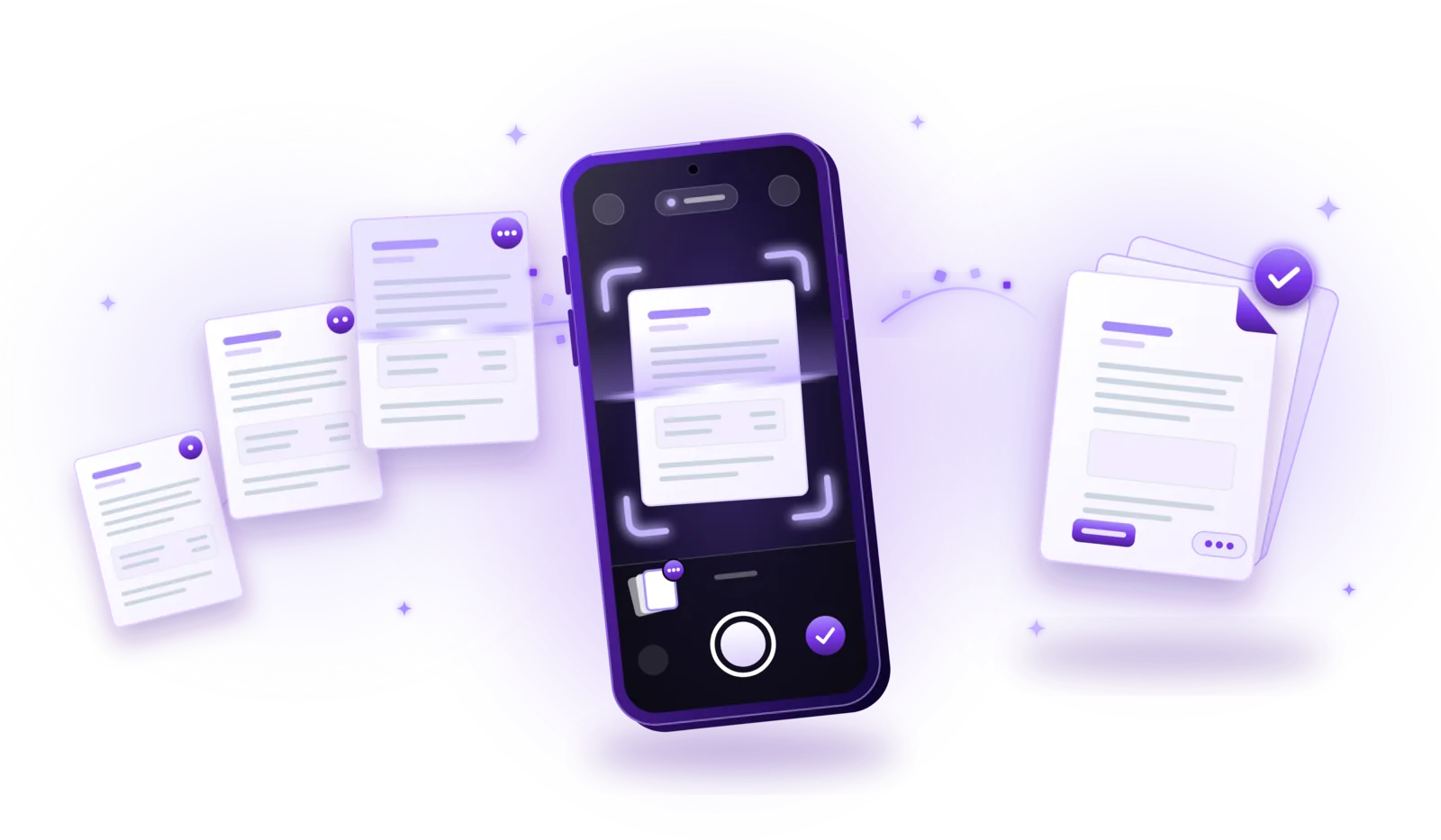
How to Scan Multiple Pages into One PDF
Combine contracts, applications and statements into a single PDF: capture every page, put them in order and save one file.
Read the guide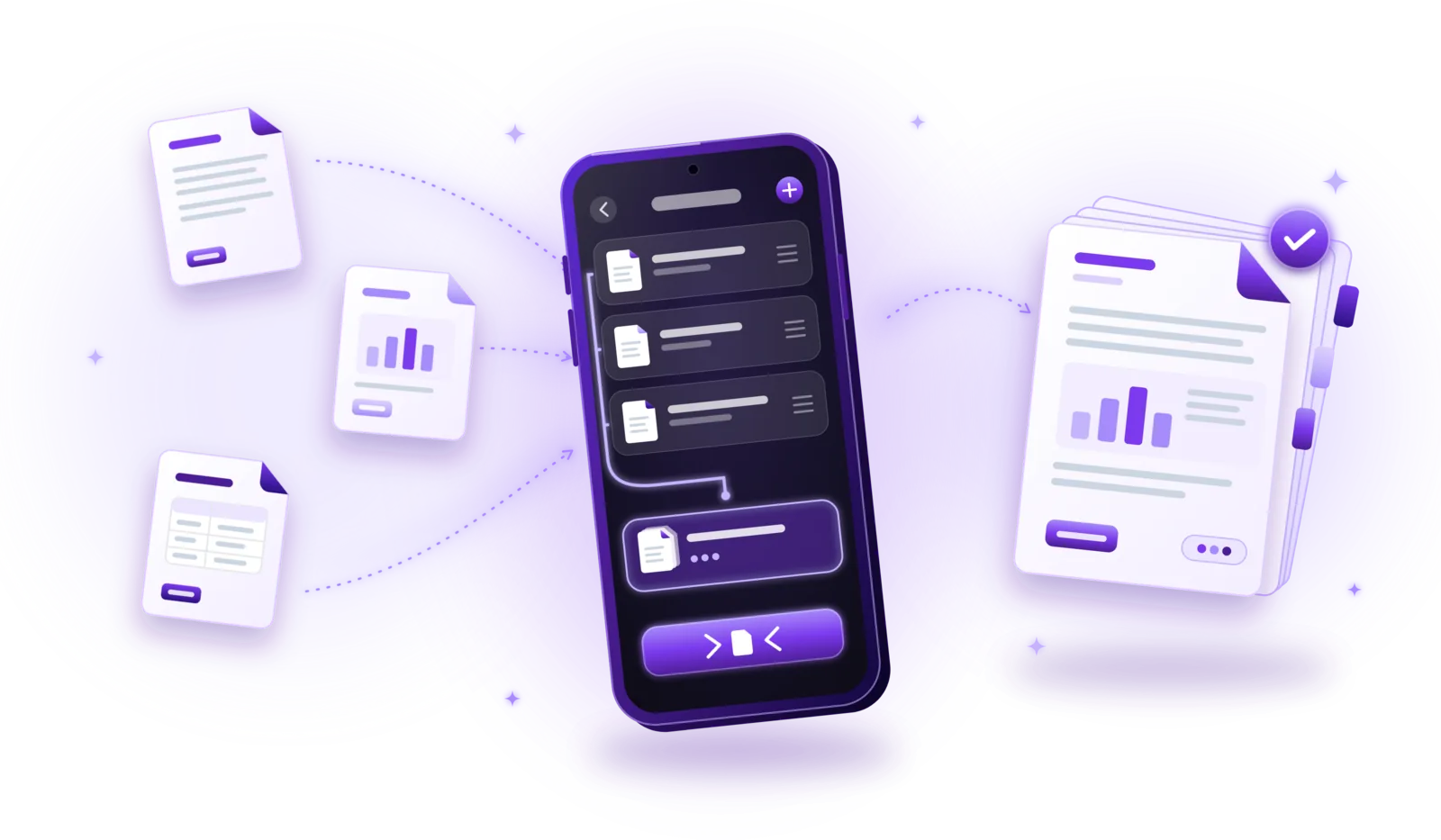
How to Merge PDF Files into One Document
Combine several PDFs into one document: select the files, put them in order and save a single PDF, without losing quality or privacy.
Read the guide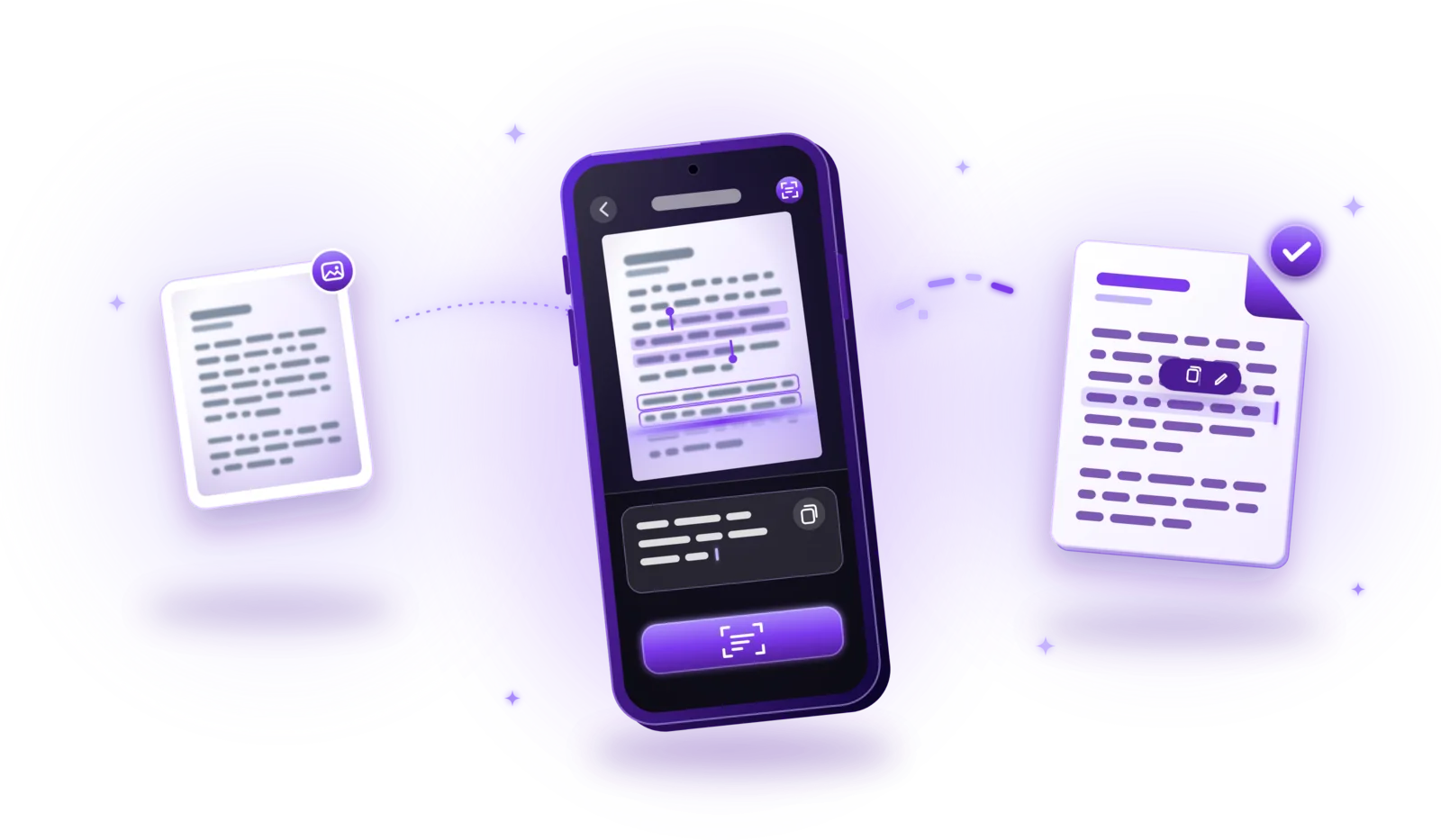
How to Extract Text from Scanned Documents Using OCR
Turn scans, photos and image PDFs into text you can copy and search: how OCR works, how to use it and how to get accurate results.
Read the guide