In this guide
Why password-protect a PDF?
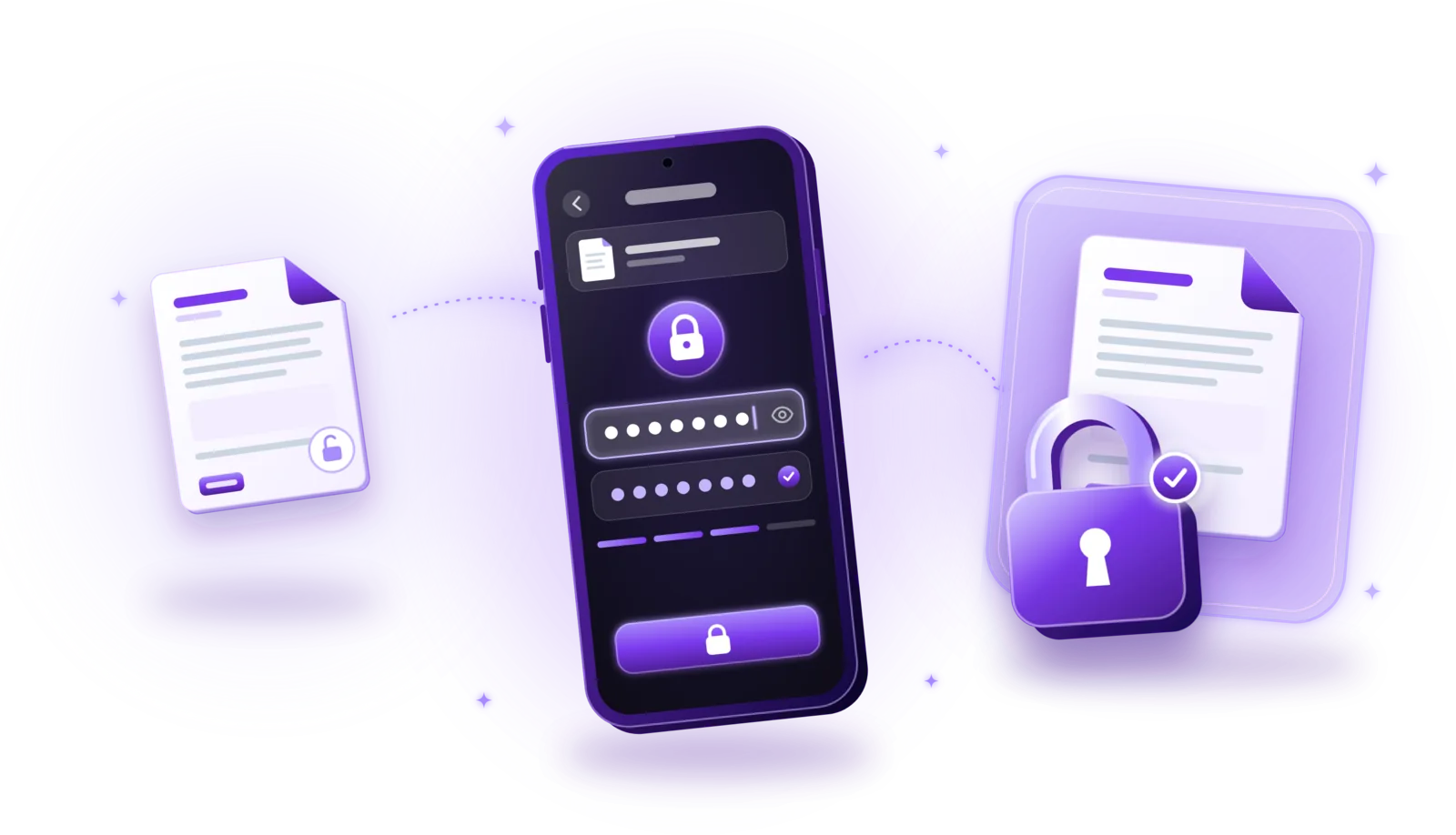
Password-protecting a PDF means encrypting it so that it can only be opened with the right password. You do it in a PDF editor or security app: set a password to open the document, save the file, and anyone without the password sees only a password prompt instead of the content. That helps restrict access to sensitive information, for example when a file is sent by email, stored on a shared computer or lands in the wrong inbox.
Financial statements
Statements and tax papers are exactly what fraudsters look for in a hacked inbox or a lost attachment.
Insurance contracts
Policies and claims contain addresses, policy numbers and often health information.
Employment agreements
Contracts and references include salaries, personal details and signatures.
Identification documents
Copies of IDs and passports are valuable to anyone attempting identity fraud.
Medical records
Diagnoses, reports and prescriptions are among the most sensitive personal data.
Confidential business documents
Offers, contracts, plans and figures that shouldn’t reach competitors or the public.
How to password-protect a PDF – step by step
The available options depend on the application, but adding a password usually works like this:
Open a PDF editor or PDF security app
Use an application that can encrypt PDFs. Many PDF editors and document apps include this function.
Select the PDF document
Open the file you want to protect. If it has several parts, merge them into one PDF first, so you only need one password.
Find the password or security settings
Look for options such as “Protect”, “Encrypt”, “Security” or a lock icon.
Choose a password to open the document
Select the option that requires a password to open the PDF, sometimes called a document open password or user password.
Enter a strong password
Use a long, unique password or passphrase; tips follow below.
Confirm the password
Type it a second time so that a typo doesn’t lock you out of your own document.
Save the protected PDF
Save the encrypted file. Keep in mind that some apps replace the original, others create a protected copy.
Close and reopen the document
Open the saved file again and check that the password prompt appears and that your password works.
If the document also needs a signature, sign it before you add the password: most tools can’t edit a protected PDF.
PDF password protection vs. PDF encryption
“Password-protected” can mean different things in a PDF:
| Aspect | Password to open | Permission password |
|---|---|---|
| What it does | The PDF can’t be opened without it | The PDF opens freely, but editing, copying or printing is restricted |
| Content encrypted | Yes, the content is unreadable without the password | Encrypted, but readable by anyone who opens it |
| Enforcement | Built into the file’s encryption | Depends on the PDF reader respecting the restrictions |
| Suitable for | Keeping content confidential | Signalling how a document may be used |
Permission restrictions are not enforced consistently by every PDF reader, and they shouldn’t be treated as equivalent to access encryption. If the goal is to keep content confidential, you need a password that is required to open the document.
Secure protection relies on encryption, not on a password prompt alone: the content of the file is scrambled with a key derived from the password and can only be read once the password is entered. Current PDF tools commonly use AES encryption; older methods are considerably weaker, so prefer a tool that uses a current standard.
How to create a strong PDF password
Encryption is only as strong as the password behind it. These rules help:
Long and unique
Length matters most. Use a password you don’t use anywhere else.
Random or a long passphrase
A randomly generated password, or a passphrase of several unrelated words, is far harder to guess than a clever-looking short one.
Nothing predictable
Avoid names, birthdays, addresses, keyboard patterns and simple variations such as “Contract2026!”.
Use a password manager
A password manager can generate strong passwords and remember them for you, where that is appropriate.
Don’t reuse account passwords
Never use the password of your email, bank or other important accounts for a PDF you send to others.
Store the password securely
Keep it in a password manager or another safe place, not in a note next to the file.
Don’t forget the password: if a PDF is properly encrypted, there is usually no way to open it without it, and keep an unprotected original in a safe place if you may need the document later.
How to password-protect PDFs without uploading them
The documents worth protecting are, by definition, the sensitive ones. It would be odd to upload them unencrypted to a website just to add a password.
| Aspect | Online protection service | Offline protection app |
|---|---|---|
| Where the PDF is encrypted | On the provider’s server | On your device |
| Upload required | Yes, the unprotected file | No |
| Data handling | Depends on the provider’s retention practices | Stays on your device until you share it |
| Internet connection | Required | Not needed for encryption |
Online PDF protection services
Websites that add passwords to PDFs require uploading the document, still unprotected, to a remote server. What happens to it there depends on the provider’s data handling and retention practices.
Offline PDF protection apps
Offline apps encrypt the document locally, so the PDF doesn’t have to be uploaded for encryption. That can be preferable for sensitive information. Local processing reduces unnecessary exposure, but doesn’t guarantee complete security on its own; more on that in how to scan documents offline and privately.
Can password-protected PDFs still be shared?
Yes. An encrypted PDF can be sent like any other file; the recipient just needs the password to open it. A few rules make sharing safer:
- Use an appropriate channel: send the PDF by email, through an upload portal or a messenger you trust for this kind of document.
- Communicate the password separately: for example by phone, text message or in person.
- Verify the recipient: double-check the email address or contact before sending.
- Don’t put the password in the same message: where practical, because anyone who gets the message would have both.
- Confirm it opens: ask the recipient to check that the file opens, especially with older PDF readers.
Password protection doesn’t prevent an authorized recipient from sharing the information once they have opened the document. It protects the file on its way and at rest, not what people do with the content afterwards.
Common problems with password-protected PDFs
Most problems with protected PDFs have a simple cause:
Forgotten password
There is usually no way to recover the password of a properly encrypted PDF. Look for it in your password manager, ask the sender, or use an unprotected original if you kept one.
Incorrect password
Check capital letters, keyboard layout and spaces at the beginning or end. Copying the password from a message sometimes adds invisible characters.
Reader doesn’t support the encryption
Very old PDF readers may not support current encryption methods. Update the reader or try another current PDF app.
Editing restrictions
If the document opens but can’t be edited, it has permission restrictions. Ask the owner for an editable version or the permissions password.
Printing restrictions
Printing may be blocked or limited to low quality by the document’s permissions. Ask the sender for a version that may be printed.
Problems merging encrypted PDFs
Most tools can’t combine encrypted files. Open them with the password, remove the protection if you are allowed to, merge them and protect the result again.
Only remove or work around the protection of documents you own or are authorized to edit.

Coming soon
Password-protect PDFs with PDFDocify
PDFDocify, the offline-first document scanner and PDF app from SlickLab that is currently getting ready for launch, can lock documents with a password. It encrypts the PDF with AES-256 and sets a password that is required to open it; there are no extra editing or printing restrictions. Everything happens on your device, without uploads. Protected documents open in the app’s viewer after you enter the password, and several documents can be protected at once with the same password. With the current password, you can remove the protection again, for example before merging, compressing or signing, which don’t work on protected files. PDFDocify doesn’t store your password and can’t recover it, so keep it safe. Password protection is part of PDFDocify Premium.
Included for free
- Unlimited scanning
- Automatic edge detection and perspective correction
- Filters: Auto, Black & White, Grayscale, Color, Original
- Multi-page PDFs: reorder, rotate and delete pages
- Import photos from your gallery
- Document library with folders, search and sorting
- Share and export PDFs to any app
PDFDocify Premium
- Offline OCR: copy and search text
- Searchable PDFs
- Merge PDFs
- Compress PDFs
- Handwritten signatures
- Password protection
- Batch processing
Encryption happens on your device. An internet connection is only needed for in-app purchases.
Frequently asked questions
How can I add a password to a PDF?
Open the PDF in an app with a protect or encrypt function, choose a password that is required to open the document, confirm it and save the file. Then reopen it to check that the password prompt appears.
Can I password-protect a PDF for free?
Yes, many PDF tools and some operating systems can add a password at no cost; online services often do too, but require an upload. In PDFDocify, password protection is part of Premium.
Is a password-protected PDF encrypted?
If it requires a password to open, its content is encrypted, and the strength depends on the encryption method and the password. A PDF with only permission restrictions can be opened by anyone and offers little real protection.
Can I password-protect a PDF without uploading it?
Yes, with an app that encrypts the file on your device. The PDF then doesn’t leave your phone or computer for encryption. PDFDocify encrypts PDFs offline.
Can someone open an encrypted PDF without the password?
A PDF encrypted with a current method and a strong password can’t realistically be opened without the password. Weak, short or reused passwords and outdated encryption methods are much easier to break, which is why the password matters.
What happens if I forget my PDF password?
Usually you can no longer open the file. Properly encrypted PDFs have no backdoor, and app makers can’t recover the password either. Keep passwords in a password manager and an unprotected original in a safe place.
Can I merge password-protected PDFs?
Most tools need the protection removed first. Open the files with their passwords, remove the protection if you are allowed to, merge them and protect the merged PDF again. See how to merge PDF files.
Conclusion
A password-protected PDF keeps sensitive content unreadable for anyone without the password, as long as you use real encryption with a password required to open the file, and a strong, unique password. Encrypt on your own device, send the password separately and keep it somewhere safe. If you want an app that scans, organizes and protects your documents offline, take a look at PDFDocify and join the waitlist for its launch.
Related guides
How to Merge PDF Files into One Document
Combine several PDFs into one document: select the files, put them in order and save a single PDF, without losing quality or privacy.
Read the guide
How to Sign PDF Documents Electronically
Sign PDFs without printing: add your signature in a few steps, understand electronic vs. digital signatures and know when a simple signature isn’t enough.
Read the guide
How to Scan Documents Offline and Privately
Scan without an internet connection and keep sensitive documents on your device: how offline scanning works and how to protect your scans.
Read the guide