In this guide
Why split a PDF or extract pages?
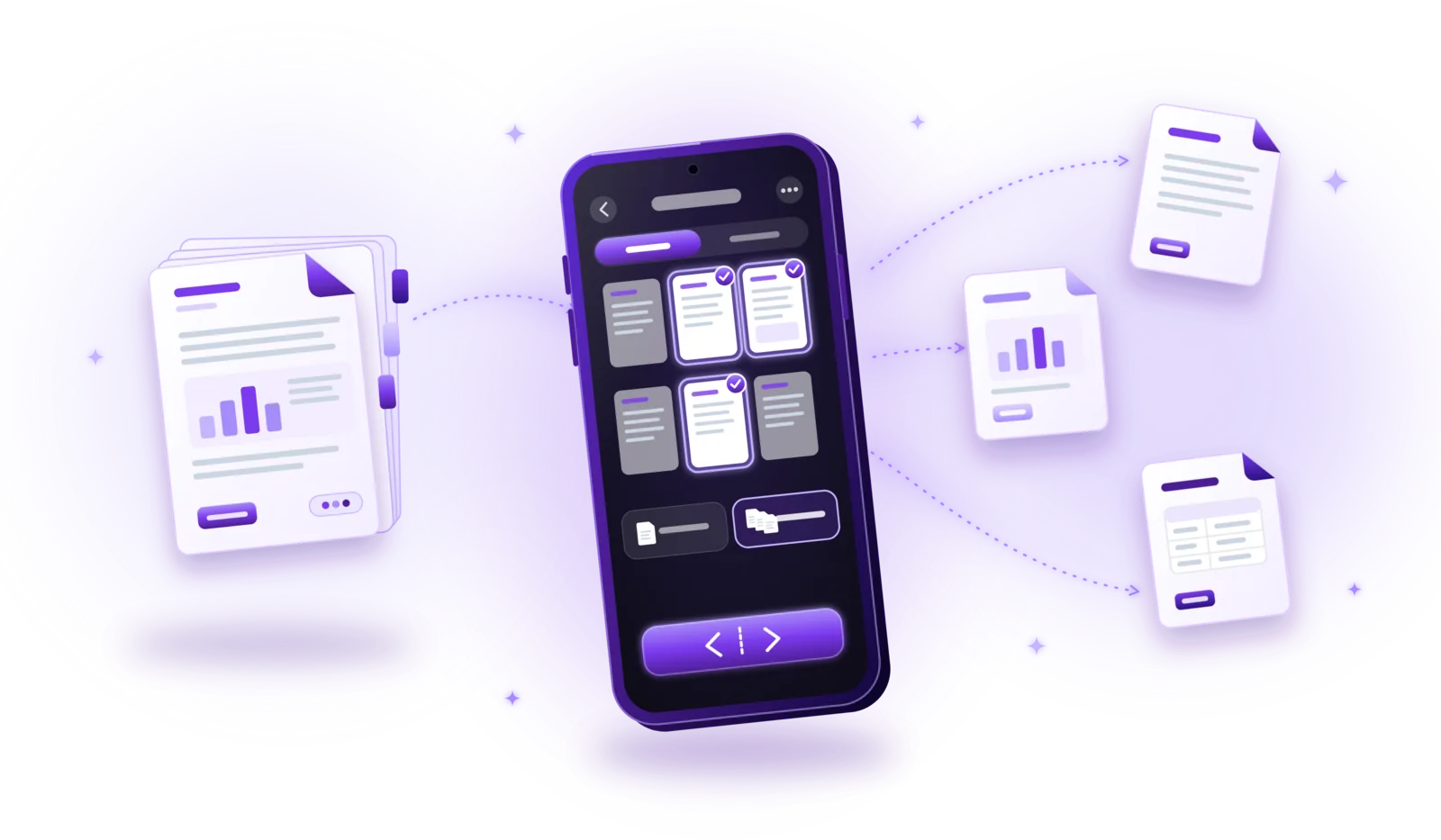
Splitting a PDF means dividing one document into smaller ones: either you take some pages out as a new PDF (extracting) or you turn every page into its own file. In both cases, a good tool copies the pages into new files and leaves the original document as it is.
It is the opposite of merging, and just as useful. Long documents often contain more than the recipient needs or should see, and upload forms frequently limit the file size or expect one document per field.
Upload forms
A portal asks only for your degree certificate, but it sits on page 4 of a scanned application folder. Extract that page and upload it on its own.
Excerpts from contracts
Send only the signed page or the clause in question instead of the full 30-page contract.
Receipts scanned together
You scanned a stack of invoices in one go. Split them into single pages so each invoice can be filed and found separately.
Tax and official documents
Hand in only the pages an office asks for, such as one annual statement out of a long bank report.
Keeping private pages private
Leave out pages with information the recipient doesn’t need, such as health details or other people’s data.
Study material
Take a single chapter out of a long textbook PDF or lecture script to read or print it separately.
Splitting vs. extracting pages: what is the difference?
Both terms are used for the same kind of tool, but they describe two different results. Choose based on what you want to do with the pages:
| Aspect | Extract pages | Split into single pages |
|---|---|---|
| Result | One new PDF with the selected pages | One PDF per selected page |
| Typical use | Sending or uploading part of a document | Separating documents that were scanned together |
| Number of new files | Always one | As many as pages selected |
| Original document | Unchanged | Unchanged |
Some tools can also cut a document every few pages or at fixed page numbers, for example into chapters. If yours can’t, extract each part as its own page range, one after the other.
How to split a PDF – step by step
Buttons and menus differ between applications, but splitting a PDF almost always follows these steps:
Open the PDF in an app with a split function
Look for an option such as “Split”, “Extract pages” or “Split PDF”, often in a tools menu or in the menu of the document itself.
Look through the page thumbnails
Most split tools show every page as a small preview. Use it to find the pages you need without opening the document separately.
Select the pages
Tap or click individual pages, or set a page range such as 5 to 20 if the pages follow each other.
Choose the output
Decide whether the selected pages become one new PDF or whether each page is saved as its own file.
Name the new file
Give the result a name that says what it contains, such as “Lease_signed_page.pdf”, so you can tell it apart from the original.
Save and check the result
Open the new PDF once: are the right pages there, in the right order and readable? Then share it or file it away.
Need the opposite? To combine several documents into one, see how to merge PDF files. The two work well together: extract the pages you need from several PDFs, then merge the excerpts into one file.
How to choose the right pages
Selecting the pages is where most mistakes happen. These tips help:
- Use a range for consecutive pages: selecting pages 5 to 20 as a range is faster and safer than tapping sixteen pages one by one.
- Tap single pages when they are scattered: pick pages 2, 7 and 14 individually when they don’t follow each other.
- Check the thumbnails, not only the numbers: the page number in the PDF can differ from the number printed on the page, for example when a cover sheet or table of contents comes first.
- Watch the counter: a display such as “3 of 24 selected” shows at a glance whether you have the number of pages you expect.
- Keep the order in mind: extracted pages usually keep their original order. For a different order, extract the parts separately and merge them in the sequence you need.
Does splitting a PDF keep its quality and searchable text?
It should. Splitting only has to copy existing pages into new files, so text stays text and images keep their resolution. A well-made split tool produces pages that look exactly like the original ones.
A few things are still worth knowing:
- Searchable text – if the original contains selectable text or a searchable text layer from text recognition, the copied pages keep it. Search for a word in the new file to check.
- File size – a few pages are usually much smaller than the whole document, but not always in proportion, because fonts and images shared by many pages travel with every part. If an extract is still too large, compress it.
- Bookmarks and links – bookmarks, a clickable table of contents and links between pages often get lost, because the pages they point to may no longer be in the file.
- Digital signatures – a certified digital signature covers the complete original file, so an extract no longer carries a valid signature. Send the full signed document when the signature matters.
How to split a PDF without uploading it
People often split a PDF to share less of it, so it makes little sense to hand the full document to someone else first. Yet online split tools need exactly that: you upload the complete PDF, and the provider’s server cuts it apart.
- Online split tools – convenient in the browser, but every page is uploaded, including the ones you wanted to keep private. How long the file is stored is up to the provider.
- Local apps – split the document on your own device. Nothing is sent anywhere, and splitting works without an internet connection.
- Sharing the result – only the extracted pages leave your device, and only when you send them. For sensitive excerpts, add a password before sharing.
Common problems when splitting PDFs
Most splits work on the first try. When they don’t, it is usually one of these issues:
Password-protected PDFs
Encrypted PDFs can’t be split without the password. Open the document with it, remove the protection, split it and protect the parts again if needed.
The wrong pages ended up in the file
The numbers printed on the pages and the PDF’s own page numbers don’t always match. Select by thumbnail rather than by number, and check the result.
The extract is still too large
High-resolution scans or embedded fonts keep even a few pages big. Compress the extract before you send it.
Too many single files
Splitting every page of a long scan creates a lot of files. Keep them together in one folder with clear names; see how to organize digital documents.
Damaged or unsupported files
If a PDF won’t split, check that it opens in a PDF viewer. Download it again, or export it as a new PDF from the program that created it.
Coming soon
Split a PDF with PDFDocify
PDFDocify, the offline-first document scanner and PDF app from SlickLab, can split both scans made with the app and imported PDFs. Open “Split PDF” under Tools, or choose “Split / extract pages” in a document’s menu. All pages appear as thumbnails: tap the ones you need, or switch to “Page range” and set the first and last page. Then choose “One PDF” to extract the selection into a new document, named for example “Contract (p. 5–20)”, or “Each page” to save every selected page as its own PDF in a new folder. The original stays unchanged, the pages are copied without recompression, and recognized text and the searchable text layer come along. Splitting is part of PDFDocify Premium; your first saved split is free, so you can try it on a real document.
Included for free
- Unlimited scanning
- Automatic edge detection and perspective correction
- Filters: Auto, Black & White, Grayscale, Color, Original
- Multi-page PDFs: reorder, rotate and delete pages
- Import photos from your gallery
- Document library with folders, search and sorting
- Share and export PDFs to any app
PDFDocify Premium
- Offline OCR: copy and search text
- Searchable PDFs
- Merge PDFs
- Compress PDFs
- Handwritten signatures
- Fill in forms with saved details
- Split PDFs and extract pages
- Password protection
- Batch processing
Splitting happens on your device, without uploads. Password-protected PDFs need their password removed first. An internet connection is only needed for in-app purchases.
Frequently asked questions
How do I split a PDF into multiple files?
Open the PDF in an app with a split function, select the pages and choose to save each page as its own file. For larger parts, extract one page range at a time, for example pages 1–10 and then 11–20, each as a new PDF.
How can I extract pages from a PDF?
Select the pages you need, individually or as a range, and save them as one new PDF. The original document stays complete; the new file contains only the selected pages.
Can I split a PDF for free?
Yes, many tools split PDFs for free, sometimes with limits or with uploads to a server. In PDFDocify, splitting is a Premium feature, but your first saved split is free; scanning, importing and organizing PDFs are always free.
Does splitting change the original PDF?
Not with a proper split tool: it only reads the original and creates new files. In PDFDocify the original stays exactly as it was; you can delete it yourself if you no longer need it.
Is the text still searchable after splitting?
Yes, if it was searchable before. Copied pages keep their text and their invisible text layer. PDFDocify also carries over the recognized text of the selected pages, so you can find the new documents by their content.
Can I split a password-protected PDF?
Only after unlocking it. Remove the protection first (you need the password for that), split the document and protect the parts again if necessary. PDFDocify asks you to remove the password before splitting.
Can I split a scanned document?
Yes. A scanned PDF consists of pages like any other PDF, so you can extract or split them the same way. This is handy when you scanned several documents in one go and want to separate them afterwards.
Conclusion
Splitting a PDF takes only a few steps: select the pages or a range, decide between one new PDF or one file per page, and check the result. A good split tool copies pages without touching their quality or text, and splitting on your own device means the full document never has to be uploaded. If you want an app that scans, splits and organizes PDFs offline, take a look at PDFDocify.
Related guides
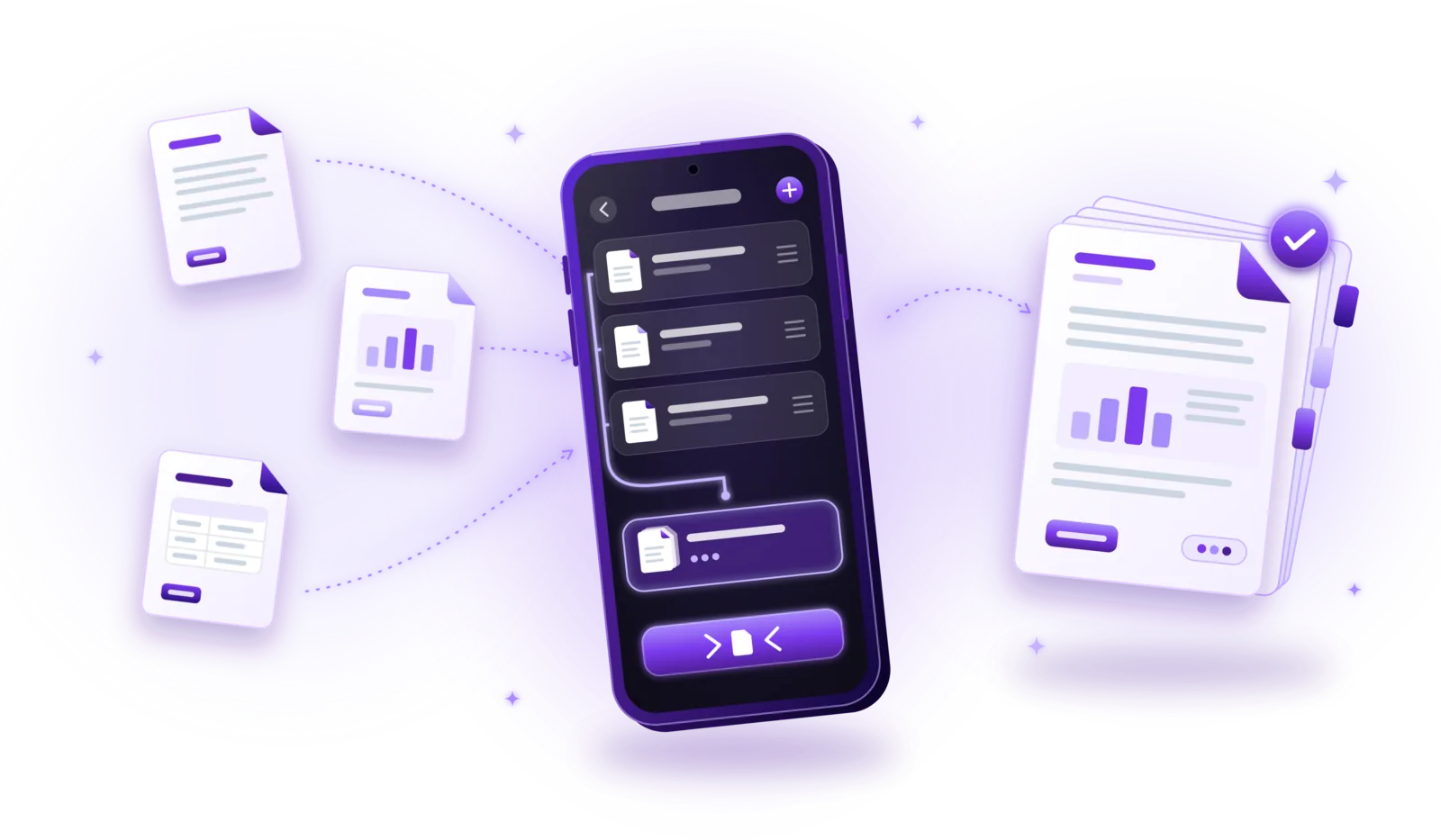
How to Merge PDF Files into One Document
Combine several PDFs into one document: select the files, put them in order and save a single PDF, without losing quality or privacy.
Read the guide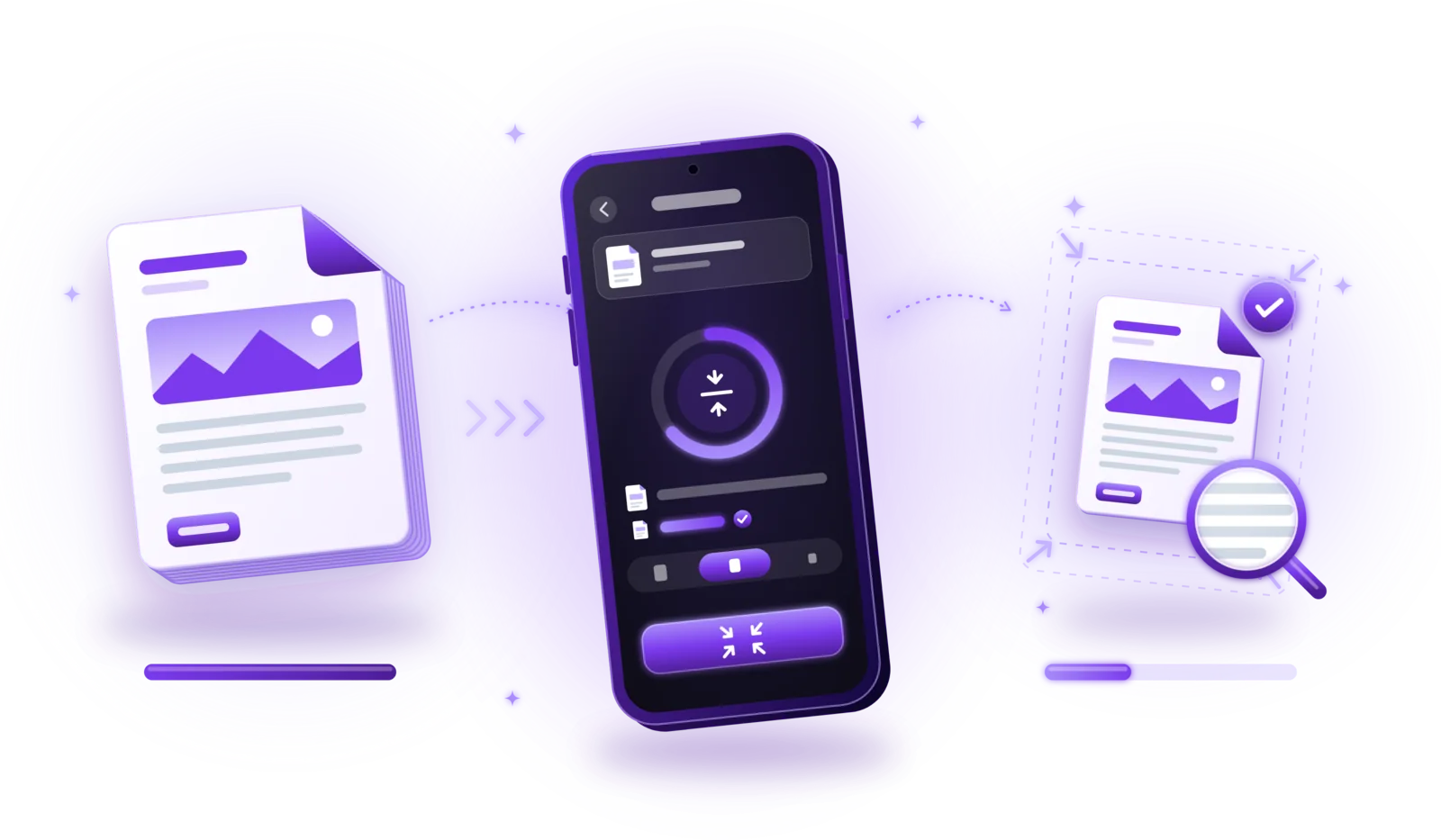
How to Compress PDF Files Without Losing Quality
Make PDFs smaller for email and uploads: choose the right compression level, keep text readable and compress without uploading your files.
Read the guide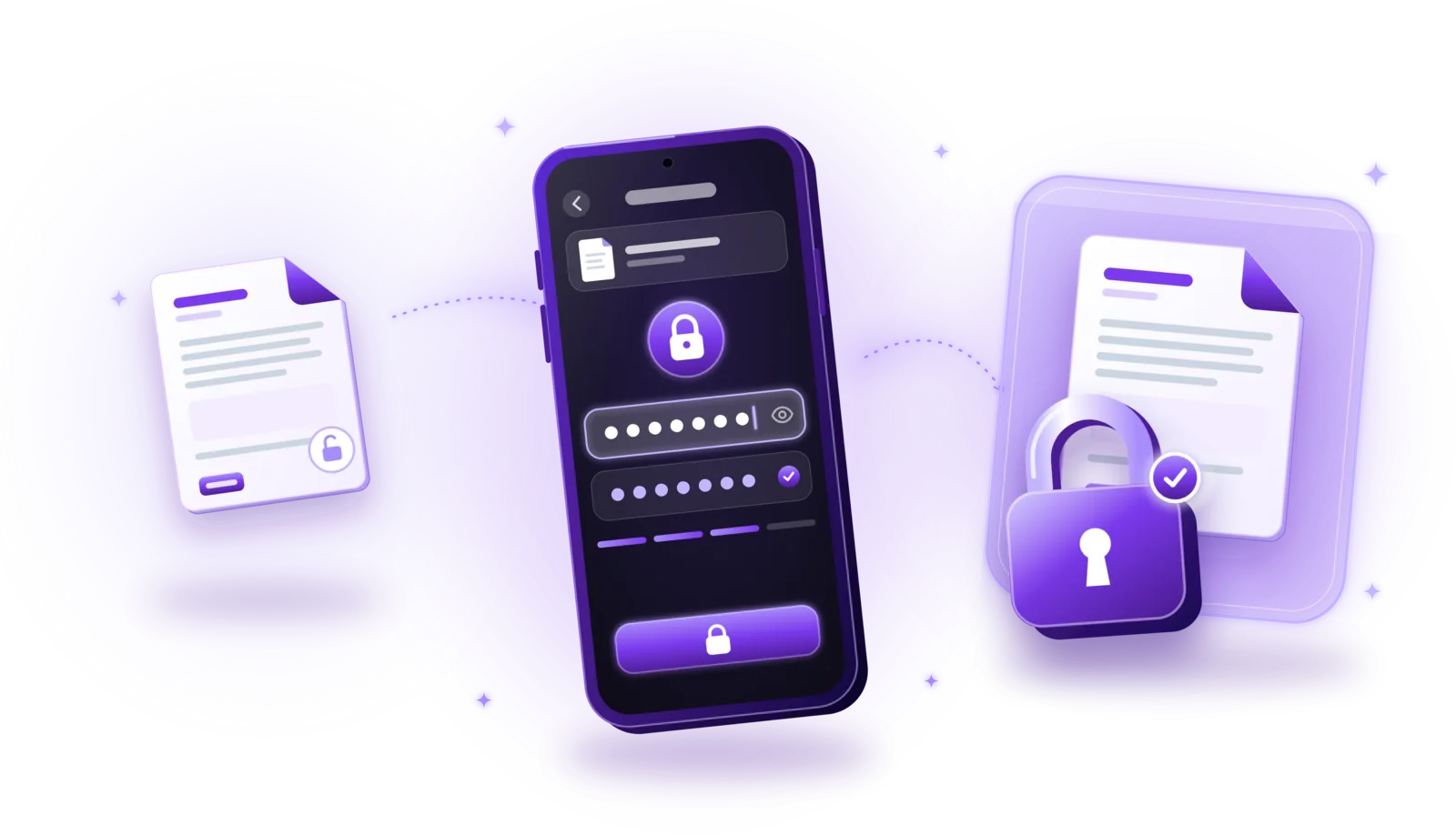
How to Password-Protect PDF Documents
Lock sensitive PDFs with a password: encrypt them step by step, choose a strong password and share protected files safely.
Read the guide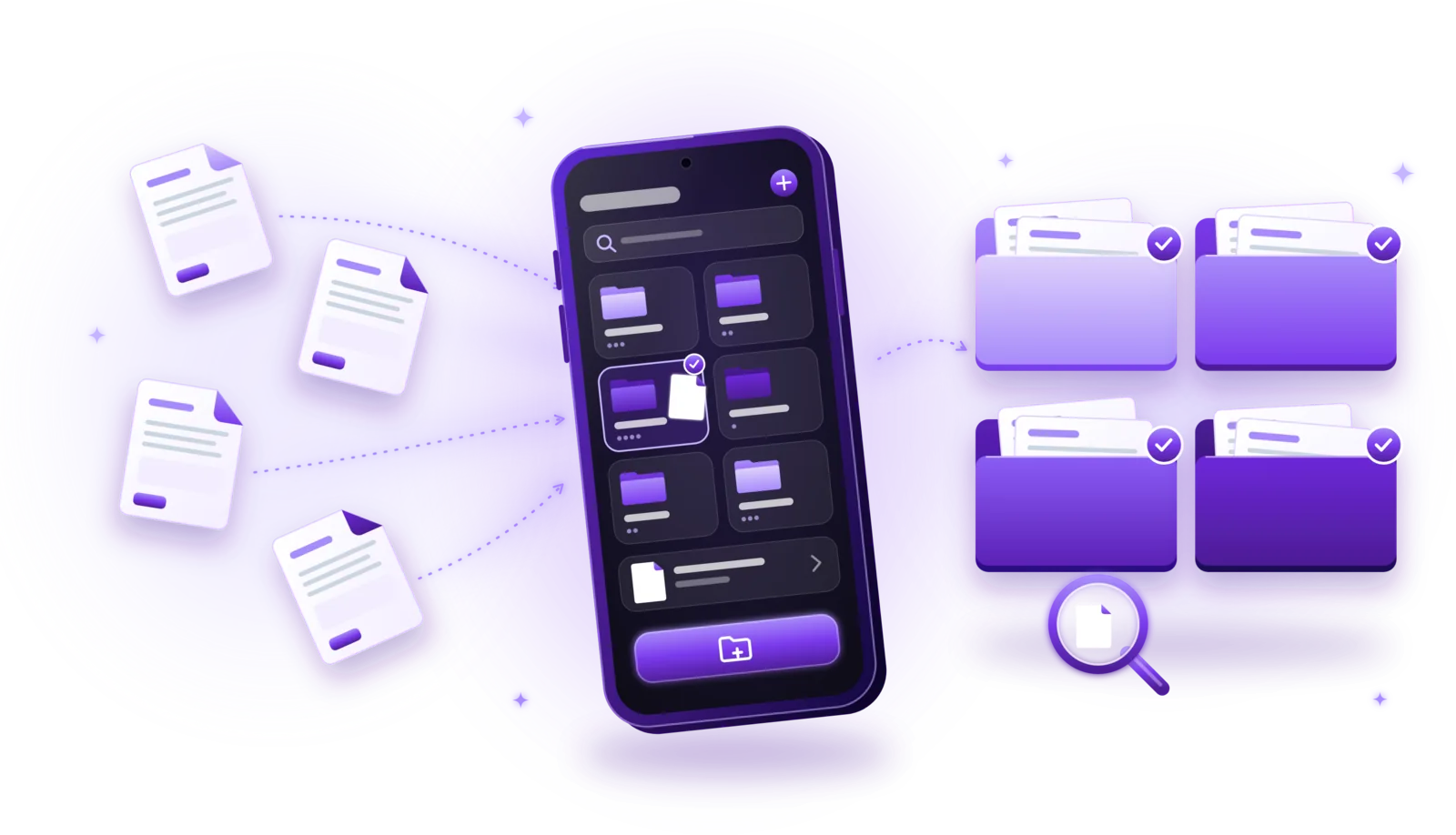
How to Organize Digital Documents Efficiently
A simple system for scans and PDFs: clear folders, consistent file names, quick searching and a routine that keeps your archive tidy.
Read the guide